
Schema.org in WordPress: A Practical Guide to Structured Data

Hi! A page can have a well-written article, a clear heading structure, internal links, and optimized metadata, yet search engines still have to work out who wrote it, what it is about, what the site represents, and how its pages relate to one another.
That is where Schema.org comes in. Structured data lets you describe a page, its author, an organization, a product, a how-to guide, or another entity more precisely. In WordPress, you can add this markup with an SEO plugin, a dedicated tool, or custom code.
There is a caveat: Schema.org alone will not push a site to the top of Google or guarantee a rich result. Markup must accurately reflect the page and follow the search engine’s guidelines.
- What Is Schema.org, and Why Does a WordPress Site Need It?
- Schema.org, Schema Markup, and Structured Data: What’s the Difference?
- How Structured Data Affects SEO
- Which Schema.org Types to Use in WordPress
- Which Markup to Choose for an Informational Blog
- Which Schema Types to Add to Different Pages
- JSON-LD in WordPress: How It Works
- What the Main JSON-LD Properties Mean
-
Why Use
@graph? - How to Add Schema.org to WordPress: 4 Methods
- Method 1: Use an SEO Plugin
- Method 2: Add Markup with a Dedicated Plugin
- Method 3: Add JSON-LD Manually
- What to Know Before Using This Code
- Method 4: Use a Custom Plugin or Integration
- A Practical Example: Schema.org for a WordPress Blog
- How to Link an Article to Its Author and Publisher
- What Information to Prepare
- Schema.org for Articles: How to Configure BlogPosting
- Should You Use Article or BlogPosting?
- How to Handle Dates
- BreadcrumbList: Breadcrumb Markup
- Schema.org for WooCommerce
- Organization, Person, and LocalBusiness: Describing a Site Owner
- Organization
- Person
- LocalBusiness
- Should You Add FAQ Schema.org Markup?
- How to Validate Schema.org in WordPress
- Post-Implementation Validation: Step by Step
- Common Schema.org Mistakes in WordPress
- Is Duplicate Schema Markup Harmful?
- Should You Remove Schema.org from Archives and Paginated Pages?
- Schema.org, robots.txt, noindex, and Canonical URLs: How They Relate
- Schema.org and AI Search: What to Keep in Mind
- How to Measure the Results of Schema.org Implementation
- What to Monitor
- Checklist: Validate Schema.org Before Publishing
- FAQ: Common Questions About Schema.org in WordPress
- What is Schema.org in WordPress?
- Is Schema.org required for SEO?
- How do I add Schema.org to WordPress without a plugin?
- Which is better: JSON-LD or Microdata?
- Should I add Schema.org to every page?
- Can I use multiple Schema.org types on one page?
- Does Schema.org affect Google rankings?
- Why doesn’t Google show a rich result when there are no errors?
- How do I validate Schema.org on a WordPress site?
- Should I update Schema.org after editing an article?
- Should I add FAQ Schema to an FAQ section?
- Does a site without a blog need Schema.org?
- Conclusion
In this guide, I’ll explain which Schema.org types make sense for WordPress, how to implement JSON-LD correctly, avoid plugin conflicts, and validate the result after publishing.
What Is Schema.org, and Why Does a WordPress Site Need It?
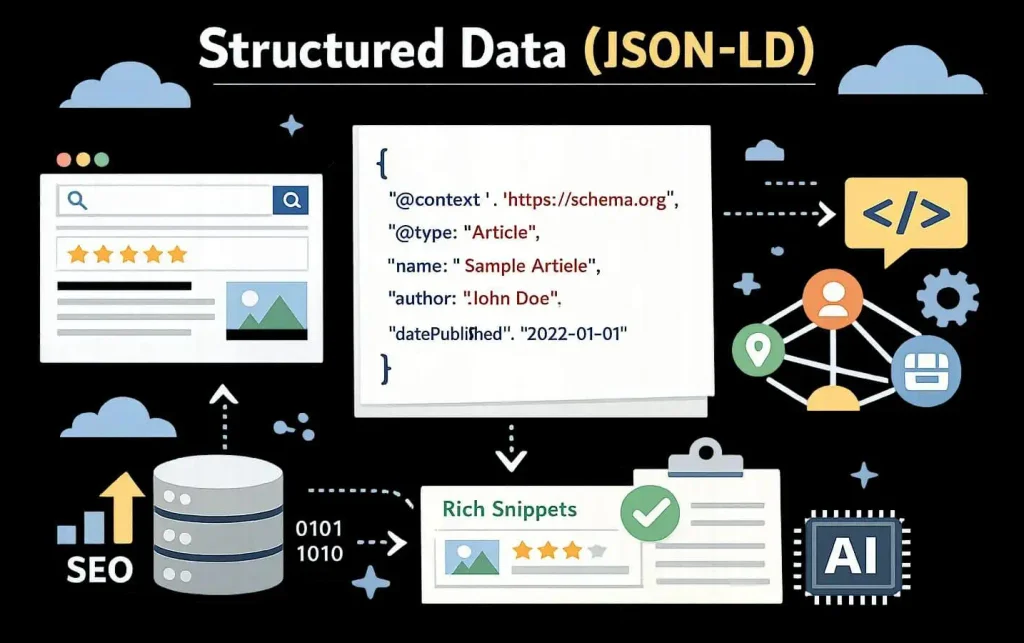
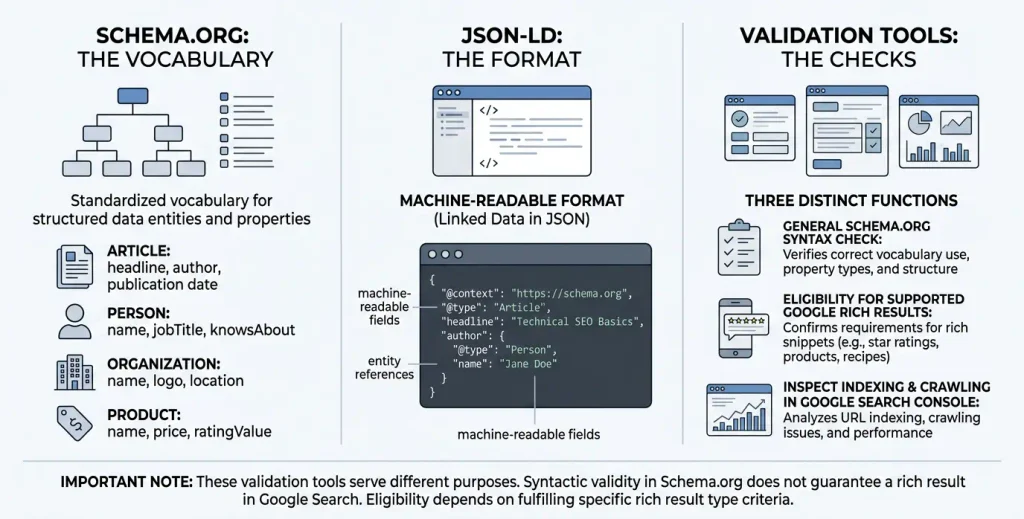
Schema.org Schema.org is a shared vocabulary of types and properties for describing information on web pages in a format that software systems can understand.
To a visitor, an article title, author name, publication date, and site logo are simply page elements. Structured data can explicitly identify them as properties of specific entities.
This helps search engines distinguish between:
- WebSite — the website as a whole.
- Organization — a company, publisher, or other organization.
- Person — a specific person, such as an author.
- WebPage — an individual web page.
- Article or BlogPosting — an article or blog post.
- Product — a product and its relevant details.
- BreadcrumbList — a hierarchy of navigation items.
- LocalBusiness — a local business, when that type accurately describes the entity.
Schema.org describes what data means, not how it should look on screen. In other words, markup does not replace headings, copy, menus, or other visible elements of a site.
Schema.org, Schema Markup, and Structured Data: What’s the Difference?
These terms are often used interchangeably, but they are not quite the same.
| Term | Meaning |
|---|---|
| Schema.org | A vocabulary of types and properties for describing entities |
| Structured data | Data organized according to a defined structure |
| Schema markup | Page markup that uses the Schema.org vocabulary |
| JSON-LD | A JSON format for representing structured data |
| Microdata | A format for embedding structured data directly in HTML elements |
| RDFa | Another format for marking up data in HTML |
In everyday use, “schema markup” often refers to any Schema.org markup. Technically, Microdata is just one way to implement it.
Google supports JSON-LD, Microdata, and RDFa, but recommends JSON-LD as a convenient option for most use cases.
How Structured Data Affects SEO
Well-implemented markup helps search engines interpret page content. For certain types of content, it can also make a page eligible for enhanced presentation in search results.
Depending on the page type and Google’s current requirements, structured data may be used for:
- product rich results;
- recipe rich results;
- article information;
- breadcrumbs;
- event information;
- other supported search features.
Keep two things in mind: Schema.org lets you describe many kinds of entities, while Google supports only specific rich result types and sets its own rules for each.
Important: valid markup does not guarantee a rich result. Nor should you expect rankings to improve automatically just because you added JSON-LD.
Which Schema.org Types to Use in WordPress
A common mistake is trying to add as many schema types as possible to every page. In practice, choose types based on the page’s purpose, not on how many options are available.
A technical article about WordPress does not become a recipe, product, or event page simply because those types exist in Schema.org.
Here are the types most commonly used on WordPress sites.
| Schema.org type | Where to use it | Purpose |
|---|---|---|
Organization | Corporate or publisher website | Describe an organization |
Person | Author page or personal website | Describe a person |
WebSite | Entire website | Describe a website |
WebPage | Individual pages | Describe a web page |
Article | Informational content | General article description |
BlogPosting | Blog posts | Describe a blog post |
BreadcrumbList | Pages with breadcrumbs | Describe a page hierarchy |
Product | Product pages | Describe a product |
LocalBusiness | Local business websites | Describe a local business |
Service | Service pages | Describe a service |
VideoObject | Pages with video | Describe video content |
Event | Event pages | Describe an event |
Recipe | Food and recipe websites | Describe a recipe |
HowTo | How-to guides | Describe a step-by-step process in the Schema.org vocabulary |
One clarification about the last example: HowTo remains a Schema.org type, but Google has discontinued the corresponding rich result in Search. So it should not be used as a way to obtain a special Google snippet. Other systems may still interpret the data.
Which Markup to Choose for an Informational Blog
For a blog about WordPress, technical SEO, and web development, start with a basic structure:
WebSite— describes the website.OrganizationorPerson— identifies the publisher or site owner.WebPage— describes a specific page.ArticleorBlogPosting— describes an informational article.BreadcrumbList— describes the breadcrumb trail, if the site has one.
These entities can be linked. For example, an article belongs to a specific web page, has an author, and is published on a particular website.
It is these relationships, not simply a set of unrelated JSON-LD blocks, that make the markup meaningful.
Which Schema Types to Add to Different Pages
- Home page.
WebSite,OrganizationorPerson. Other types may also be appropriate, depending on the site’s structure. - Article page.
WebPage,Article, orBlogPosting, plus the author, publication and update dates, and article image. - Product page.
Productand, when the relevant data is available,Offerwith price, currency, and availability. - Company page.
Organizationor a suitable subtype such asLocalBusiness, if it accurately describes the business.
These are examples, not a requirement to add every type to every page. The right choice depends on the actual content and the properties supported by the search feature you are targeting.
JSON-LD in WordPress: How It Works
JSON-LD is a format in which structured data is typically added to an HTML document in a separate script block.
Unlike Microdata, JSON-LD does not require you to mark up every heading, paragraph, or image directly in the HTML. The data can be generated separately, which makes site maintenance and updates easier.
Here is a simplified example of article markup:
<script type="application/ld+json">
{
  "@context": "https://schema.org",
  "@type": "BlogPosting",
  "headline": "Schema.org in WordPress: A Practical Guide",
  "description": "A practical guide to structured data in WordPress.",
  "author": {
    "@type": "Person",
    "name": "Author Name"
  },
  "publisher": {
    "@type": "Organization",
    "name": "Site Name"
  },
  "mainEntityOfPage": {
    "@type": "WebPage",
    "@id": "https://example.com/schema-wordpress/"
  },
  "datePublished": "2026-10-10",
  "dateModified": "2026-10-10"
}
</script>
This is an illustrative example, not code to copy blindly. The URL, names, author, publisher, and dates must match the actual page. On a live site, also check whether your SEO plugin already generates similar markup.
What the Main JSON-LD Properties Mean
| Property | Purpose |
|---|---|
@context | Identifies the vocabulary, Schema.org in this case |
@type | Specifies the entity type |
@id | A stable entity identifier |
headline | Article headline |
description | Short description |
author | Article author |
publisher | Publisher |
mainEntityOfPage | Links the main entity to the web page |
datePublished | Date of first publication |
dateModified | Date of the last significant update |
Not all of these properties are required for every structured data type or Google feature. Check the documentation for the specific type before implementing it.
Why Use @graph?
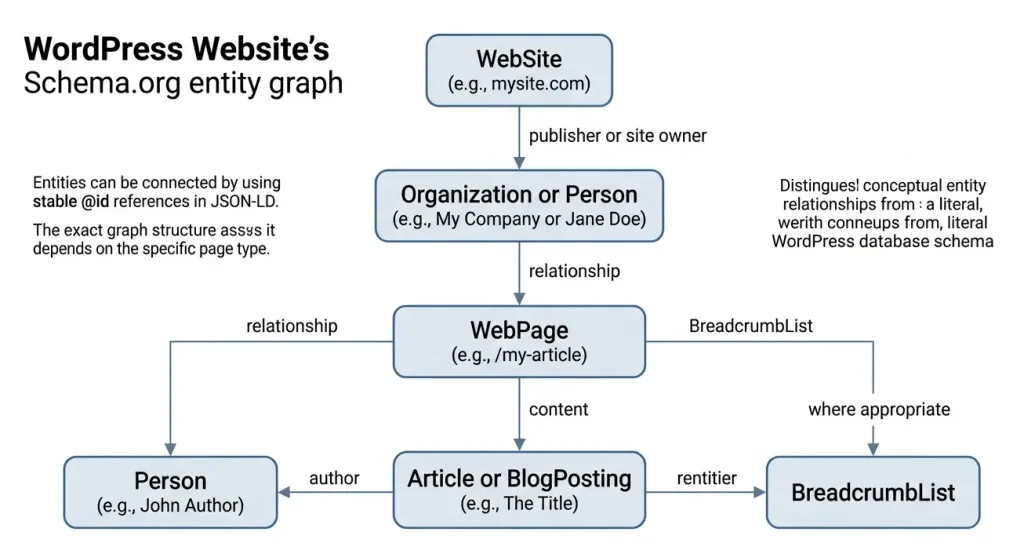
A site often contains not just one entity but a network of related entities. For example, an organization publishes a website, the website contains a page, and that page describes an article.
You can use @graph for this: an array of entities in a single JSON-LD document.
SEO plugins use this approach, too. Yoast documentation describes a connected graph containing Organization, WebSite, WebPage, and other entities, depending on the page type.
A graph lets you express relationships through @id identifiers without repeating the full description of the same entity in every block.
How to Add Schema.org to WordPress: 4 Methods
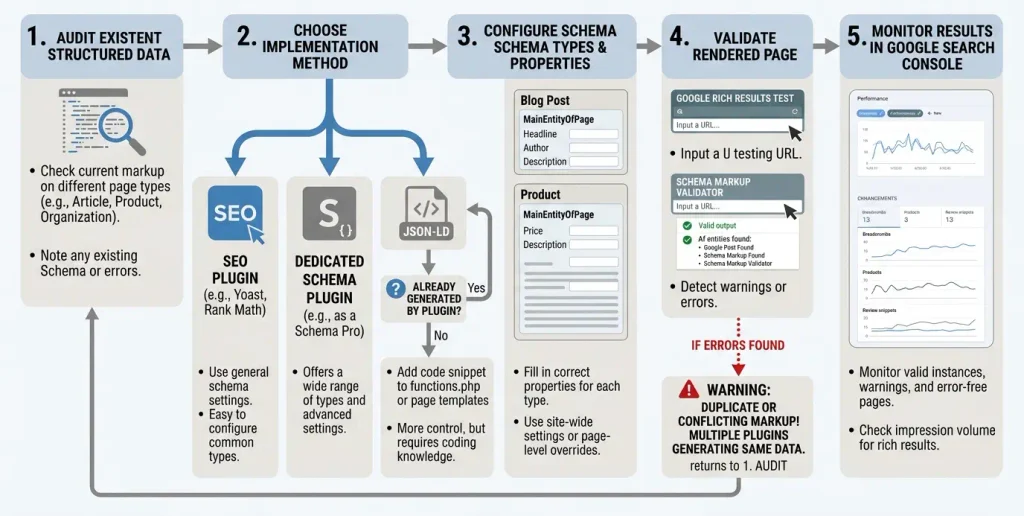
WordPress does not have a single universal switch that automatically configures every schema type for every site. The right implementation depends on your content, plugins, and how much control you need.
Method 1: Use an SEO Plugin
For most sites, this is the simplest option. An SEO plugin can generate structured data automatically using page titles, author details, images, and site settings.
Examples include:
- Yoast SEO generates a connected structured data graph and supports extensions through its API.
- Rank Math SEO offers schema markup features; availability depends on the version and configuration.
- All in One SEO provides tools for configuring structured data.
You do not need to install all of these plugins. Choose one primary SEO tool and check which entities it already adds.
To configure schema through an SEO plugin:
- Back up your site or make sure you can restore changes.
- Open the SEO plugin settings.
- Enter the site name, publisher type (organization or person), and any other available details.
- Check that the author name, logo, and images are set correctly.
- Open the article editor and review the available schema settings.
- Make sure the schema type matches the page content.
- Validate the published page with the appropriate tools.
Menu labels may vary by plugin version. Also, SEO plugins do not all offer the same level of control over every property.
Method 2: Add Markup with a Dedicated Plugin
This approach makes sense if you need a specific schema that your main SEO plugin does not support, or if your site has complex content types.
For example, an online store may need more detailed product markup, while a recipe site may need a dedicated tool for ingredients, cooking times, and other properties.
Before installing, check:
- whether the plugin supports the Schema.org type you need;
- whether it is compatible with your WordPress version;
- whether it duplicates markup generated by another tool;
- whether you can control output rules by page type;
- whether the plugin is regularly updated;
- whether you can inspect the actual JSON-LD in the page source.
Consistency matters more than the number of plugins.
Method 3: Add JSON-LD Manually
A manual implementation suits developers who want full control over the markup. It can also help when you need to describe a custom content type.
The code must be dynamic: the title, URL, author, and date should not be identical across every page.
The example below uses the WordPress wp_head hook to add JSON-LD to the page’s head section.
This code is intended for standard WordPress posts and should only be used if another plugin is not already generating equivalent markup.
add_action( 'wp_head', function() {
    if ( ! is_singular( 'post' ) ) {
        return;
    }

    $post_id = get_queried_object_id();

    if ( ! $post_id) {
        return;
    }

    $author_id = (int) get_post_field('post_author', $post_id);
    $author_name = get_the_author_meta('display_name', $author_id);

    $data = [
        '@context' => 'https://schema.org',
        '@type' => 'BlogPosting',
        'headline' => wp_strip_all_tags(
            get_the_title($post_id)
        ),
        'url' => get_permalink($post_id),
        'datePublished' => get_post_time(
            DATE_W3C,
            true,
            $post_id
        ),
        'dateModified' => get_post_modified_time(
            DATE_W3C,
            true,
            $post_id
        ),
        'author' => [
            '@type' => 'Person',
            'name' => $author_name,
        ],
    ];

    echo "n<script type="application/ld+json">";
    echo wp_json_encode(
        $data,
        JSON_UNESCAPED_UNICODE
    );
    echo "</script>n";
}, 20);
What to Know Before Using This Code
This is a basic example and does not cover every requirement for article markup. In particular:
- it does not add a complete graph of
Organization,WebSite, andWebPageentities; - it does not include the article image or all possible author properties;
- it does not check whether the author profile exists or is configured correctly;
- it does not align entity IDs with an SEO plugin’s graph;
- it does not generate markup for pages, products, or other content types.
If your site already uses an SEO plugin, inspect its JSON-LD first. Adding a second independent description of the same article can create duplicates or conflicting data.
Do not add this code directly to a theme file unless you are prepared to review it after updates. A custom plugin, child theme, or another managed deployment method is a safer choice.
Method 4: Use a Custom Plugin or Integration
For a complex site, catalog, marketplace, or project with custom post types, a dedicated logic layer that generates Schema.org markup from WordPress data may be the best option.
For example, a structured data template for a custom service post type can pull the service name, description, URL, and organization details from the relevant fields.
This approach lets you:
- manage schema types centrally;
- apply rules to specific post types;
- avoid duplication across templates;
- use consistent entity identifiers;
- test the output automatically when deploying changes.
A custom implementation requires ongoing technical maintenance, so it is worthwhile only when a plugin’s standard features are not enough.
A Practical Example: Schema.org for a WordPress Blog
Consider a typical site with technical articles, a home page, category archives, author pages, and individual posts.
Instead of adding arbitrary types to every page, let’s build a clear model.
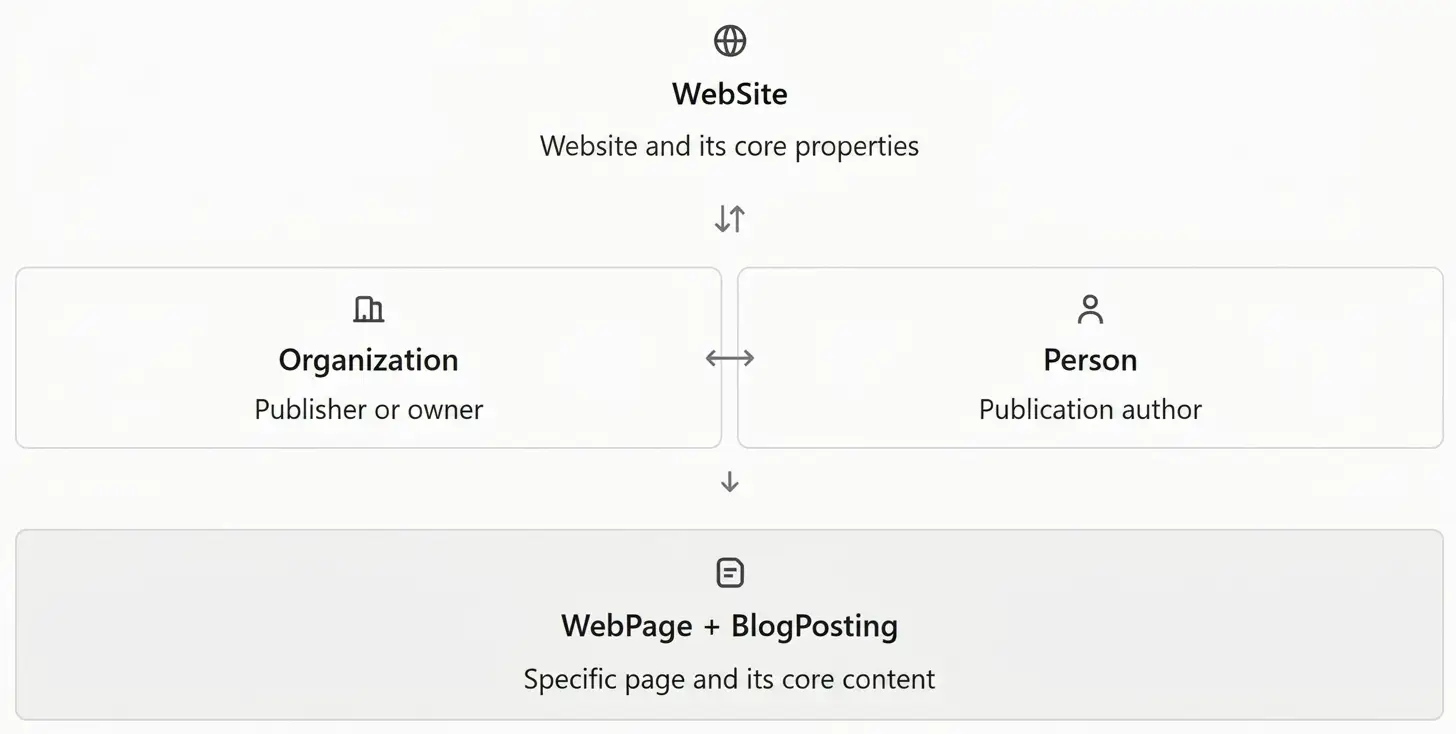
This model does not mean you need to create four separate scripts by hand. An SEO plugin can generate all the entities in a single JSON-LD graph.
How to Link an Article to Its Author and Publisher
Structured data can use the author and publisher properties, with each entity referenced by its @id.
This is especially useful when one author has multiple posts and one publisher is responsible for the entire site.
For consistent identification:
- Use consistent URLs and identifiers.
- Avoid creating conflicting descriptions of the same organization.
- Do not replace a named author with the site name when the article has a specific author.
- Make sure JSON-LD matches the information visible to visitors.
- Do not invent a biography, rating, authorship, or other facts just to populate properties.
What Information to Prepare
Gather some basic information about the site before implementing the markup.
| Information | Where to find it in WordPress |
|---|---|
| Site Name | Settings → General |
| Site URL | Settings → General |
| Author Name | Users → Profile |
| Post title | Post editor |
| Publication date | Post editor or WordPress data |
| Update date | Post data and revision history |
| Article image | Featured image |
| Publisher logo | Theme or site settings |
| Canonical URL | SEO plugin settings |
Section names may vary depending on your theme, WordPress version, and plugins.
Schema.org for Articles: How to Configure BlogPosting
For an informational site, this is one of the most important use cases. Article structured data can help Google understand the headline, author, image, and publication dates.
When configuring the markup, pay attention to these properties:
headline— the article title.image— a relevant article image.author— the author or authors.datePublished— the actual publication date.dateModified— the actual update date.publisherthe publisher.mainEntityOfPage— the primary web page described by the article.
Should You Use Article or BlogPosting?
Both types are part of the Schema.org vocabulary. BlogPosting is a specialized type for blog posts, while Article is a broader type for articles.
Use BlogPosting for a standard WordPress post. Article may be more appropriate for editorial content that is not a typical blog post.
Do not create two independent entities for the same article just to increase the amount of markup. Choose the appropriate type and describe the primary entity accurately.
How to Handle Dates
The publication date should reflect when the article first went live. The update date should reflect a genuine revision, not an artificial attempt to make the content look fresher.
For example, there is no need to change the update date for SEO every time you fix a typo. But if you revise a guide, test the code, and add important sections, changing the date may be justified.
Google recommends using accurate dates and information that matches the content visible on the page.
BreadcrumbList: Breadcrumb Markup
A breadcrumb trail shows the path from the home page to the current page. For example:
Home → WordPress → SEO → Schema.org in WordPressIf this navigation appears on the page, you can describe it with the BreadcrumbList type.
Here is sample JSON-LD for a three-level breadcrumb trail:
<script type="application/ld+json">
{
  "@context": "https://schema.org",
  "@type": "BreadcrumbList",
  "itemListElement": [
    {
      "@type": "ListItem",
      "position": 1,
      "name": "Home",
      "item": "https://example.com/"
    },
    {
      "@type": "ListItem",
      "position": 2,
      "name": "WordPress",
      "item": "https://example.com/wordpress/"
    },
    {
      "@type": "ListItem",
      "position": 3,
      "name": "Schema.org in WordPress"
    }
  ]
}
</script>
The example uses a placeholder domain. Replace the URLs with the real page addresses before publishing, and check that they match your site’s actual navigation.
The last item has no item property, which is acceptable for the current page in this format.
Practical tip: if your SEO plugin already generates BreadcrumbList, do not add a second independent block unnecessarily. Check the existing markup and fix its source if needed.
Schema.org for WooCommerce
If your site runs WooCommerce, product structured data may be important for relevant search features.
A typical product model includes:
Product— describes the product.Offer— describes the sales offer.price— the price.priceCurrency— the currency.availability— product availability, when this data is available.brand— the brand, if it is known and correctly identified.image— the product image.
The markup must match the information on the product page. If the price changes, an item goes out of stock, or an offer is no longer active, update the structured data as well.
Do not invent ratings or reviews to get stars in search results. Ratings must be based on genuine reviews that follow the rules for the relevant search feature.
Also note that Product markup has different use cases: an individual product page and an aggregated offers page may have different requirements.
Organization, Person, and LocalBusiness: Describing a Site Owner
Identifying who is behind a website is an important part of structured data.
Organization
Use Organization when the site represents a company, publisher, agency, or another organization.
Depending on the context, these properties may be useful:
name— the name;url— the official website;logo— the logo;sameAs— links to official profiles or pages that help identify the same organization.
Person
Use Person to describe a specific individual, such as an author, specialist, or owner of a personal site.
Properties may include a name, profile URL, and other factual details. Make sure the information is accurate and matches the visible profile.
LocalBusiness
A business with a physical location may use LocalBusiness or a relevant subtype. The markup can describe its address, phone number, opening hours, and other available details.
However, not every service provider is a local business in this sense. Do not use this type for every company simply because its site has a contact page.
Should You Add FAQ Schema.org Markup?
An FAQ section can be useful to readers, but that does not mean every FAQ page needs special markup for Google rich results.
The FAQPage type is part of Schema.org, but Google has significantly limited FAQ rich results. Most commercial and informational sites should not expect an FAQ snippet as a guaranteed outcome.
If your FAQ answers real user questions, keep it in the article because it is useful. Add markup only when it fits the page and follows current guidelines.
How to Validate Schema.org in WordPress
Adding the code is only half the job. Make sure it appears on the published page, is syntactically correct, and meets the requirements of the chosen type.
Use several tools for validation:
These tools serve different purposes. Passing Schema Markup Validator does not automatically make a page eligible for Google rich results, and passing Rich Results Test does not guarantee that Google will show an enhanced appearance in actual search results.

Post-Implementation Validation: Step by Step
- Publish or update the page.
- Open its public URL in a browser.
- Run the page through Rich Results Test if its type has a supported feature.
- Check the overall markup with Schema Markup Validator.
- Check for plugin conflicts or duplicate descriptions of the same entity.
- Open URL Inspection in Search Console.
- Check that Google can access the page and its resources.
- If needed, ask Google to recrawl the URL.
- Review Search Console reports after Google has processed the page again.
Recrawling and report updates can take time. Do not draw conclusions about markup performance immediately after saving your settings.
Common Schema.org Mistakes in WordPress
Even when JSON-LD looks correct, the markup may contain inaccurate data, inconsistencies, or issues with Google’s guidelines.
| Issue | Why it is a problem | How to fix it |
|---|---|---|
Duplicate BlogPosting markup | Multiple independent descriptions of one article can contain conflicting data | Decide which tool is responsible for the markup |
Incorrect @type | The page is described as an entity it is not | Choose a type that matches the actual content |
| Fabricated ratings | Misleading markup violates search engine guidelines | Use only genuine reviews that meet the guidelines |
| Incorrect date | Structured data conflicts with the actual publication history | Sync dates with WordPress data |
| Missing image | Some recommended or required properties may be missing | Add a relevant, accessible image |
| Incorrect URL | The page or entity is identified incorrectly | Check HTTPS, the domain, path, and canonical URL |
| Markup for hidden content | The data may not match what users can see | Make the information being described visible on the page |
| Adding every schema type at once | This makes interpretation harder and increases the risk of errors | Keep only relevant types |
No noindex checks | Structured data may be added to pages that are not intended for search results | Review indexing rules and generation templates |
Google requires structured data to accurately describe visible content, avoid misleading users, and follow the rules for the specific search feature.
Is Duplicate Schema Markup Harmful?
Having multiple JSON-LD blocks is not inherently an error. A page can separately describe an organization, web page, article, and breadcrumb trail.
Problems arise when separate tools create duplicate descriptions of the same entities with different names, dates, URLs, or authors.
For example, an SEO plugin may identify one person as the author while a custom script identifies someone else. Or a plugin and theme may create conflicting descriptions of the same article.
In these cases, do not simply delete scripts at random. Find out which component generates them, then align the identifiers and properties or leave one system in charge.
Should You Remove Schema.org from Archives and Paginated Pages?
Not necessarily. Category archives, author pages, and search pages may also use appropriate markup, such as CollectionPage, WebPage, or another relevant type.
Their content differs from an individual article, though. Do not automatically mark every archive as BlogPosting or add Product markup to a page that has no specific product.
Set generation rules according to the URL type and its purpose.
Schema.org, robots.txt, noindex, and Canonical URLs: How They Relate
These mechanisms serve different purposes, although they are often reviewed together during a technical SEO audit.
| Mechanism | Main purpose |
|---|---|
| Schema.org | Describes entities and their properties |
| robots.txt | Controls crawler access to URLs at the crawl level |
noindex | Tells search engines not to index a page, provided they can crawl and read the directive |
rel="canonical" | Specifies the preferred canonical URL among duplicate or similar pages |
Important: do not block a page in robots.txt if you need Google to read its noindex directive or structured data. Google may still know about a blocked page through external links, but its crawler cannot fully read the page content.
If a page is not intended for indexing, consider whether it needs markup meant to support search results.
A canonical URL does not replace JSON-LD validation. The markup should describe the correct page, and its URL and related entities should be consistent.
Schema.org and AI Search: What to Keep in Mind
Structured data may be useful beyond traditional search features. Its machine-readable descriptions of entities and relationships may help different systems interpret content.
Still, avoid drawing conclusions that go beyond the evidence.
- No Schema.org type guarantees that a site will appear in the answers of every AI system.
- Adding JSON-LD does not automatically make AI systems cite a site.
- Structured data does not replace crawlable content, a clear site architecture, or high-quality information sources.
- Markup should reflect real content, not serve as a list of keywords for machines.
For a technical blog, the best approach is to describe articles, authors, the publisher, and other real entities accurately, keep data consistent, and follow changes to official guidelines.
How to Measure the Results of Schema.org Implementation
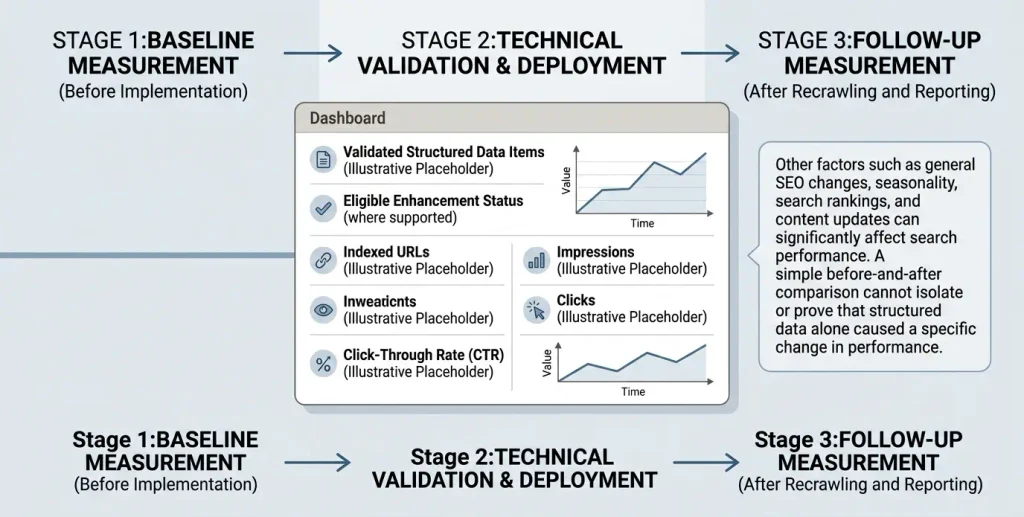
Do not measure schema performance by the number of JSON-LD blocks added. It is more useful to check whether the markup works correctly and whether search performance changes.
Start with a small group of pages so you can compare results before and after implementation.
What to Monitor
- The number of URLs with valid markup.
- Errors and warnings in relevant Search Console reports.
- Whether pages are indexed.
- Search impressions and clicks.
- CTR for individual URLs and queries.
- The appearance of supported rich results, if available for the selected type.
- Changes after updating an SEO plugin, theme, or site structure.
For a meaningful comparison, account for seasonality, ranking changes, content updates, and other SEO work. If you change the title, content, site speed, and markup at the same time, it will be difficult to isolate the impact of each change.
Google recommends validating the markup, making sure crawlers can access the page, and monitoring results over time.
Checklist: Validate Schema.org Before Publishing
Use this checklist when launching a site, running an audit, or updating an SEO plugin.
- Review existing markup. Find out which JSON-LD blocks are already generated by the theme and plugins.
- Choose the required types. Select Schema.org types that match the purpose of each page.
- Check site data. Confirm the site name, URL, author, publisher, images, and dates.
- Check entity relationships. Make sure @id values and other references are consistent.
- Check content accuracy. All described data should match the information available to visitors.
- Validate the markup. Check the overall markup and eligibility for supported search features.
- Check indexing. Make sure Google can crawl the page and read its content.
- Set up monitoring. Monitor Search Console reports and recheck pages after changes.
FAQ: Common Questions About Schema.org in WordPress
What is Schema.org in WordPress?
Schema.org in WordPress means using a structured data vocabulary to describe a site and its pages, articles, authors, organizations, products, and other entities. This data helps search engines better interpret the information on a site.
Is Schema.org required for SEO?
No. Schema.org is not required for indexing or high Google rankings. However, correctly implemented structured data can make pages eligible for certain rich results and help search engines understand the content.
How do I add Schema.org to WordPress without a plugin?
You can build a custom PHP integration that generates JSON-LD from WordPress data. A custom plugin, child theme, or another suitable integration method can be used. Avoid duplicating markup already generated by an SEO plugin.
Which is better: JSON-LD or Microdata?
JSON-LD is convenient for most new implementations because structured data can be maintained separately from a page’s HTML markup. Google supports both formats as well as RDFa, so the best choice depends on the implementation.
Should I add Schema.org to every page?
You do not need to add the same entity types everywhere. Basic site data may appear on many pages, but the primary schema type should match the purpose of each URL. An article, product, category archive, and contact page serve different purposes.
Can I use multiple Schema.org types on one page?
Yes. For example, an article page can describe the website, publisher, web page, author, and article. Make sure these entities are logically connected and contain no conflicting data.
Does Schema.org affect Google rankings?
Do not treat Schema.org as a standalone factor that guarantees higher rankings. Structured data helps search engines interpret a page and may make it eligible for rich results, but it does not replace quality content, technical accessibility, or other SEO fundamentals.
Why doesn’t Google show a rich result when there are no errors?
No technical errors only means the markup passed the relevant checks. Google may not show a rich result because the page does not meet a feature’s guidelines, due to its algorithms, insufficient data, or other factors. Valid markup does not guarantee display.
How do I validate Schema.org on a WordPress site?
Use Schema Markup Validator to validate markup, Rich Results Test for supported Google rich results, and Google Search Console to check indexing and related reports.
Should I update Schema.org after editing an article?
Yes, if the information described by the structured data has changed. After a substantial article update, check the modified date; if the author, URL, or image changes, review those properties too. If the markup is generated automatically, make sure it picks up the updated data correctly.
Should I add FAQ Schema to an FAQ section?
Not necessarily. An FAQ can help readers without structured data. Google has also limited FAQ rich results, so adding FAQPage does not guarantee special search presentation.
Does a site without a blog need Schema.org?
Yes, when it is relevant to the site's content. A corporate site can describe its organization, an online store its products, an event site its events, and a local business its services and location. Choose types based on the actual purpose of each page.
Conclusion
Schema.org in WordPress is not about adding as much code as possible for SEO. It is a way to describe a site and its content consistently so search engines can better understand its entities and how they relate to one another.
For most informational sites, start with basic markup for the website, publisher, pages, and articles. Then consider whether you need additional types for products, services, videos, or other content.
If an SEO plugin already generates a valid structured data graph, there is no need to duplicate its work with custom scripts. If its standard features are not enough, you can extend the markup through an API or a custom integration.
The key is to follow three principles: accurate data, alignment with real content, and regular validation. These are what make Schema.org a useful part of technical SEO, rather than just another piece of code on your site.

