
WordPress Shortcodes: How to Use, Create, and Customize Them

Hi! WordPress shortcodes let you add functional elements to your site without writing HTML, CSS, or PHP each time. A single short command can display a contact form, image gallery, button, product list, pricing table, or other dynamic content.
Despite being easy to use, shortcodes come with a few caveats. They depend on the theme or plugin that registers them, may handle attributes and nested content differently, and can stop working after a theme change or plugin removal.
- What Is a WordPress Shortcode
- What a Shortcode Looks Like
- What Are Shortcodes Used For?
- How WordPress Shortcodes Work
- Key Shortcode API Functions
- Where to Find Existing WordPress Shortcodes
- 1. Plugin documentation
- 2. Theme documentation
- 3. Built-in WordPress features
- 4. Theme or plugin code
- How to Add a Shortcode in WordPress
- How to Insert a Shortcode in Gutenberg
- Can You Add a Shortcode to a Regular Text Block?
- How to Add a Shortcode in the Classic Editor
- How to Use a Shortcode in Widgets
- How to Output a Shortcode in a PHP Template
- How to Create a Custom WordPress Shortcode
- The Simplest Custom Shortcode
- Where to Store Your Custom Shortcode
- How to Create a Shortcode with Attributes
- How to Create a Shortcode with Enclosed Content
- How to Add a Link or Button with a Shortcode
- How to Register Shortcodes Correctly
- Shortcodes vs. Gutenberg: Which Should You Use?
- When to Use a Shortcode
- When to Create a Gutenberg Block
- How to Use Shortcodes Safely
- Escape Data for Its Context
- Validate Attribute Values
- Do Not Execute Arbitrary PHP from Content
- Do Not Output Untrusted User Data
- Return the Output Instead of Printing It
- How Shortcodes Affect SEO
- Can Google See Shortcode Content?
- Should You Add Keywords to Shortcode Attributes?
- How to Handle Dynamic Content
- Should You Use Many Shortcodes on One Page?
- What Happens to Shortcodes When You Change Themes or Remove a Plugin?
- How to Prepare Your Site for a Theme Change
- Can You Remove Shortcodes from Old Posts?
- Common Shortcode Mistakes
- What to Check First
- Practical Recommendations for Developers
- Conclusion
- FAQ: Frequently Asked Questions About WordPress Shortcodes
- What Is a WordPress Shortcode in Simple Terms?
- How Can I Find All the Shortcodes Available on My Site?
- Do Shortcodes Work in the WordPress Gutenberg Editor?
- How Do I Create a Custom WordPress Shortcode?
- Where should I store custom shortcodes in a theme or a plugin?
- Why does WordPress show a shortcode in square brackets instead of its output?
- Can I use multiple shortcodes on one page?
- Do shortcodes affect SEO?
- What happens to shortcodes when a plugin is removed?
- How is a shortcode different from a Gutenberg block?
- Can I insert PHP code directly into a shortcode?
- How do I remove shortcodes from old posts?
This guide explains what WordPress shortcodes are, how to add them in the Gutenberg editor, where to find existing shortcodes, and how to create your own with PHP. It also covers security, performance, SEO, and common issues site owners encounter.
What Is a WordPress Shortcode
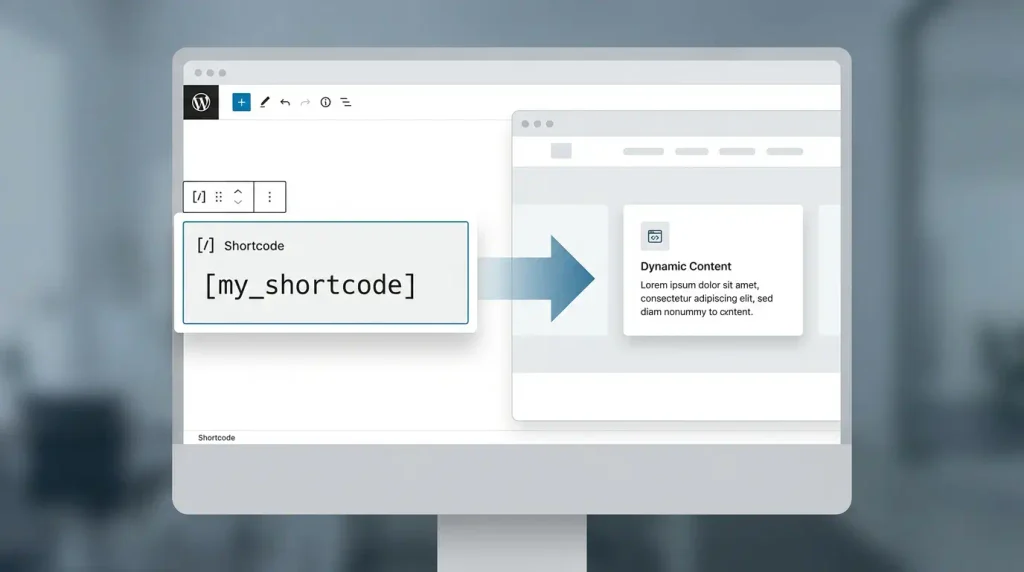
A shortcode (from the English shortcode) is a special text string in square brackets that WordPress recognizes and replaces with the output of a corresponding function.
For example, the shortcode [ can display an image gallery, while gallery][contact-form-7 id="123" title="Contact form"] displays a contact form, provided the site has a plugin that supports it.
Instead of adding complex HTML markup or writing code by hand, the page author uses a short command. WordPress finds the registered callback, passes it the parameters, and inserts the returned output into the content.
Shortcodes were introduced in WordPress 2.5 as a way to add dynamic elements to posts and pages without allowing arbitrary PHP to run directly in post content.
What a Shortcode Looks Like
The simplest shortcode consists of a name enclosed in square brackets:
[my_shortcode]
If the shortcode supports options, you can pass them as attributes:
[button url="https://example.com" text="Learn more"]
To process a specific piece of text, use an opening and closing shortcode:
[notice]This is important information for visitors.[/notice]
These examples show three different shortcode formats. The names alone do not guarantee any output the corresponding callbacks must be registered with WordPress.
What Are Shortcodes Used For?
Shortcodes are especially useful when you need to reuse the same functional element in multiple places across a site.
Common use cases include:
- Contact forms. Add a contact, inquiry, or subscription form.
- Galleries and media. Display images, audio, video, and media playlists.
- Buttons and information panels. Add calls to action, notices, notes, and links.
- Online stores. Display products, categories, or individual catalog items when supported by the installed plugin.
- Dynamic data. Display current information, calculated values, or data from the WordPress database.
- Reusable design elements. Create consistent components that can be updated centrally.
- Integrations. Embed content generated by third-party extensions.
For example, if the same information panel needs to appear on dozens of pages, a shortcode avoids duplicating its full markup in every post. Update the callback once, and the new output will appear wherever that shortcode is used.
Shortcodes are not a universal replacement for Gutenberg blocks. For standard text, images, columns, and simple layouts, the block editor is usually more convenient.
How WordPress Shortcodes Work
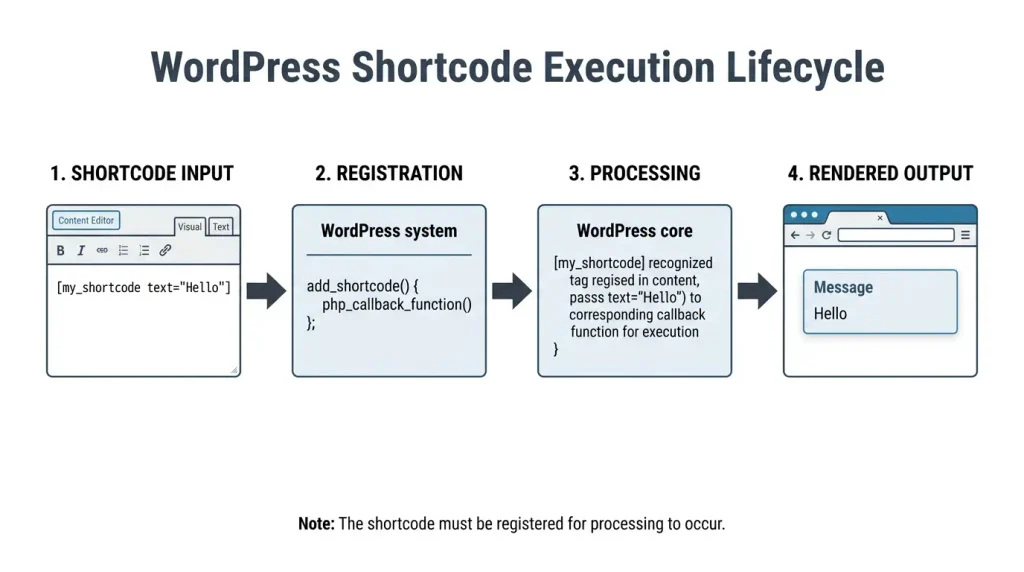
A shortcode’s workflow can be divided into four basic steps.
- Registration. A theme or plugin tells WordPress that a specific shortcode name maps to a particular function.
- Placement. The author adds the shortcode to a page, post, or another supported field.
- Processing. When rendering the page, WordPress finds the registered shortcode and passes its attributes and, where applicable, its enclosed content to the callback.
- Output. The callback returns a string, HTML, or other prepared content, which replaces the shortcode.
For example, a button shortcode may be stored in the database as a short command containing text and a URL. When the page is rendered, a function turns it into an HTML button.
A shortcode is not necessarily executed when a post is saved. It is usually processed when WordPress renders the relevant content for display. The exact behavior depends on where it is used and on the plugin.
Key Shortcode API Functions
WordPress provides several functions for registering, checking, and processing shortcodes.
| Function | Purpose |
|---|---|
add_shortcode() | Registers a shortcode and associates it with a callback |
do_shortcode() | Processes registered shortcodes in a supplied string |
shortcode_atts() | Matches supplied attributes against the allowed parameters and their default values |
shortcode_exists() | Checks whether a shortcode is registered |
has_shortcode() | Checks whether a string contains a specific shortcode |
remove_shortcode() | Unregisters a specific shortcode |
strip_shortcodes() | Removes recognized shortcodes from text |
These functions are part of WordPress core and can be used in themes and plugins.
Where to Find Existing WordPress Shortcodes
WordPress does not have one universal list covering every shortcode available on every site. The available set depends on WordPress core, the active theme, and installed plugins.
To find a shortcode, check a few different sources.
1. Plugin documentation
If you need to add a form, pricing table, products, or another specialized element, start with the relevant plugin’s documentation.
Plugin authors typically document:
- the shortcode name;
- available attributes;
- usage examples;
- valid parameter values;
- limitations and configuration requirements.
Do not copy a shortcode from an unrelated site without checking that it is current. Syntax and available parameters can vary between plugin versions.
2. Theme documentation
Some themes add their own shortcodes for displaying design elements, portfolios, testimonials, or other components.
Theme-specific shortcodes may stop working when you switch themes. If the functionality is important to your content, consider moving it to a standalone plugin.
3. Built-in WordPress features
WordPress supports several built-in shortcodes, including those for galleries, audio, video, and playlists.
Common examples include:
[— image gallery;gallery]— audio player;— video player;— playlist.
The exact behavior depends on the attributes and context. For example, [ without attributes usually uses images attached to the current post. Additional attributes may be needed to produce a different result.gallery]
4. Theme or plugin code
If you have access to the source code, search the theme and plugin PHP files for shortcode names. Shortcodes are most often registered with add_shortcode().
This approach is useful for developers who want to find out where a shortcode comes from, which parameters it supports, and why it stopped working after an update.
Do not edit third-party plugin files directly; your changes may be lost during an update.
How to Add a Shortcode in WordPress
Adding an existing shortcode usually requires no coding. The key is to use an editor or field where WordPress or the relevant plugin processes shortcodes.
How to Insert a Shortcode in Gutenberg
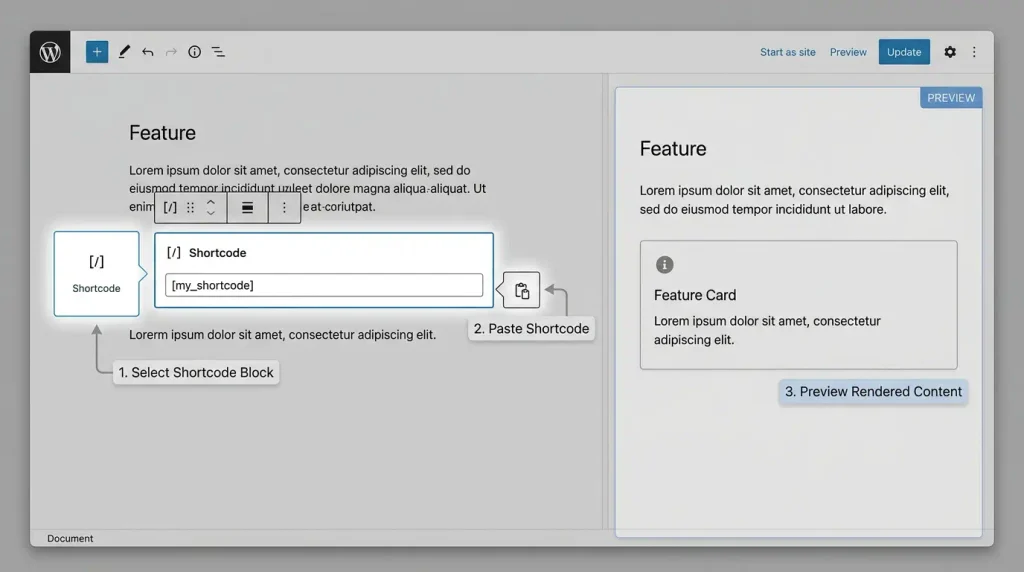
The Gutenberg block editor has a dedicated Shortcode block. It lets you place a shortcode where you need it on a page or post.
Follow these steps:
- Open the relevant post or page in the WordPress admin.
- Click the Add block button.
- Find the Shortcode block, or type
/shortcodein the editor. - Add the block to the page.
- Paste the shortcode into the block field.
- Save your changes and check the result on the live page.
For example, if your contact form plugin provides the shortcode [contact-form-7 id="123" title="Contact form"], you can paste it into the Shortcode block.
The ID and title shown here are examples. On a live site, use the shortcode generated by the plugin.
The result may look different in the editor than on the published page. Some shortcodes run only on the front end, so check the page separately after saving.
Can You Add a Shortcode to a Regular Text Block?
In many cases, WordPress processes shortcodes in the main post content, including text blocks. However, behavior may depend on the block, theme, and plugins.
If the shortcode appears as literal text, such as [my_shortcode], use the dedicated Shortcode block. This helps determine whether the issue is related to its placement.
For complex layouts, keep in mind that inserting a shortcode in an HTML block or a block with custom markup does not guarantee that it will be processed.
How to Add a Shortcode in the Classic Editor
In the WordPress Classic Editor, you can usually insert the shortcode where you want it in the text.
For example:
The service description goes here.
[my_shortcode]The main page content continues below.
If the shortcode outputs HTML, its result will appear between the paragraphs once the content is processed.
You do not need to wrap a regular shortcode in PHP tags or HTML unless the plugin documentation says otherwise.
How to Use a Shortcode in Widgets
Shortcode support in widgets depends on the widget type and WordPress version.
In the block-based widget editor, try using the Shortcode block. In classic text widgets, behavior depends on the implementation and the filters applied to their content.
If a shortcode does not work in a widget, check the theme or plugin documentation. Do not add global filters blindly; they may change how content is processed elsewhere on the site.
How to Output a Shortcode in a PHP Template
Sometimes you may need to place a shortcode directly in a theme template rather than in the editor. To do this, use do_shortcode().
Example:
echo do_shortcode( '[my_shortcode]' );This code passes a string to WordPress to process registered shortcodes and outputs the result.
If the supplied shortcode is not registered, WordPress cannot turn it into the expected content. In that case, the command may remain in the output string.
Use this approach only when a programmatic call is actually needed. For regular page content, the editor is sufficient.
How to Create a Custom WordPress Shortcode
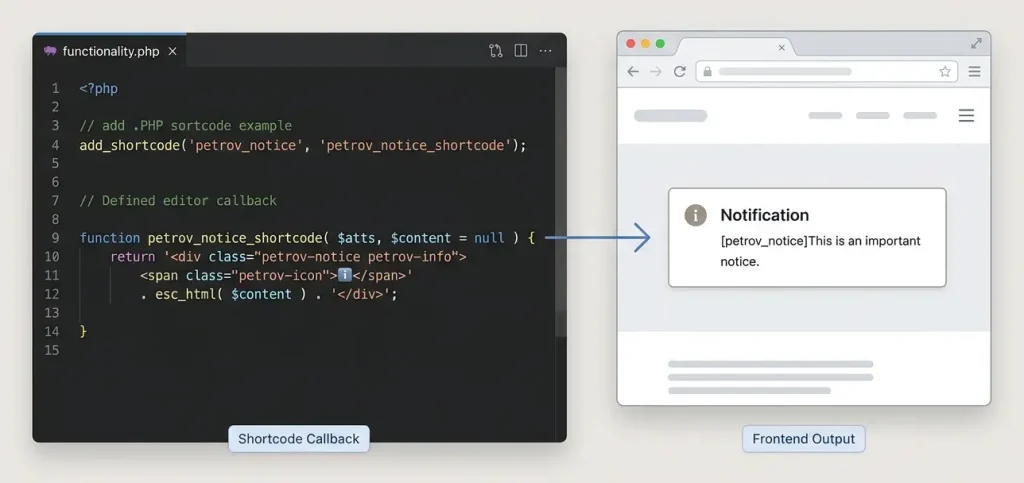
If existing shortcodes do not meet your needs, you can create your own with PHP and the built-in Shortcode API.
To do this:
- Write a function that generates the output.
- Register the shortcode with
add_shortcode(). - Add the shortcode to your content.
- Check the output and make sure the data is handled safely.
Let’s look at a few practical examples.
The Simplest Custom Shortcode
Suppose you want to display a short notice on your site’s pages.
You can register the function in a plugin or in the functions.php file of a child theme:
function petrov_example_shortcode() {
    return 'Welcome to our website!';
}

add_shortcode( 'petrov_greeting', 'petrov_example_shortcode' );
You can then use this in the editor:
[petrov_greeting]When processing the shortcode, WordPress calls the petrov_example_shortcode() and replaces the shortcode with the returned text.
Note: petrov_greeting is an example name. In your own project, use a unique prefix associated with your site or plugin to reduce the risk of conflicts with other extensions.
Where to Store Your Custom Shortcode
There are two common options.
Child theme. If the functionality is closely tied to a specific theme’s design, you can add the code to its functions.php file. If the parent theme is updated, make changes in a child theme.
Custom plugin. If the shortcode should work independently of your site’s design, put it in a standalone plugin. That way, switching themes will not remove the functionality.
For a growing site, the second option is often more practical. A shortcode may be used in dozens of posts, so tying it to a theme creates an unnecessary dependency.
Do not add PHP to the page editor or paste it into content as plain text. WordPress is not designed to execute arbitrary PHP code inserted this way.
How to Create a Shortcode with Attributes
Attributes let you control the output without editing the PHP code. For example, you can change the notice text and its type.
function petrov_notice_shortcode( $atts ) {
    $atts = shortcode_atts(
        array(
            'text' => 'Please note this important information.',
            'type' => 'info',
        ),
        $atts,
        'petrov_notice'
    );

    $allowed_types = array( 'info', 'warning', 'success' );

    $type = in_array( $atts['type'], $allowed_types, true )
        ? $atts['type']
        : 'info';

    $text = sanitize_text_field( $atts['text'] );

    return sprintf(
        '<div class="petrov-notice petrov-notice--%1$s">%2$s</div>',
        esc_attr( $type ),
        esc_html( $text )
    );
}

add_shortcode( 'petrov_notice', 'petrov_notice_shortcode' );
You can now call the shortcode without any attributes:
[petrov_notice]Or pass custom text and a notice type:
[petrov_notice text="Check the settings before publishing." type="warning"]The function uses shortcode_atts() to set default values. It then validates the notice type and processes the text before generating HTML.
This matters not only for the block’s appearance but also for security. Do not treat shortcode attributes as trusted data: validate, sanitize, or escape them according to the output context.
This example requires CSS styles for the classes petrov-notice, petrov-notice--info, petrov-notice--warning and petrov-notice--success. The notice will still appear without styles, but its appearance will depend on the theme.
How to Create a Shortcode with Enclosed Content
Some shortcodes need to process not only attributes but also the content between the opening and closing tags.
For example:
[petrov_box]This is text inside the information panel.[/petrov_box]To do this, the function accepts the $content:
function petrov_box_shortcode( $atts, $content = null ) {
    $content = is_null( $content ) ? '' : $content;

    return '<div class="petrov-box">'
        . wp_kses_post( $content )
        . '</div>';
}

add_shortcode( 'petrov_box', 'petrov_box_shortcode' );
In this example, wp_kses_post() allows HTML elements that WordPress considers acceptable in post content. This is useful when the block may contain links, text formatting, or other standard markup.
However, this function does not guarantee that nested shortcodes will be processed in every case. If you need shortcodes inside $content to run as well, the developer can also call do_shortcode() after considering the risks and requirements for nested content.
How to Add a Link or Button with a Shortcode
Another practical use case is creating a button with text and a URL configured in the editor.
function petrov_button_shortcode( $atts ) {
    $atts = shortcode_atts(
        array(
            'url'  => '',
            'text' => 'Learn more',
        ),
        $atts,
        'petrov_button'
    );

    $url = esc_url( $atts['url'] );
    $text = sanitize_text_field( $atts['text'] );

    if ( empty( $url ) ) {
        return '';
    }

    return sprintf(
        '<a class="petrov-button" href="%1$s">%2$s</a>',
        $url,
        esc_html( $text )
    );
}

add_shortcode( 'petrov_button', 'petrov_button_shortcode' );
Usage example:
[petrov_button url="https://example.com/service/" text="View the service"]WordPress generates a link with a CSS class that you can style as a button.
The https://example.com/service/ value is shown for demonstration purposes. Replace it with the actual page URL before use.
Do not make a link open in a new tab unless necessary. If you need this behavior, implement it separately and validate the attribute values and security requirements.
How to Register Shortcodes Correctly
Shortcodes are typically registered with add_shortcode(); in a plugin, it is convenient to register them during WordPress initialization.
For example:
add_action( 'init', 'petrov_register_shortcodes' );

function petrov_register_shortcodes() {
    add_shortcode( 'petrov_greeting', 'petrov_example_shortcode' );
}
This approach is particularly useful when registration is tied to other plugin settings. Callback functions must be defined so WordPress can call them at the right time.
Shortcode names should be unique. If two plugins register the same name, the result depends on registration order: the later registration may overwrite the earlier one.
Shortcodes vs. Gutenberg: Which Should You Use?
Modern WordPress offers two common approaches to building content: Gutenberg blocks and shortcodes. They solve related, but not identical, problems.
Blocks let you edit a page’s structure visually, while shortcodes provide a compact command that a registered callback interprets.
| Criteria | Shortcodes | Gutenberg blocks |
|---|---|---|
| How they are used | A text command in square brackets | A separate block in the editor |
| Visual editing | Depends on the implementation | Usually available directly in the editor |
| Complex dynamic features | Convenient when provided by a plugin or custom code | Available through built-in and custom blocks |
| Reusability | By reusing the same command and parameters | Through reusable patterns and other block-editor features |
| Plugin dependency | Can be critical | Also possible when the block is provided by a plugin |
| Legacy content support | Useful for compatibility | Well suited to modern editing workflows |
When to Use a Shortcode
A shortcode is a good fit when:
- the plugin you need already provides a shortcode;
- you need to insert the same dynamic element in multiple places;
- you have a large amount of legacy content that should not be rebuilt;
- the shortcode has a simple interface with only a few attributes;
- the functionality is already implemented with the Shortcode API.
When to Create a Gutenberg Block
A custom block may be a better choice when editors need to change many settings visually, preview the result while editing, or manage a complex element structure.
For example, a multi-column information component with several images, headings, buttons, and responsive settings is usually easier to manage in a block interface than through a long shortcode with dozens of attributes.
You do not have to choose just one approach. A block can provide a convenient editing interface, while a shortcode remains useful for legacy content or third-party integrations.
How to Use Shortcodes Safely
A shortcode can output text, HTML, links, database data, or the results of processing user-supplied attributes. Its security therefore depends on how the callback is written.
Follow these basic rules.
Escape Data for Its Context
WordPress provides functions for safely outputting different types of data:
esc_html()— for plain text inside HTML;esc_attr()— for HTML attribute values;esc_url()— for URLs;wp_kses_post()— for HTML content that should be restricted to an allowed set of elements and attributes;sanitize_text_field()— for sanitizing a plain-text value.
These functions are not interchangeable. For example, esc_html() is suitable for text, but it is not a proper substitute for esc_url() when building a link URL.
Input sanitization and output escaping serve different purposes. Well-written code applies each one according to the specific context.
Validate Attribute Values
If a shortcode supports a type, layout, or size attribute, do not accept arbitrary strings without validation.
Define the allowed values and use a safe default if a user supplies an unknown value.
This is especially important for attributes that affect CSS classes, links, database queries, or file selection.
Do Not Execute Arbitrary PHP from Content
Do not create shortcodes that accept PHP code as text and execute it. This creates a serious security risk for your site.
If you need to perform an action, implement it in a predefined function that validates permissions, parameters, and results.
Do Not Output Untrusted User Data
If visitors or editors with limited permissions can control text, URLs, or other parameters, validate and process them before use.
Pay particular attention to shortcodes that generate HTML, run queries, display personal data, or handle forms.
Return the Output Instead of Printing It
A shortcode callback should return the generated content with return parameter rather than print it with echo.
This allows WordPress to insert the output in the correct place on the page. Printing it directly may disrupt the content order or cause other unexpected behavior.
How Shortcodes Affect SEO
Using shortcodes does not, by itself, improve or harm a page’s Google rankings. What matters to search engines is the final content available after the page is processed not whether it was created manually, with a Gutenberg block, or with a shortcode.
However, using shortcodes incorrectly can cause indexing, content accessibility, and user experience issues.
Can Google See Shortcode Content?
If a shortcode is processed successfully and generates HTML accessible to search crawlers, its content can be indexed.
For example, if a shortcode outputs a heading, service description, and link to a page, that text can become part of the indexed document.
If the page displays the literal text [my_shortcode] instead of the output, the expected content will not be generated. This can happen when the relevant plugin is disabled or the shortcode is not registered.
Should You Add Keywords to Shortcode Attributes?
Do not stuff shortcode attributes with keywords for SEO. Parameters should control the element’s functionality and presentation.
The text visitors see should be natural, informative, and relevant to the page. A shortcode is not a way to bypass content quality standards.
How to Handle Dynamic Content
If a shortcode generates important information such as service details, a price, product description, or internal links check that it is actually present in the page’s rendered HTML.
To do this, open the published page, inspect its source, and check the output after WordPress has processed it. If the content is generated entirely with JavaScript, assess separately how it is made available to users and search engines.
Should You Use Many Shortcodes on One Page?
The number of shortcodes alone is not enough to determine their effect on SEO or performance. What matters is what each shortcode does.
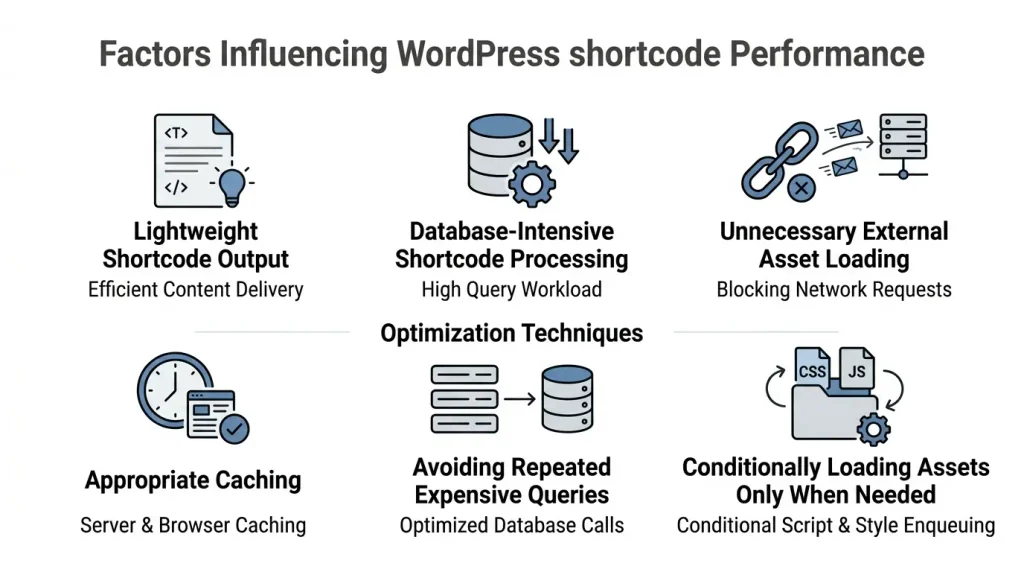
A simple shortcode that returns a short text string may have virtually no performance impact. Another shortcode might run complex database queries, load external resources, or repeatedly generate large blocks of HTML.
To avoid unnecessary overhead:
- avoid repeating the same expensive queries unnecessarily;
- cache results where appropriate;
- do not load assets for elements that are not present on the page;
- check performance after adding new features;
- do not use a shortcode when a built-in block or simple HTML is a better solution.
The key factor is not the number of shortcodes in the content, but the quality of their implementation and the experience they deliver.
What Happens to Shortcodes When You Change Themes or Remove a Plugin?
This is one of the most important considerations to keep in mind before adopting shortcodes.
Suppose your site uses the [old_theme_box] shortcode registered by the active theme. When you switch themes, its callback may disappear, leaving WordPress with no function to replace the shortcode with its output.
A similar issue occurs when you deactivate the plugin that provides a shortcode.
Content may be left with text such as [contact-form-7 id="123"] or another unrecognized command. The impact depends on how the content is rendered and where the shortcode is used.
How to Prepare Your Site for a Theme Change
Before switching to another theme:
- List the shortcodes used in posts, pages, and templates.
- Identify which ones belong to the theme and which to plugins.
- Check whether replacements are available for critical functionality.
- Move design-independent functionality into a suitable plugin if needed.
- Back up your site and test the change on a staging copy.
- After switching, check key pages, forms, products, and any other elements that depended on shortcodes.
Do not use find and replace to remove every string in square brackets. Some may be active shortcodes or ordinary text. Identify the source of each command before cleaning up.
Can You Remove Shortcodes from Old Posts?
Yes, but first determine whether they provide important functionality.
If an old shortcode is no longer in use, you can replace it with regular content, a modern block, or a new implementation. For larger projects, do this after backing up the site and testing the results in a staging environment.
The strip_shortcodes() function can remove recognized shortcodes from a string, but it is not a substitute for a full content migration. It does not restore information previously generated by a plugin, nor does it guarantee removal of every unknown command.
Common Shortcode Mistakes
Even a correctly written shortcode may fail because it was placed in the wrong context, its plugin is missing, or its syntax is incorrect.
Here are some common issues and how to resolve them.
| Issue | Possible cause | What to check |
|---|---|---|
| Shortcode appears as plain text | The shortcode is not registered or is not processed in this context | Whether the plugin is active, the name is correct, and the right block is being used |
| Nothing is displayed | The callback returns an empty string or cannot find the required data | Shortcode attributes, plugin settings, and the error log |
| The wrong element is displayed | Incorrect attributes or values were supplied | The documentation and valid parameter values |
| Blocks disappear after a theme change | The shortcodes were registered by the previous theme | Move the functionality or restore the required callback |
| Bracketed shortcode text remains after a plugin is disabled | The plugin provided the shortcode callback | Restore the plugin or replace the legacy content |
| A nested shortcode is not processed | The enclosed content was not processed again | Check the callback logic and whether do_shortcode() |
| Shortcode works in a post but not in a widget | The widget or field does not process shortcodes | Use the Shortcode block or check the documentation |
| The site slows down after a shortcode is added | The function runs expensive queries or loads unnecessary assets | Profiling, caching, and query inspection |
What to Check First
If a shortcode is not working, do not start by changing the theme code. Begin with these simple checks:
- whether the shortcode name is spelled correctly;
- whether the plugin that provides it is active;
- whether the attributes match the documentation;
- whether the shortcode works elsewhere, such as in a Shortcode block;
- whether there is a conflict with the theme or another plugin;
- whether the log contains PHP errors;
- whether the cache is serving an outdated version of the page.
If the issue appeared after an update, check the plugin’s changelog and verify that its version is compatible with your WordPress environment.
Practical Recommendations for Developers
Follow these principles to keep your custom shortcodes clear and reliable.
Use unique names. Add a project or plugin prefix to reduce the risk of conflicts with other extensions.
Separate functionality from presentation. Use PHP to generate the structure and data, and CSS to control the appearance. Avoid hard-coding all styles into every shortcode.
Set default values. If an attribute is omitted, the shortcode should behave predictably.
Validate input values. Do not assume that attributes will always be valid.
Return the output. A shortcode callback should build and return a string rather than output content directly.
Avoid tying important logic to a theme unnecessarily. If functionality needs to survive a design change, implement it in a standalone plugin.
Document the attributes. For shortcodes with multiple attributes, document their default values, purpose, and usage examples.
Test on real pages. Check the result in the editor, on the front end, on mobile devices, and after clearing the cache.
Do not use a shortcode where it does not simplify anything. If a built-in Gutenberg block does the job better, an extra layer of code may only make maintenance harder.
Conclusion
Shortcodes remain a useful WordPress feature for adding reusable, dynamic elements to content. They let you invoke plugin functionality, generate HTML from attributes, and reuse the same components across different pages.
For everyday use, it is enough to know how to find an existing shortcode and add it through Gutenberg’s Shortcode block. If you need to build custom solutions, learn how to use add_shortcode(), shortcode_atts(), and do_shortcode(), along with the principles of attribute handling and safe output.
Most importantly, plan where the code will live and what it depends on. A shortcode tied to a theme or a specific plugin may stop working after site changes. For long-term projects, plan for maintenance, check compatibility, and do not treat shortcodes as a replacement for everything the block editor can do.
Used as intended, shortcodes help keep content organized, reduce code duplication, and make it easier to manage functional elements across a site.
FAQ: Frequently Asked Questions About WordPress Shortcodes
What Is a WordPress Shortcode in Simple Terms?
A shortcode is a short command in square brackets that is replaced with specific content or a functional element. For example, a contact form shortcode can display a form on a page without writing the HTML by hand.
How Can I Find All the Shortcodes Available on My Site?
There is no single universal list. Check the documentation for your active plugins and theme, and search the source code for add_shortcode(). For larger sites, keep a separate list of custom shortcodes and their attributes.
Do Shortcodes Work in the WordPress Gutenberg Editor?
Yes. Gutenberg has a dedicated Shortcode block where you can insert the command. The result depends on whether the shortcode is registered and supported in that particular context.
How Do I Create a Custom WordPress Shortcode?
Write a PHP function that returns the desired output, then register it with add_shortcode() You can put the code in a standalone plugin or, if the functionality is tied to the design, in a child theme.
Where should I store custom shortcodes in a theme or a plugin?
For functionality that needs to remain available after a theme change, a standalone plugin is usually the better choice. If a shortcode depends directly on a specific design, you can implement it in a child theme.
Why does WordPress show a shortcode in square brackets instead of its output?
Usually, this means the shortcode is not registered, the required plugin is disabled, the name is misspelled, or the selected location does not process shortcodes. Check the extension’s documentation and try the Shortcode block.
Can I use multiple shortcodes on one page?
Yes. The number of shortcodes is not a problem by itself. However, consider how complex their callbacks are: shortcodes that run expensive database queries or load third-party resources can affect page speed.
Do shortcodes affect SEO?
Shortcodes do not provide an SEO advantage or automatically create SEO problems. What matters is that they generate the correct output, make it accessible to users and search crawlers, and provide useful information.
What happens to shortcodes when a plugin is removed?
If the plugin registered the shortcodes, its callbacks will usually stop working when it is deactivated or removed. Unrecognized commands may remain in the content. Before removing the plugin, find every place where it is used and replace any important content.
How is a shortcode different from a Gutenberg block?
A shortcode is a text command that WordPress processes with a registered function. A Gutenberg block is a distinct editor element with its own structure and settings interface. Blocks are better suited to visual editing, while shortcodes are useful for invoking existing functions and supporting certain integrations.
Can I insert PHP code directly into a shortcode?
No. Do not pass arbitrary PHP code in content and execute it. Instead, create a function in your theme or plugin code, register it with the Shortcode API, and invoke it with a shortcode.
How do I remove shortcodes from old posts?
First, determine which shortcodes are no longer used and whether they contain important content. After making a backup, replace them with regular text, Gutenberg blocks, or a new implementation. Removing them in bulk without checking first can result in lost information.

