
WordPress Database Connection Error: How to Fix It

Hi! The WordPress database connection error is one of the platform’s most common serious errors. It means WordPress cannot connect to the database that stores posts, pages, settings, users, metadata, and much of the site’s configuration.
The message usually appears on the screen:
Error establishing a database connection
In some cases, WordPress notes that the cause may be incorrect settings in `wp-config.php` or an unavailable database server.
The cause is not always WordPress itself. The error may result from incorrect `wp-config.php` settings, an unavailable MySQL/MariaDB server, an incorrect `DB_HOST`, a changed database-user password, hosting limits, a migration issue, corrupted tables, or a temporary server outage.
- What does “Error Establishing a Database Connection” mean in WordPress?
- Common causes of the WordPress database connection error
- What to do first: a quick troubleshooting checklist
- 1. Check the wp-config.php file
- 2. Check DB_NAME
- How to check it
- 3. Check DB_USER
- 4. Check DB_PASSWORD
- Important
- 5. Check DB_HOST
- 6. If the error occurred after moving WordPress
- On the old server
- On the new server
- A typical scenario
- 7. Check if MySQL or MariaDB is running
- 8. Check disk space
- 9. Check the database connection limit
- Symptoms
- 10. Check the database through phpMyAdmin
- 11. Check and repair damaged database tables
- When to suspect database damage?
- 12. Enable WordPress Debug Log
- Important
- 13. How to read debug.log correctly
- 14. Check the database user rights
- MySQL or MariaDB: Does it matter?
- 15. If DB_HOST is localhost but the site still isn’t working
- 16. Error after changing hosting
- A typical mistake
- 17. If the problem occurs on WooCommerce
- 18. Can plugins cause a database connection error?
- Scenario 1: The plugin directly causes the problem
- Scenario 2: The plugin exposes a pre-existing problem
- 19. How to check the problem without access to WordPress Admin
- Via FTP/SFTP
- Through phpMyAdmin
- Through the hosting panel
- 20. How to identify the source of the problem
- If phpMyAdmin does not open the database
- If phpMyAdmin works but WordPress does not
- If the site works intermittently
- If an error appears after migration
- WordPress Database Connection Error Checklist
- 21. How to prevent the “Error Establishing a Database Connection” error
- Regularly create a backup
- Monitor server resources
- Do not install unnecessary plugins
- Do not edit wp-config.php without a backup
- 22. Could a database connection error mean the site has been hacked?
- 23. What not to do
- Do not delete the database
- Do not reinstall WordPress right away
- Do not change DB_HOST randomly
- Do not run repairs without a backup
- Do not publish debug information
- How to build a reliable prevention strategy
- Backup
- Monitoring
- Updates
- Resource Management
- Security
- Logs
- FAQ: WordPress Error Establishing a Database Connection
- What does “Error Establishing a Database Connection” mean in WordPress?
- Why does WordPress show the “Error Establishing a Database Connection” message?
- How do I fix the “Error Establishing a Database Connection” error?
- Where is wp-config.php?
- What is DB_HOST in WordPress?
- Should DB_HOST be set to localhost?
- Why won’t WordPress connect to the database after a migration?
- Can an incorrect password cause a database connection error?
- Can the hosting provider be causing the error?
- Can low disk space cause database problems?
- Can I fix a WordPress database error through phpMyAdmin?
- Do I need to reinstall WordPress?
- Can a plugin cause a database connection error?
- Should I enable WP_DEBUG on a production site?
- Where can I find the WordPress debug.log?
- Why does the site sometimes work and sometimes show a Database Connection Error?
- Conclusion
WordPress documentation lists incorrect `wp-config.php` settings, hosting issues, and a potentially compromised site among the possible causes.
In short: if WordPress shows Error Establishing a Database Connection, check DB_NAME, DB_USER, DB_PASSWORD, and DB_HOST first. Then confirm that the database server is available, hosting resources are sufficient, and the database is intact.
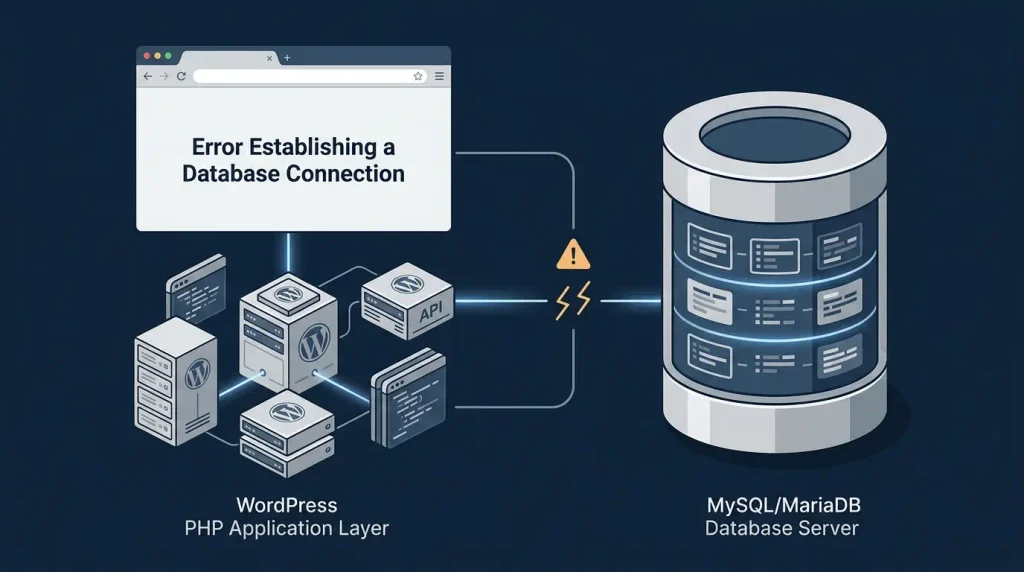
What does “Error Establishing a Database Connection” mean in WordPress?
WordPress consists of more than PHP files. It also needs a database, usually MySQL or MariaDB, to function.
The database stores, in particular:
- posts;
- pages;
- categories;
- tags;
- users;
- settings;
- menus;
- widgets;
- metadata;
- data from many plugins;
- some theme data;
- WordPress service information.
When WordPress starts, it needs to access this database.
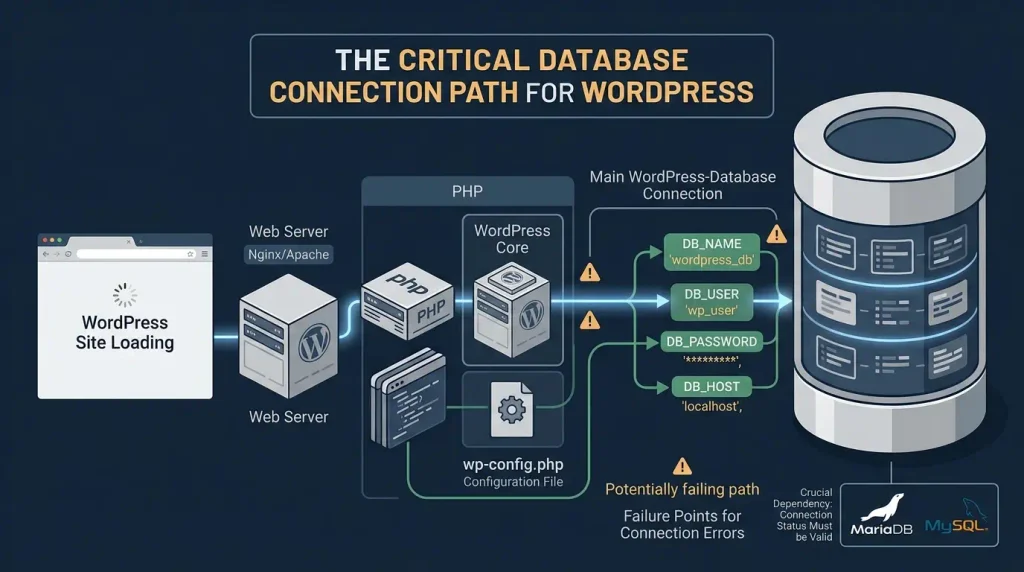
The simplified process looks like this:
browser → web server → PHP → WordPress → MySQL/MariaDB → databaseIf WordPress cannot establish the necessary connection to the database, it cannot load the site normally.
That is why the error often affects several parts of a site at once:
- homepage;
- posts;
- pages;
/wp-admin/;- REST API;
- some AJAX functionality;
- public part of the site.
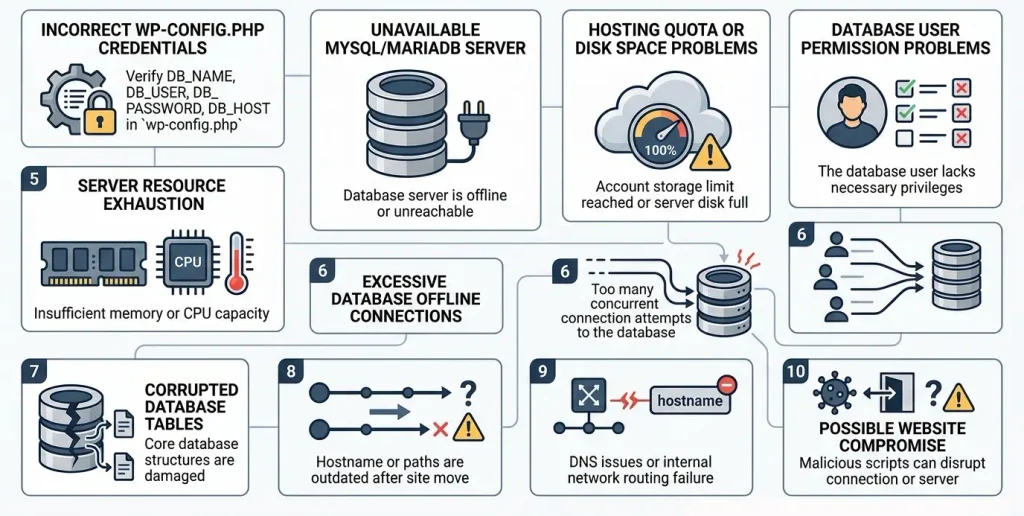
Common causes of the WordPress database connection error
The causes fall into several categories.
| Reason | Likelihood | What to check |
|---|---|---|
Wrong DB_NAME | High | wp-config.php |
Wrong DB_USER | High | wp-config.php |
Incorrect DB_PASSWORD | High | wp-config.php |
Incorrect DB_HOST | High | wp-config.php |
| MySQL/MariaDB is down | High | Server or hosting provider |
| Database quota exceeded | Medium | Hosting Panel |
| Server resource exhaustion | Medium | RAM, CPU, connections |
| Corrupted DB tables | Medium | phpMyAdmin/MySQL |
| Problem after migration | High | DB + wp-config.php |
| Database user password changed | High | Hosting panel + wp-config.php |
| DNS/Network access errors | Medium | DB_HOST, firewall |
| Site Compromise | Low (but important) | Logs and security scan |
WordPress recommends checking the database name, username, password, and host first. If they are correct, ask your hosting provider to verify the database server and account quotas.
What to do first: a quick troubleshooting checklist
If your site suddenly stops working, do not immediately repair database tables or reinstall WordPress.
Use this order:
- Check if the problem is persistent.
- Check
wp-config.php. - Check
DB_NAME. - Check
DB_USER. - Check
DB_PASSWORD. - Check
DB_HOST. - Check if MySQL/MariaDB is working.
- Check your hosting limits.
- Check database availability via phpMyAdmin.
- Check the integrity of the tables.
- View server and WordPress logs.
- If the problem appeared after migration, check the configuration of the new database.
- If the problem occurs periodically, check the resources and the maximum number of connections.
- If there is no obvious technical reason, check the site's security.
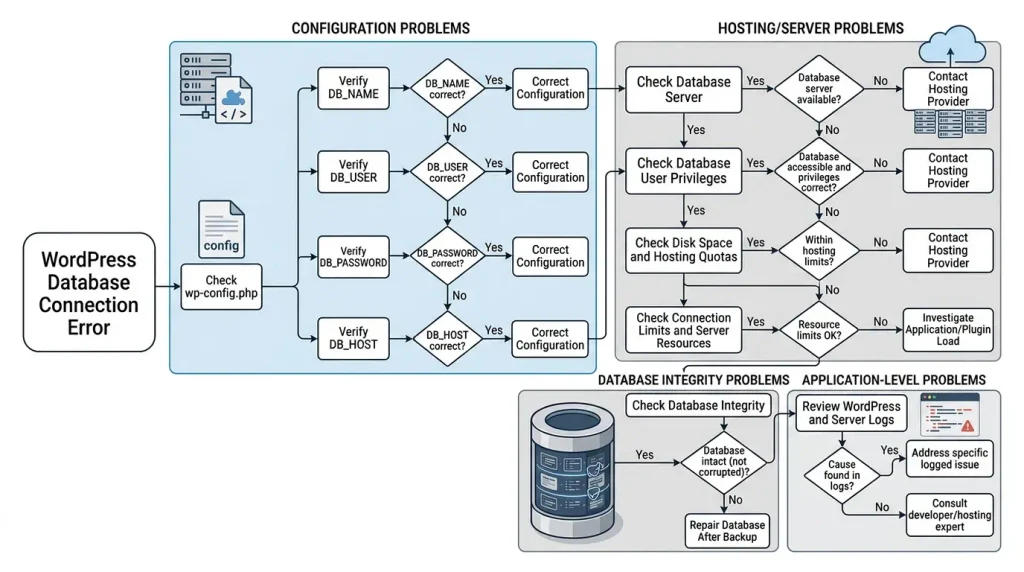
Important: create a current backup before repairing the database or changing its structure.
1. Check the wp-config.php file
The wp-config.php file is located in the WordPress root directory and contains the database connection settings. WordPress documents four key parameters: DB_NAME, DB_USER, DB_PASSWORD and DB_HOST.
They usually look something like this:
define( 'DB_NAME', 'database_name' );
define( 'DB_USER', 'database_user' );
define( 'DB_PASSWORD', 'database_password' );
define( 'DB_HOST', 'localhost' );
Do not copy these values as-is; they are examples only.
They should match the actual settings of your database.
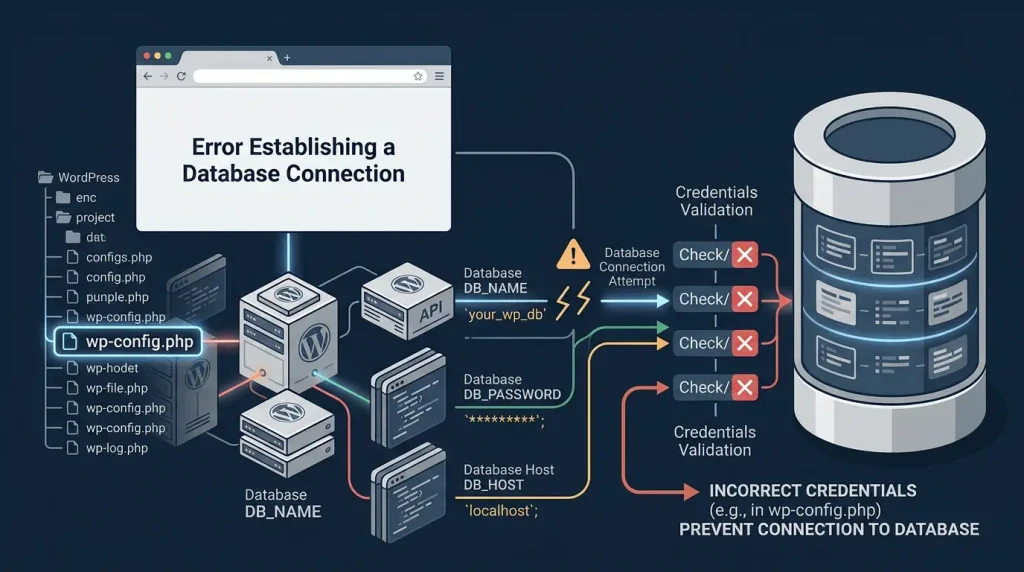
2. Check DB_NAME
DB_NAME is the database name that WordPress should use.
For example:
define( 'DB_NAME', 'example_wordpress' );A common problem occurs after:
- moving a site;
- restoring backup;
- creating a new database;
- changing hosting;
- manual editing
wp-config.php.
For example, the actual database might be called:
hosting_wp123and in wp-config.php stay:
hosting_wp_oldIn this case, WordPress will refer to the wrong database.
How to check it
Open your hosting control panel and go to:
- MySQL Databases;
- Databases;
- phpMyAdmin;
- Database Manager.
Find the actual database name and compare it to DB_NAME.
3. Check DB_USER
DB_USER is the MySQL/MariaDB user WordPress uses to connect to the database.
For example:
define( 'DB_USER', 'wp_user' );After migration or creation of a new database, the user may be different.
Verify that the user exists and has the required privileges on the correct database.
In the hosting panel it can be called:
- MySQL Users;
- Database Users;
- Manage Users;
- Privileges;
- User Permissions.
4. Check DB_PASSWORD
Even if the database name and username are correct, the connection will fail if the password is incorrect.
For example:
define( 'DB_PASSWORD', 'your_password' );This problem often occurs after:
- MySQL user password changes;
- site transfer;
- backup recovery;
- manual change of database parameters;
- automatic change of credentials in the hosting panel.
Important
If you change the database user’s password in your hosting panel, update it in `wp-config.php` as well.
Otherwise, WordPress will continue to use the old password.
5. Check DB_HOST
DB_HOST specifies where WordPress should look for the database server.
In a typical case, it is used:
define( 'DB_HOST', 'localhost' );But this not a universal rule.
Hosting can use:
localhost;- separate hostname;
- IP address;
- hostname of the remote MySQL server;
- hostname with port;
- Unix socket.
The official WordPress documentation also notes that DB_HOST can contain a port or Unix socket path if needed.
For example:
define( 'DB_HOST', 'db.example.com' );or in individual configurations:
define( 'DB_HOST', 'db.example.com:3306' );Do not change localhost to an IP at random. First, confirm the correct database host with your hosting provider.
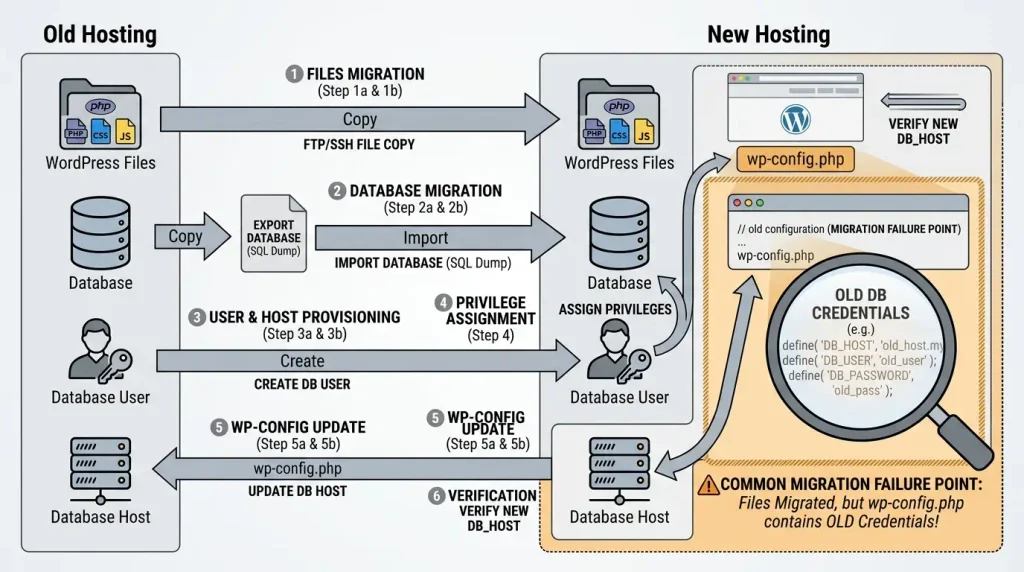
6. If the error occurred after moving WordPress
The Error Establishing a Database Connection message is especially common after a migration.
Check:
On the old server
- database name;
- user;
- password;
- hostname.
On the new server
- whether the database has been created;
- whether the database has been imported;
- whether the user has been created;
- whether the user has the required privileges;
- which
DB_HOST; - whether MySQL/MariaDB is available;
- do the parameters match in
wp-config.php.
A typical scenario
The site has been transferred to a new hosting.
WordPress files copied correctly.
The database has been imported.
But wp-config.php continues to contain the old ones:
DB_NAME
DB_USER
DB_PASSWORD
DB_HOST
As a result, the PHP files are in place, but WordPress cannot retrieve the data from the database.
7. Check if MySQL or MariaDB is running
If all the settings in wp-config.php are correct, the next question is:
Is the database server itself running?
On shared hosting, it can be difficult to check this yourself.
If so, contact your hosting provider and ask them to check:
- MySQL/MariaDB status;
- database server availability;
- number of active connections;
- user limits;
- disk space;
- database quota;
- server errors;
- MySQL errors;
- restarts or crashes are possible.
WordPress recommends checking whether the database quota has been reached and whether the database server is available.
8. Check disk space
Insufficient free space on the server can cause a chain of problems.
Check:
- disk usage;
- database size;
/tmp;- logs;
- backup files;
- cache;
- old backup files.
Pay particular attention if the error appears suddenly after the site has been stable for a long time.
For example:
Yesterday the site worked normally → today a database connection error appeared.
In that case, check disk space and database health before editing WordPress files.
9. Check the database connection limit
The server may limit the number of simultaneous MySQL/MariaDB connections.
If the site opens too many connections, the server may be unable to handle new requests.
This is especially important for:
- high-traffic sites;
- online stores;
- sites with a large number of plugins;
- sites with a large number of simultaneous visitors;
- shared hosting;
- poorly optimized plugins;
- sites with demanding database queries.
Symptoms
If your site:
- works;
- then stops working;
- after a while comes to life again;
- the problem recurs under load;
do not limit your diagnosis to wp-config.php.
You need to check server resources and MySQL connections.
10. Check the database through phpMyAdmin
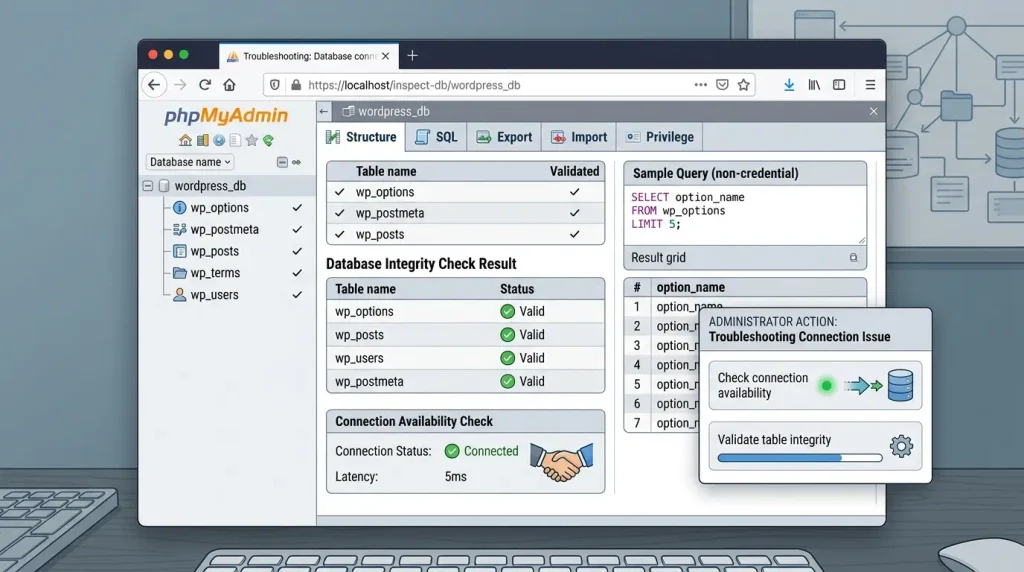
If you have access to phpMyAdmin, open it and check whether the database is available.
If phpMyAdmin can access the database, that is an important diagnostic clue.
Check:
- are the tables present;
- whether there are any obvious errors;
- can the tables be opened;
- whether the tables are damaged;
- Does the database name match
DB_NAME?
WordPress notes that damaged tables can cause some database errors. Create a backup before attempting any repair.
11. Check and repair damaged database tables
Sometimes the issue is not the connection itself, but the state of the database.
Operations such as the following may be available in phpMyAdmin:
- Check table;
- Repair table;
- Analyze table;
- Optimize table.
Do not run a repair without a backup, especially on a production site.
WordPress also recommends backing up the database before repairing tables.
When to suspect database damage?
For example, if:
- the database server is working;
- credentials are correct;
- WordPress still won't load;
- there are database/table errors in MySQL logs;
- the problem appeared after the server crashed;
- there were disk problems;
- phpMyAdmin shows corrupted tables.
12. Enable WordPress Debug Log
If the available information is insufficient, use WordPress’s built-in debugging tools.
WordPress supports:
WP_DEBUG;WP_DEBUG_LOG;WP_DEBUG_DISPLAY.
WordPress recommends using logs for diagnostics. Set WP_DEBUG_DISPLAY to false to keep errors from appearing to visitors.
On a production site, log errors without displaying technical details to visitors:
define( 'WP_DEBUG', true );
define( 'WP_DEBUG_LOG', true );
define( 'WP_DEBUG_DISPLAY', false );
After that, check:
wp-content/debug.log
Important
Do not leave debug mode on unnecessarily on production site.
WordPress warns that debug output may expose sensitive technical details, so errors should not be displayed publicly.
13. How to read debug.log correctly
You don't need to search only for the phrase:
Error establishing a database connection
Pay attention to the context.
For example, messages about:
- MySQL connection failure;
- access denied;
- unknown database;
- connection refused;
- timeout;
- too many connections;
- lost connection;
- database server unavailable;
- a table that does not exist;
- SQL errors.
The log helps to determine at which level the problem occurs:
WordPress → PHP → database driver → MySQL/MariaDB → database14. Check the database user rights
Sometimes the database exists, but the user does not have the necessary privileges.
Check if the user:
- linked to the required database;
- has the required privileges;
- was not deleted;
- was not replaced;
- did not lose privileges after migration.
This is especially common after manually migrating WordPress.
WordPress documentation also describes database errors caused by insufficient user privileges for table operations.
MySQL or MariaDB: Does it matter?
Remember that WordPress uses an SQL database, and server configurations vary between hosting providers.
Therefore, you should not look for one universal command for all servers.
Different systems may differ:
- names of services;
- paths to configurations;
- restart methods;
- rights;
- socket;
- hostname;
- ports;
- system logs;
- control panel.
On shared hosting, ask your provider to check the database server rather than running unverified server commands.
15. If DB_HOST is localhost but the site still isn’t working
This is a common situation.
Do not assume that localhost is incorrect.
localhost may be a valid value in your environment.
It is necessary to find out:
- Where is the database physically located?
- Is it on the same server?
- What hostname does hosting recommend?
- Is the connection over TCP?
- Is Unix socket used?
- Do you need a port?
WordPress notes that DB_HOST can be a hostname and may also include a port or a Unix socket path.
16. Error after changing hosting
If Error Establishing a Database Connection appeared immediately after a migration, check the following in order:
| Check | Expected result |
|---|---|
| WordPress files | Fully migrated |
| Database | Imported |
| DB_NAME | Correct |
| DB_USER | Correct |
| DB_PASSWORD | Correct |
| DB_HOST | New hosting provider’s value |
| User privileges | User has access |
| MySQL/MariaDB | Works |
| DNS | Points to new server |
| PHP | Works correctly |
A typical mistake
Transferring files is not enough.
WordPress is a connection:
files + database + configuration + server environmentIf any of these values does not match the new hosting environment, the site may not connect.
17. If the problem occurs on WooCommerce
A database connection error is especially serious for an online store.
The error can affect several parts of the store at once:
- products;
- orders;
- cart;
- checkout;
- customers;
- order statuses;
- payments;
- warehouse data.
If the error occurs only during traffic peaks, check the server and database as well as WordPress:
- CPU;
- RAM;
- PHP workers;
- MySQL connections;
- slow queries;
- object cache;
- database size;
- cron jobs.
Do not assume WooCommerce or a particular plugin is at fault. First determine whether the problem is actually at the database level.
18. Can plugins cause a database connection error?
Yes, but it is important to distinguish between two scenarios.
Scenario 1: The plugin directly causes the problem
For example, a plugin can:
- generate an excessive number of requests;
- perform difficult SQL queries;
- create a heavy load;
- run background processes.
Scenario 2: The plugin exposes a pre-existing problem
For example:
- the server has insufficient resources;
- the database is near capacity;
- connection limit reached.
In this scenario, the plugin may trigger the problem without being its root cause.
19. How to check the problem without access to WordPress Admin
If /wp-admin/ shows the same database connection error, that is expected: the WordPress admin area also relies on the database.
Diagnostics can be performed through:
- hosting control panel;
- FTP/SFTP;
- SSH;
- phpMyAdmin;
- server logs;
- WordPress debug log.
Via FTP/SFTP
Check:
wp-config.phpThrough phpMyAdmin
Check:
- can phpMyAdmin access the database;
- are the tables present;
- are there any obvious problems?
Through the hosting panel
Check:
- database server;
- quota;
- disk space;
- database users;
- privileges.
20. How to identify the source of the problem
It is convenient to use simple logic.
If phpMyAdmin does not open the database
Possible problem at the level of:
- MySQL/MariaDB;
- hosting;
- credentials;
- privileges;
- the database itself.
If phpMyAdmin works but WordPress does not
Check:
wp-config.php;DB_NAME;DB_USER;DB_PASSWORD;DB_HOST;- privileges;
- PHP environment.
If the site works intermittently
Check:
- resources;
- connection limits;
- database server;
- slow queries;
- cron;
- plugins;
- traffic spikes.
If an error appears after migration
Check:
- new database;
- new user;
- password;
- hostname;
- privileges.
WordPress Database Connection Error Checklist
Copy this list and use it during diagnosis:
- The database is backed up.
- Files are backed up.
wp-config.phpis accessible.- Checked
DB_NAME. - Checked
DB_USER. - Checked
DB_PASSWORD. - Checked
DB_HOST. - The database exists.
- The database user exists.
- The user is assigned to the database.
- The user has the required privileges.
- MySQL/MariaDB works.
- The database quota has not been exceeded.
- There is sufficient disk space.
- The server is not overloaded.
- Connection limit not reached.
- Checked phpMyAdmin.
- Checked
debug.log. - Checked server logs.
- Checked DB tables.
- Recent site changes are included in the backup.
- Checked the migration, if there was one.
- If no technical cause is apparent, check the site’s security.
21. How to prevent the “Error Establishing a Database Connection” error
Although these errors cannot be eliminated entirely, you can significantly reduce the risk.
Regularly create a backup
include:
- database;
- WordPress files;
wp-content;- configuration.
It is especially important to have a backup before:
- updates;
- migration;
- change of hosting;
- database repair;
- mass change of plugins.
Monitor server resources
Control:
- CPU;
- RAM;
- disk space;
- PHP workers;
- MySQL connections;
- database size.
As a site grows, recurring database connection errors may indicate that it is running out of resources.
Do not install unnecessary plugins
Each additional plugin potentially adds:
- PHP code;
- database queries;
- cron jobs;
- background tasks;
- tables;
- external API requests.
A large number of plugins does not automatically cause problems. Their quality and behavior matter more than their total count.
Do not edit wp-config.php without a backup
wp-config.php is a critically important file.
Before editing it, it is advisable to:
- create a backup;
- save the current version;
- make a minimal change;
- check the site;
- revert to the previous version if necessary.
22. Could a database connection error mean the site has been hacked?
Sometimes yes.
A security issue is not the first cause to investigate. However, if:
- `wp-config.php` settings are correct;
- the hosting provider confirms that the database server is running;
- sufficient resources are available;
- the database is available;
- the error has no obvious technical cause;
it is worth checking the security of the site.
If your configuration and hosting appear healthy, also check whether the site may have been compromised.
Check:
- unfamiliar users;
- suspicious PHP files;
- changes in
wp-config.php; - unfamiliar plugins;
- modified files;
- server logs;
- security scanner.
23. What not to do
Avoid these risky responses to a database connection error:
Do not delete the database
Even if it looks damaged.
First create a backup.
Do not reinstall WordPress right away
If the problem is with MySQL or wp-config.php, reinstalling WordPress will not fix the root cause.
Do not change DB_HOST randomly
`localhost`, an IP address, and a remote hostname are not interchangeable.
Do not run repairs without a backup
Especially on the production site.
Do not publish debug information
Technical errors can reveal:
- file paths;
- database information;
- server information;
- SQL fragments;
- other technical details.
WordPress also warns against displaying debug information publicly.
How to build a reliable prevention strategy
For long-term WordPress stability, monitor the entire hosting environment rather than a single setting.
The optimal model:
Backup → Monitoring → Updates → Resource Management → Security → LogsBackup
Make regular backups.
Monitoring
Follow:
- uptime;
- CPU;
- RAM;
- disk space;
- database size;
- PHP errors;
- server errors.
Updates
Update:
- WordPress;
- plugins;
- themes;
- PHP;
- server software according to compatibility.
Resource Management
Avoid running server resources continuously at their limits.
Security
Control:
- administrator accounts;
- plugins;
- modified files;
- suspicious requests;
- server logs.
Logs
Do not ignore recurring database errors, even if the site starts working again after a restart.
FAQ: WordPress Error Establishing a Database Connection
What does “Error Establishing a Database Connection” mean in WordPress?
This message means WordPress could not connect to its database. Common causes include incorrect wp-config.php settings, an unavailable MySQL/MariaDB server, insufficient database-user privileges, exhausted server resources, or a database problem.
Why does WordPress show the “Error Establishing a Database Connection” message?
WordPress displays this message when it cannot connect to the configured database. Check DB_NAME, DB_USER, DB_PASSWORD, and DB_HOST, then verify that the database server is available and the database user has the required privileges.
How do I fix the “Error Establishing a Database Connection” error?
Start by checking the four database constants in wp-config.php: DB_NAME, DB_USER, DB_PASSWORD, and DB_HOST. Confirm that MySQL/MariaDB is running and that the user can access the database. Check hosting limits and server logs, and back up the database before attempting repairs.
Where is wp-config.php?
In a standard WordPress installation, wp-config.php is in the site’s root directory. It contains the settings WordPress uses to connect to the database.
What is DB_HOST in WordPress?
DB_HOST identifies the database server. Depending on your host, it may be localhost, a remote hostname, an IP address, or a hostname with a port or Unix socket.
Should DB_HOST be set to localhost?
Not necessarily. Use localhost only if your hosting provider specifies it. Otherwise, use the database hostname supplied by your provider.
Why won’t WordPress connect to the database after a migration?
After a migration, the database name, username, password, or host may have changed. Update the values in wp-config.php and make sure the database user has privileges on the imported database.
Can an incorrect password cause a database connection error?
Yes. If the DB_PASSWORD value in wp-config.php does not match the database user’s current password, WordPress cannot authenticate with MySQL/MariaDB.
Can the hosting provider be causing the error?
Yes. A database-server outage, exhausted quota, connection limit, or lack of resources can prevent WordPress from reaching the database. Ask your hosting provider to check the server status and logs.
Can low disk space cause database problems?
Yes. A full disk can prevent the database from writing data or creating temporary files. Check disk usage, database quotas, logs, and available hosting resources.
Can I fix a WordPress database error through phpMyAdmin?
Sometimes. phpMyAdmin can help you confirm that the database is accessible and inspect or repair tables. Back up the database first. If the database server itself is unavailable, contact your hosting provider.
Do I need to reinstall WordPress?
Usually not. Reinstalling WordPress will not fix incorrect database credentials, an unavailable MySQL/MariaDB server, or hosting limits. Diagnose the database connection first.
Can a plugin cause a database connection error?
A plugin may trigger excessive queries or resource use, but it is not necessarily the root cause. Check server resources, connection limits, and database logs before disabling plugins.
Should I enable WP_DEBUG on a production site?
Do not display debug errors on a production site. If needed, enable logging with WP_DEBUG_LOG and set WP_DEBUG_DISPLAY to false. Review the log, then disable debugging when you are finished.
Where can I find the WordPress debug.log?
When WP_DEBUG_LOG is enabled, WordPress typically writes the log to wp-content/debug.log. Check your configuration and hosting logs if the file is not created.
Why does the site sometimes work and sometimes show a Database Connection Error?
Intermittent errors often point to resource pressure, too many database connections, slow queries, or an unstable database server. Review connection limits, server resources, SQL activity, cron jobs, and server logs.
Conclusion
Error Establishing a Database Connection is not a specific failure with a single cause. It means WordPress cannot connect to its database.
The most effective approach is to troubleshoot methodically, starting with the simplest checks:
wp-config.php → database credentials → DB_HOST → database user privileges → MySQL/MariaDB → hosting limits → server resources → database integrity → logs → security.In most cases, the cause lies at one of these levels.
The four most important parameters to check first:
DB_NAME;DB_USER;DB_PASSWORD;DB_HOST.
If these values are correct but the site still cannot connect, check the database server, its availability, quotas, resource usage, and logs. This method helps you find the root cause instead of merely clearing the error temporarily.

