
Noindex in WordPress: Setup Guide and SEO Best Practices

Hi! noindex is one of the most important directives in technical SEO for WordPress websites. It tells search engines that a specific page, content type, or other resource should not appear in search results.
In practice, noindex noindex is used for internal search pages, technical pages, certain archives, low-value pages, utility URLs, some WooCommerce pages, and other parts of a site that have no standalone search value.
But it is important to understand: noindex is not a universal tool for "improving SEO". Applying noindex indiscriminately can cost a site organic traffic if noindex is applied to valuable categories, landing pages, products, or articles.
-
What Is
noindex -
Why Use
noindexin WordPress -
How Does
noindexWork -
Noindex,nofollowandindex, follow: What's the Difference -
noindex, follow - Noindex ≠ robots.txt
-
noindex -
robots.txt -
How to Set
noindexin WordPress -
How to Set
noindexin WordPress with an SEO Plugin -
How to Set
noindexon an Individual Page -
Noindexfor WordPress Categories -
When to Consider a Category for
noindex -
Noindexfor WordPress Tags - A Practical Rule
-
Noindexfor Author Archives -
Noindexfor Date Archives -
Noindexfor WordPress Internal Search -
Noindexin WooCommerce - What Usually Should Not Be Indexed
- What May Need to Be Indexed
-
Noindexfor Thank-You Pages -
Should You Set
noindexon Login Pages and Admin URLs -
How to Add
noindexto WordPress Without an SEO Plugin -
Noindexfor a Specific Page with PHP -
Why You Shouldn't Edit
functions.php -
X-Robots-Tag: noindexfor PDFs and Other Files - Which WordPress Pages to Index and Which to Exclude
-
Noindexand "crawl budget" -
Noindexand Internal Linking -
NoindexandcanonicalAre Not the Same Thing -
Canonical -
Noindex -
Noindexor Delete a Page? - Example
-
Noindexfor Empty Categories and Tags -
Should You Set
noindexon Mobile Pages - How to Check noindex in WordPress
- Method 1: View the HTML
- Method 2: Google Search Console
- Method 3: Check HTTP Headers
-
How to Make Sure
noindexIs Working Correctly -
Common Mistakes When Using
noindex - 1. Excluding All Categories
- 2. Excluding All Tags Without Reviewing Them
-
3. Using
robots.txtinstead ofnoindex -
4. Automatically Adding
nofollowEverywhere - 5. Setting noindex on Important Pages
- 6. Forgetting About WooCommerce
- 7. Duplicating Rules Across Multiple SEO Plugins
- 8. Checking Only WordPress Settings
-
Can You Accidentally Remove Your Site from Google with
noindex? - This is especially important after:
-
Noindexon a Staging Site - Practical WordPress noindex Audit
-
What Is a Good Strategy for
noindex - Group 1 — Index
-
Group 2 —
Noindex -
Group 3 — Not
noindex, but another solution -
Noindexand XML Sitemap -
Does
noindexPass Link Equity -
Noindexfor Custom Post Types -
Noindexfor Custom Taxonomies -
Checklist Before Setting
noindex -
How to Find Pages Accidentally Set to
noindex -
What Happens After Removing
noindex -
WordPress
noindex: An Effective Workflow - Step 1. Map Your URLs
- Step 2. Group URLs by Their Purpose
- Step 3. Configure Your SEO Plugin
-
Step 4. Keep the Manual Option for
noindex -
Step 5. Check
robots.txt - Step 6. Check Your Sitemap
- Step 7. Check Search Console
- Conclusion
-
FAQ: Frequently Asked Questions About
noindexin WordPress -
What is
noindexin WordPress? -
Does
noindexaffect page rankings? -
How does
noindexdiffer fromnofollow? -
Should I use
noindex, nofollow? - Should WordPress categories be excluded from indexing?
-
Should I set
noindexon WordPress tags? -
Should I set
noindexon a thank-you page? -
Should I set
noindexon WordPress search pages? -
Can I use
robots.txtinstead ofnoindex? -
Can I use
robots.txtandnoindexat the same time? -
Can I set
noindexwithout an SEO plugin? -
How do I set
noindexon a PDF? -
Does
noindexmake a page private? -
Should I remove
noindexfrom every page? -
Can
noindexharm SEO? -
How can I check whether a page has
noindex? -
Should I add
noindexto an XML sitemap? -
Which is better:
noindexor301 redirect? -
Should I set
noindexon author archives? -
Should I set
noindexon date archives? -
What should I do if an important page accidentally gets
noindex? -
Is
noindexa ranking factor?
In this guide, I’ll cover:
- how to build a logical site indexing strategy.
- what is
noindex; - how it works in Google;
- how
noindexdiffers fromnofollow; - how
noindexdiffers fromrobots.txt; - how to configure
noindexin WordPress; - how to exclude individual pages from indexing;
- whether to set
noindexon categories and tags; - what to do with author and date archives;
- how to configure
noindexfor WooCommerce; - how to implement
noindexwithout an SEO plugin; - how to use
wp_robots; - how to check whether a page really has
noindex; - common mistakes WordPress site owners make;
- when
noindexshould not be used; - how to build a logical site indexing strategy.
What Is noindex
Noindex is a directive for search crawlers that tells a search engine a particular page or resource should not be included in its search index.
For an HTML page, the most common implementation looks like this:
<meta name="robots" content="noindex">If you also want to prevent the page from being indexed and discourage search crawlers from following the links on it:
<meta name="robots" content="noindex, nofollow">Google describes noindex as a rule that prevents a page, media file, or other resource from appearing in search results. The page can still be accessed directly by URL or through internal links.
This distinction is important:
noindexdoes not remove a page from your site. It controls whether the page appears in the search index.
For example, suppose your site has a page at:
https://example.com/thank-you/and the following directive is set for it:
<meta name="robots" content="noindex">Anyone with the URL can still open the page. However, Google is instructed not to show it in regular search results.
Why Use noindex in WordPress
WordPress automatically creates many different types of URLs:
- posts;
- pages;
- categories;
- tags;
- author archives;
- date archives;
- search pages;
- paginated pages;
- custom taxonomy archives;
- product pages;
- WooCommerce product categories;
- product tags;
- utility pages;
- filtered results;
- cart pages;
- checkout;
- account pages;
- thank-you pages;
- technical URLs.
Not every one of these URLs should attract organic traffic.
For example, an internal search page:
/?s=wordpressmay be useful to visitors, but it is usually not a standalone SEO landing page.
Similarly, a page such as:
/thank-you/is unlikely to belong in Google after a form is submitted.
In these cases, noindex noindex lets you separate:
URLs users need → remain accessibleand
URLs with no standalone search value → stay out of the index.WordPress has its own wp_robots, which is used to generate robots directives in HTML. For example, WordPress has a built-in function to add noindex, and includes a dedicated mechanism for internal search pages.
How Does noindex Work
The process can be simplified as follows:
A user opens a URL → Googlebot fetches the page → Google sees the robots directive → decides whether the page can be added to the index → if noindex, the page should not appear in Google SearchAn important point: search crawlers must be able to access the page and read the noindex directive.
Google explicitly notes that robots meta tags and X-Robots-Tag can only be read and followed when Googlebot can access the page. If the URL is also blocked from crawling in robots.txt, Google may not see the noindex.
So this setup:
robots.txt → Disallow: /private-page/
HTML → noindex
is not a reliable way to tell Google to use noindex.
If Google cannot crawl the page, it may not be able to read its noindex.
Noindex, nofollow and index, follow: What's the Difference
These directives are often confused.
| Directive | Page Indexed | Links Followed |
|---|---|---|
index, follow | Yes | Yes |
noindex, follow | No | Yes |
index, nofollow | Yes | Following Not Recommended |
noindex, nofollow | No | Following Not Recommended |
The most important combination for SEO teams is:
noindex, follow
It means:
Do not show this page in search results, but its links can still be crawled.
That is why you do not need to add nofollow every time you use noindex.
Google treats noindex and nofollow as separate rules: the first governs whether a page appears in search results, while the second concerns following links on the page.
Noindex ≠ robots.txt
This is one of the most important distinctions in technical SEO.
noindex
Tells the search engine:
Do not show this page in search results.
robots.txt
Tells the crawler:
Do not crawl this URL.
Google explicitly emphasizes that robots.txt is not a way to remove a webpage from Google Search. A URL blocked in robots.txtmay still appear in search results if Google discovers it elsewhere.
Example
Incorrect approach:
robots.txt
Disallow: /thank-you/
If your goal is specifically to prevent a page from being indexed, make sure Googlebot can access the URL and add:
<meta name="robots" content="noindex">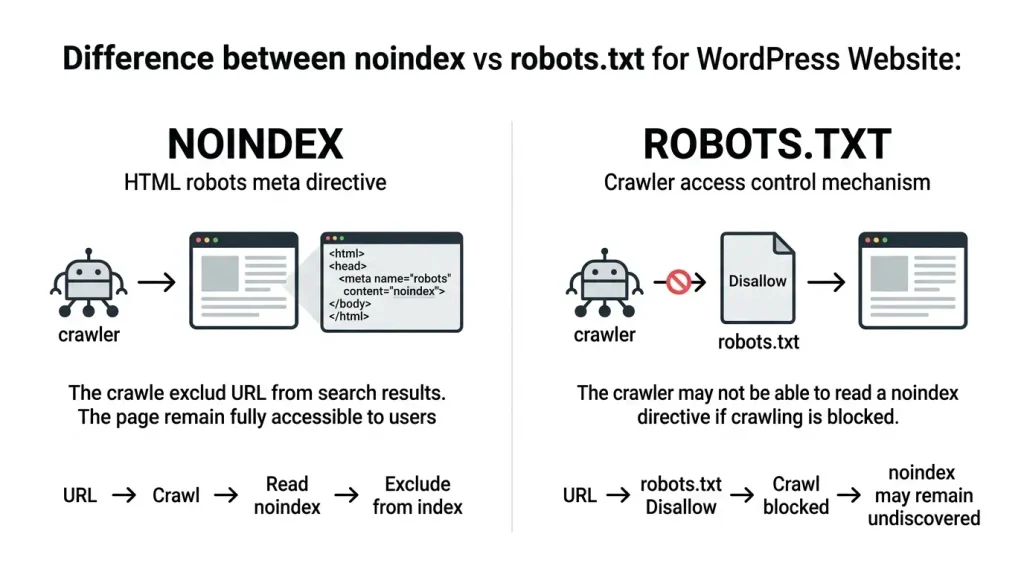
How to Set noindex in WordPress
There are several ways to add noindex.
The main options are:
- through an SEO plugin;
- through the settings for a specific content type;
- through custom WordPress code;
- through the HTTP header
X-Robots-Tag; - through server configuration.
For most site owners, the best option is an SEO plugin, since it lets you manage indexing without editing PHP or server configuration.
For developers and larger sites, the WordPress API wp_robots.
How to Set noindex in WordPress with an SEO Plugin
Modern SEO plugins let you set noindex for individual pages or entire groups of URLs.
A common setup looks like this:
Edit page → SEO settings → Advanced → Allow search engines to show this content → NoFor example, in Yoast SEO, an individual noindex is set in a page's Advanced settings. You can similarly control indexing for content types, taxonomies, and archives.
Menu labels vary by plugin and version, so focus less on the exact button name and more on the setting itself:
Allow search engines to show this content in search results → No How to Set noindex on an Individual Page
Suppose you have a page:
/thank-you/or:
/special-offer-closed/and you do not want it to appear in organic search.
Steps:
- Open the page in the WordPress editor.
- Open the SEO settings.
- Go to the advanced settings.
- Find the robots/indexing settings.
- Set
Noindex. - Save or update the page.
- Check the source HTML.
- If needed, check the URL in Google Search Console.
Expected result:
<meta name="robots" content="noindex">or an equivalent robots directive generated by the plugin.
Noindex for WordPress Categories
Categories are a more nuanced case.
There is no universal rule that "all categories should be excluded from indexing."
A category can be:
- a useful SEO landing page;
- a page with unique copy;
- a well-organized collection of content;
- an important part of the information architecture.
In that case, noindex may be a mistake.
For example:
/blog/seo/could be a fully developed topic landing page.
If a category has:
- a clear topic;
- enough high-quality content;
- unique introductory copy;
- a logical
title; - meta
description; - internal linking;
- real value for users,
do not exclude it from indexing just because it is an "archive."
SEO plugins let you decide whether categories and other taxonomies should appear in search results. Yoast, for example, notes that useful categories can serve as full-fledged landing pages.
When to Consider a Category for noindex
For example, if it is:
- nearly empty;
- contains only one post;
- created by accident;
- a duplicate of another category;
- not valuable for search;
- creating a large number of low-value archive URLs.
Before using noindex though, ask:
Can this category be made useful?
If the answer is "yes," it is often better to optimize it, rather than exclude it.
Noindex for WordPress Tags
Tags are a similar case.
WordPress lets you create virtually unlimited tag pages:
/tag/seo//tag/wordpress//tag/google//tag/plugin//tag/test/
If every new post gets 5–10 tags, a site can quickly end up with hundreds or thousands of archives.
Some of these pages may be:
- very short;
- duplicates of categories;
- contain only one post;
- unrelated to a distinct search intent.
In this situation, noindex may be appropriate.
But if a tag page is genuinely a useful topic hub, you can leave it indexed.
A Practical Rule
Do not assume:
"Tags = noindex."
A better rule is:
Low-value taxonomy = noindex; useful taxonomy landing page = index.
Noindex for Author Archives
WordPress can create separate author pages.
For example:
/author/admin/On a multi-author site, such a page can be useful.
It can include:
- the author's name;
- a biography;
- professional details;
- a list of publications;
- expertise;
- links to profiles.
In this case, an author archive can be a full-fledged page.
On a single-author blog, the situation is different: an author archive often duplicates the homepage content or post listing.
SEO plugins let you either disable author archives entirely or keep them available without showing them in search.
So:
| Site Type | Author Archives |
|---|---|
| Single-author personal blog | Often disabled |
| Corporate blog | Depends on the structure |
| Multi-author publication | Often have SEO value |
| Expert website | Can be important |
| News website | Often need a dedicated strategy |
Noindex for Date Archives
WordPress can generate:
- yearly archives;
- monthly archives;
- daily archives.
For example:
/2026/
/2026/09/
or other URLs depending on the permalink structure.
For many modern websites, these pages have no distinct search value.
They may simply duplicate article listings already available through categories or other landing pages.
As a result, date archives are often:
- disabled;
- redirected;
- or kept available for navigation but excluded from search.
However, this does not mean every date archive should automatically be excluded. On sites where the date is part of the content intent, the archive structure may serve a different purpose.
Noindex for WordPress Internal Search
Internal search pages are among the most common candidates for noindex.
WordPress can generate URLs such as:
/?s=wordpressor URLs with a custom search structure.
These pages are generated dynamically based on a user's search query.
There is usually no reason to let Google index an unlimited number of combinations:
/?s=wordpress/?s=wordpress+seo/?s=wordpress+plugin/?s=seo+2026
WordPress includes a built-in way to add noindex to internal search results.
Noindex in WooCommerce
For online stores, indexing strategy is especially important.
WooCommerce can create:
- product pages;
- product categories;
- product tags;
- cart pages;
- checkout;
- account pages;
- filters;
- sorting;
- parameterized URLs.
What Usually Should Not Be Indexed
Common candidates for noindex include:
- the cart;
- checkout;
- account pages;
- post-checkout pages;
- utility URLs;
- specific technical filter results.
What May Need to Be Indexed
Potentially valuable pages include:
- product pages;
- product categories;
- brands;
- collections;
- themed landing pages;
- well-designed filters, if they match genuine search demand.
A site-wide noindex without analysis is particularly risky here.
For example, the URL:
/shop/laptops/could be a highly important SEO page.
But the URL:
/shop/?orderby=pricemay have no standalone value.
Noindex for Thank-You Pages
Pages such as:
/thank-you/are often used after:
- a form submission;
- a purchase;
- registration;
- a resource download;
- a subscription;
- an inquiry.
They rarely make sense as organic landing pages.
That makes this one of the most common cases for:
noindex, followHowever, if the page is part of an important marketing journey, review its purpose separately.
Should You Set noindex on Login Pages and Admin URLs
Do not confuse:
do not indexwith
protect from access.Noindex does not make a page private.
If a URL contains confidential information, use:
- authentication;
- a password;
- access restrictions;
- server-side security measures.
Google recommends password protection for genuinely private content. noindex noindex only controls whether a resource appears in search results.
How to Add noindex to WordPress Without an SEO Plugin
WordPress includes the wp_robots API.
This allows developers to add robots directives through a filter.
For example, the logic could look like this:
add_filter( 'wp_robots', function( $robots ) {
    $robots['noindex'] = true;

    return $robots;
} );
WordPress documents wp_robots as a filter for directives included in the robots meta tag.
This approach is best used when you need to control indexing programmatically.
Noindex for a Specific Page with PHP
For example, you can add noindex to a page with a specific ID:
add_filter( 'wp_robots', function( $robots ) {
    if ( is_page( 123 ) ) {
        $robots['noindex'] = true;
    }

    return $robots;
} );
Where 123 is the page ID.
Or use WordPress conditional tags for more complex scenarios.
For example:
add_filter( 'wp_robots', function( $robots ) {
    if ( is_search() ) {
        $robots['noindex'] = true;
    }

    return $robots;
} );
WordPress already uses its own function wp_robots_no_robots() to add noindex, and also provides wp_robots_noindex_search() for search pages.
Why You Shouldn't Edit functions.php
If your site already uses an SEO plugin, manually adding robots directives can create conflicts.
For example:
SEO plugin → indexand at the same time:
custom code → noindexYou then need to determine which directive is actually rendered in the final HTML.
Before making changes:
- identify the source of the current robots tag;
- check the HTML;
- check the SEO plugin;
- check the theme;
- check custom code;
- only then change the logic.
X-Robots-Tag: noindex for PDFs and Other Files
For HTML pages, the most common option is:
<meta name="robots" content="noindex">But what about PDFs?
PDFs do not have a standard HTML <head>, so a meta robots tag is not suitable.
For these resources, use the HTTP header:
X-Robots-Tag: noindexGoogle explicitly recommends X-Robots-Tag for non-HTML resources, including PDFs, videos, and images.
For example:
X-Robots-Tag: noindexcan be applied by the server to specific file types.
Which WordPress Pages to Index and Which to Exclude
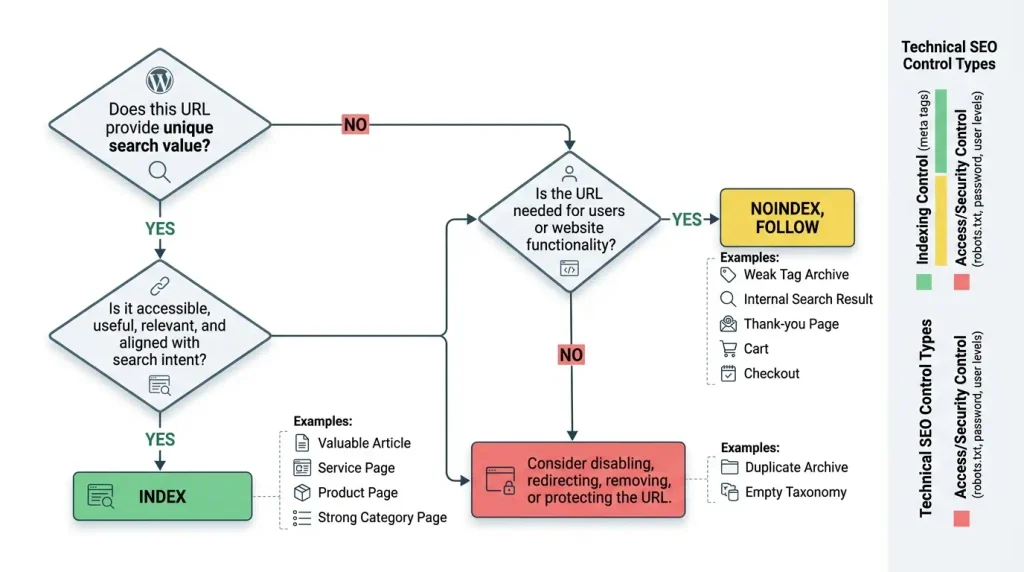
There is no one-size-fits-all table, but you can use this as a starting point:
| URL Type | Typical Recommendation | Why |
|---|---|---|
| Home page | Index | Main page |
| Useful article | Index | Organic potential |
| Service page | Index | Commercial intent |
| Useful category | Index | Topic hub |
| Useful product page | Index | Commercial URL |
| High-quality product category | Index | Search demand |
| Internal search | Noindex | Dynamic results |
| Thank-you page | Noindex | Utility page |
| Cart | Noindex | Technical use case |
| Checkout | Noindex | Technical scenario |
| Account | Noindex | Private area |
| Low-value tag archive | Noindex | Low value |
| Empty taxonomy | Noindex | No content |
| Low-value author archive | Noindex/disable | Low value |
| Unnecessary date archive | Noindex/disable | No standalone value |
| Useful landing page | Index | Search value |
| Private content | Password protection | Security, not SEO |
The key word here is "typical".
Decisions about noindex should be made within the context of the site's specific information architecture.
Noindex and "crawl budget"
Around noindex a common myth often comes up:
"Let's set
noindexon 1,000 pages and Google will immediately start ranking important pages better."
This is an oversimplification.
Noindex primarily controls indexing and search visibility.
Google also notes that on very large sites with hundreds of thousands of URLs and many low-value or duplicate pages, managing crawling and indexing can help focus search engine resources on more important content.
For most smaller WordPress sites, however, the issue usually cannot be reduced to "crawl budget" alone.
First, determine:
- which pages are genuinely useful;
- which URLs duplicate one another;
- which pages match search intent;
- which archives create unnecessary URL structures;
- which pages should be removed or redirected;
- which pages should remain available to users but be removed from Google.
Noindex and Internal Linking
Noindex does not mean:
"No one should link to this page anymore."
The page can still be useful for navigation.
For example:
/search/can be used by site visitors even though it should not be indexed.
Therefore, noindex, follow can be a perfectly reasonable choice.
Likewise, you should not mechanically remove all internal links to noindexpages. First understand the URL's role in the user journey and the site's architecture.
Noindex and canonical Are Not the Same Thing
Another common mistake is treating canonical and noindex as interchangeable tools.
Canonical
Tells the search engine:
"Among similar URLs, treat this one as the primary URL."
Noindex
Tells the search engine:
"Do not show this URL in search results."
These solve different problems.
If a page is a duplicate and has a clearly defined primary URL, a canonical may be the better choice.
If users need the page but it should not appear in organic search, noindex may be more appropriate.
Noindex or Delete a Page?
Not every page you no longer need should be set to noindex.
Sometimes it is better to:
- delete the page;
- return
404; - return
410, if appropriate; - set up a
301to a relevant URL; - consolidate the content;
- change the site structure.
Example
There are two articles:
/seo-wordpress/
/wordpress-seo-guide/
Both cover almost exactly the same topic.
Simply setting noindex on one of them is not always the best solution.
It may make more sense to:
- identify the primary page;
- consolidate the content;
- redirect the old URL;
- update internal links.
Noindex is just one technical SEO tool.
Noindex for Empty Categories and Tags
Empty archives are typical candidates for automatic noindex.
For example:
/tag/wordpress/exists but contains no published content.
Such a page is unlikely to have standalone value.
SEO plugins can automatically or by configuration exclude empty taxonomy archives from search indexing. They usually have a separate setting for noindex empty categories and tags.
Should You Set noindex on Mobile Pages
If WordPress uses a modern responsive design and a single URL adapts to mobile screens, a separate mobile noindex is not needed.
There is no need to exclude a mobile version from indexing just because it uses different CSS or a different layout.
It is important to assess the URL and content, not simply how the page appears on a mobile device.
How to Check noindex in WordPress
After configuration, do not stop at checking whether the box is selected in your SEO plugin.
Verify the actual result.
Method 1: View the HTML
Open the page.
Click:
View Source / View Page Sourceand search for:
noindexYou should see the robots directive.
Method 2: Google Search Console
For a URL Google already knows about, you can use URL Inspection.
Check:
- URL availability;
- indexing status;
- robots directives;
- canonical;
- the last crawl;
- the reason it was excluded from the index.
Google recommends URL Inspection for checking robots meta tags and related settings.
Method 3: Check HTTP Headers
For PDFs or other resources, check the response headers.
Look for:
X-Robots-Tag: noindex How to Make Sure noindex Is Working Correctly
Use this checklist:
- The URL is accessible to Googlebot;
- the HTML contains
noindex; - there is no conflicting robots directive;
- the page is not blocked by
robots.txt, if Google needs to read the noindex directive; - the SEO plugin does not generate a conflicting directive;
- the canonical does not point to an unexpected URL;
- the URL is not unnecessarily included in the XML sitemap;
- the page is not an important SEO landing page;
- the URL has been checked in Search Console after changes.
Common Mistakes When Using noindex
1. Excluding All Categories
A category can be a valuable landing page.
The problem: potential loss of organic traffic.
2. Excluding All Tags Without Reviewing Them
Some tag archives are genuinely low-value, but not all of them.
The solution: assess their actual purpose.
3. Using robots.txt instead of noindex
Google may not see noindex, if the page is blocked from crawling.
4. Automatically Adding nofollow Everywhere
noindex and nofollow serve different purposes.
5. Setting noindex on Important Pages
This is the most dangerous mistake.
Check your:
- articles;
- categories;
- products;
- services;
- commercial landing pages.
6. Forgetting About WooCommerce
noindex is sometimes noindex set for standard WordPress pages, while these are left unchecked:
- filters;
- parameters;
- utility pages;
- taxonomy;
- duplicates.
7. Duplicating Rules Across Multiple SEO Plugins
Running multiple SEO solutions at the same time can cause conflicts.
8. Checking Only WordPress Settings
A checked box in the admin panel does not guarantee the final HTML is correct.
Check the result on the live URL.
Can You Accidentally Remove Your Site from Google with noindex?
Yes.
If you set noindex globally, search engines will be told not to index the site's pages.
WordPress has a separate setting:
Settings → Reading → Discourage search engines from indexing this siteThis setting generates the robots meta directive noindex, nofollow for the site. WordPress notes that it does not block users from accessing the site; it is only a request to search engines.
Be sure to check this setting after launching a new site.
This is especially important after:
- a site migration;
- staging → production;
- a domain change;
- a WordPress migration;
- restoring a backup;
- cloning a site;
- creating a new environment.
Noindex on a Staging Site
For a test environment, noindex can be useful, but do not rely on it alone for a staging site.
If staging contains:
- confidential data;
- a copy of the database;
- personal information;
- private content,
it is better to use authentication/password protection.
Noindex is not a security measure.
Practical WordPress noindex Audit
For a large site, it is useful to create a table:
| URL | Type | Search Value | Current Status | Recommendation |
|---|---|---|---|---|
/blog/article-1/ | Article | High | Index | Index |
/category/seo/ | Category | High | Index | Index |
/tag/test/ | Tag | Low | Index | Noindex |
/author/admin/ | Author | Low | Index | Noindex/disable |
/?s=seo | Search | Low | Index | Noindex |
/thank-you/ | Utility | Low | Index | Noindex |
/cart/ | WooCommerce | Low | Index | Noindex |
/checkout/ | WooCommerce | Low | Index | Noindex |
/shop/laptops/ | Category | High | Index | Index |
This lets you make decisions based not on the URL type, but on its function and SEO value.
What Is a Good Strategy for noindex
A good strategy does not start with the question:
"Which WordPress pages can we exclude?"
A better question is:
"Which URLs should appear in search results, and which are needed only for site functionality or navigation?"
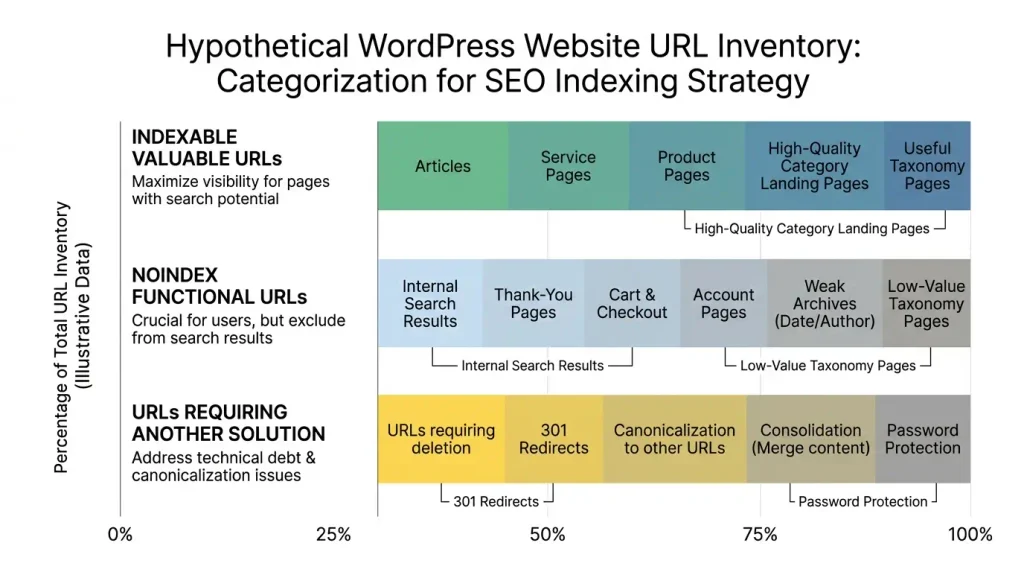
This lets you organize URLs into three groups.
Group 1 — Index
This group includes:
- core articles;
- services;
- products;
- high-quality categories;
- landing pages;
- pages with genuine search demand.
Group 2 — Noindex
This group may include:
- internal search;
- thank-you;
- utility pages;
- low-value archives;
- unnecessary taxonomies;
- technical URLs.
Group 3 — Not noindex, but another solution
For example:
- delete;
- 301 redirect;
- 404;
- 410;
- canonical;
- password protection;
- change the URL structure.
This third group is often overlooked.
Noindex and XML Sitemap
If a URL is marked noindex, it makes sense to leave it out of the XML sitemap if your SEO plugin generates the sitemap automatically.
An XML sitemap should help search engines discover URLs you consider important for indexing.
This can create a potentially problematic situation:
XML sitemap → URLalongside:
robots meta → noindexThis does not necessarily mean an immediate SEO disaster, but the configuration sends conflicting signals about the URL's role.
For noindexpages, check whether they are included in the sitemap through your SEO plugin settings or custom logic.
Does noindex Pass Link Equity
Do not build an SEO strategy around the assumption:
"If you add
noindex, all of the page's equity automatically passes to other pages."
Noindex is primarily an indexing directive.
If you need to change the role of an old page, better options often include:
- 301 redirect;
- canonical;
- updating the content;
- improving internal links;
- consolidating pages.
Noindex for Custom Post Types
WordPress lets you create custom post types.
For example:
- portfolio;
- case-study;
- locations;
- events;
- doctors;
- properties;
- courses.
You should not automatically apply the same rule to every custom post type.
For example:
/case-study/seo-project/may be an important SEO page.
A technical post type used only for internal site functionality, however, may need noindex.
Assess each custom post type individually.
Noindex for Custom Taxonomies
The same applies to custom taxonomies.
For example, a real estate website may have:
- city;
- neighborhood;
- property type;
- number of bedrooms;
- price range.
Some of these pages can be highly valuable:
/kyiv/apartments/Other combinations may generate thousands of low-value URLs.
Rather than mechanically blocking everything from indexing, you need a controlled faceted navigation strategy.
Checklist Before Setting noindex
Before excluding a URL from indexing, ask yourself these 10 questions:
- Does this page have organic search demand?
- Does it serve a distinct search intent?
- Could it attract organic traffic?
- Does it contain useful, unique content?
- Is it useful to visitors?
- Is it part of the site navigation?
- Does it duplicate another page?
- Would a canonical be a better option?
- Would a 301 redirect be a better option?
- Do users need this URL even if Google does not?
If the answer to the last question is "yes," noindex noindex is often a logical choice.
How to Find Pages Accidentally Set to noindex
Periodically check your site for pages that have been accidentally excluded from indexing.
Pay particular attention to:
- new articles;
- new products;
- categories;
- landing pages;
- service pages;
- important taxonomies;
- custom post types.
The problem may occur after:
- an SEO plugin change;
- a theme change;
- migration;
- content imports;
- bulk edits;
- template changes;
- WooCommerce configuration.
What Happens After Removing noindex
If you change a page from:
noindexto:
indexGoogle will not necessarily show it in search immediately.
The search engine needs to:
- discover the URL again;
- crawl the page;
- see the new directive;
- process the changes;
- reassess the page if needed.
After critical changes, you can check the URL in Google Search Console.
WordPress noindex: An Effective Workflow
For most sites, you can follow this sequence:
Step 1. Map Your URLs
Identify:
- pages;
- posts;
- categories;
- tags;
- authors;
- dates;
- custom post types;
- custom taxonomies;
- WooCommerce;
- search;
- filters.
Step 2. Group URLs by Their Purpose
SEO content
→ should be indexed.
Utility content
→ may be noindex.
Duplicates
→ canonical / redirect / consolidation.
Private content
→ authentication/password protection.
Step 3. Configure Your SEO Plugin
Automate clear-cut cases.
Step 4. Keep the Manual Option for noindex
For non-standard pages.
Step 5. Check robots.txt
Make sure noindexpages are not blocked from crawling if you need Google to read the directive.
Step 6. Check Your Sitemap
Make sure your indexing strategy and sitemap are aligned.
Step 7. Check Search Console
Especially after major changes.
Conclusion
Noindex in WordPress is an indexing control tool, not a universal SEO button.
Its main purpose is to help determine which URLs can appear in search results and which should remain accessible to users without being organically indexed.
noindex is most often appropriate for:
- internal search;
- thank-you pages;
- utility pages;
- checkout;
- cart;
- account;
- low-value archives;
- empty taxonomies;
- some author and date archives;
- specific technical URLs.
However, do not automatically apply noindex to all categories, tags, products, posts, or archives.
Evaluate every page based on its:
- search intent;
- uniqueness;
- usefulness;
- organic potential;
- role in the information architecture;
- internal linking;
- duplication;
- technical purpose.
Most importantly:
If a page is useful to visitors but has no standalone SEO value,
noindexnoindex is often the right choice. If a page has search value, do not exclude it just because it is a category, tag, archive, or WordPress page.
The right strategy is not to minimize the number of indexed URLs, but to keep in the search index only the pages that provide genuine value to searchers and users.
FAQ: Frequently Asked Questions About noindex in WordPress
What is noindex in WordPress?
Noindex is a robots directive that tells search engines not to include a specific page or resource in the search index. For HTML pages, it is usually implemented through a robots meta tag.
Does noindex affect page rankings?
Yes, but noindex does not lower a page's rankings in the usual sense. Its primary purpose is to keep a URL out of search results. A page marked noindex should not be treated as a standard organic landing page.
How does noindex differ from nofollow?
Noindex determines whether a page appears in the search index. Nofollow concerns whether search crawlers follow links on the page. These are different directives.
Should I use noindex, nofollow?
Not necessarily. If you only need to exclude a page from search, noindex is often enough. Google processes noindex and nofollow as separate directives.
Should WordPress categories be excluded from indexing?
No, not all of them. A high-quality category can be a full-fledged SEO landing page. Noindex is worth considering for low-value, duplicate, or unnecessary taxonomy pages.
Should I set noindex on WordPress tags?
Not automatically. If tags create useful topic pages, they can remain indexed. If they generate low-value or duplicate archives, noindex may be appropriate.
Should I set noindex on a thank-you page?
In most common scenarios, a thank-you page is a utility page with no standalone search value, so noindex is often a sensible choice.
Should I set noindex on WordPress search pages?
Usually, yes. WordPress has a built-in way to add noindex to internal search pages.
Can I use robots.txt instead of noindex?
No, not if your specific goal is to remove a URL from the search index. Google explicitly notes that robots.txt is not a guaranteed way to remove a page from Google Search.
Can I use robots.txt and noindex at the same time?
Technically, yes. But if robots.txt blocks crawling, Google may not see noindex on the page. If Google needs to process noindex, do not block the URL from crawling in robots.txt.
Can I set noindex without an SEO plugin?
Yes. WordPress provides the wp_robots API, which developers can use to add robots directives programmatically.
How do I set noindex on a PDF?
For PDFs and other non-HTML resources, use the HTTP header X-Robots-Tag, for example X-Robots-Tag: noindex.
Does noindex make a page private?
No. Noindex does not prevent users from opening a URL. Private or confidential information requires authentication, a password, or another access control method.
Should I remove noindex from every page?
No. It is perfectly reasonable for some WordPress pages to remain noindex. The goal is not to maximize the number of indexed URLs, but to create a logical indexing structure.
Can noindex harm SEO?
Yes, if it is accidentally applied to important pages. A site-wide noindex or the mass exclusion of products, categories, articles, and commercial landing pages can be particularly harmful.
How can I check whether a page has noindex?
Check the page's source HTML for a robots meta directive. For further diagnosis, use URL Inspection in Google Search Console. For non-HTML resources, check the HTTP response headers.
Should I add noindex to an XML sitemap?
As a rule, use your sitemap for URLs you want search engines to discover and consider for indexing. Therefore, noindex URLs generally should not be included in a sitemap.
Which is better: noindex or 301 redirect?
It depends. If a URL should remain accessible to users but be removed from search, noindex may be appropriate. If the page has been replaced by a relevant alternative, a 301 redirect often serves a different purpose: redirecting users and search engines to the new URL.
Should I set noindex on author archives?
Not always. They can be useful on multi-author sites. On single-author sites, an author archive often has no distinct value and can be disabled or excluded from search.
Should I set noindex on date archives?
It depends on the site's structure. If date archives simply duplicate other pages and have no distinct search value, they can be excluded from indexing or disabled.
What should I do if an important page accidentally gets noindex?
Remove noindex, then check the final HTML, sitemap, and Search Console. After another crawl, the search engine can process the URL again.
Is noindex a ranking factor?
Noindex is primarily an indexing and search visibility directive, not a traditional ranking factor that raises or lowers a page's position. It is used to manage which URLs can appear in search.

