
WordPress Critical Error: How to Fix It (Step-by-Step)

Hi! If you see the message “There has been a critical error on this website” instead of your WordPress site, a PHP error has prevented WordPress from finishing the request and rendering the page.
For the website owner, this situation often looks more serious than it really is. In many cases, the problem is caused by one particular plugin, theme, piece of custom PHP code, or an incompatibility with the PHP version.
The good news is that WordPress has a built-in Recovery Mode, along with diagnostic tools such as WP_DEBUG and WP_DEBUG_LOG. Together, they help you identify the underlying cause, not just hide the error message.
- What Does a WordPress Critical Error Mean?
- In simple words
- Common Symptoms of a WordPress Critical Error
- Why Does a WordPress Critical Error Occur?
- First Things First: Don’t Panic or Change Everything at Once
- Step 1: Check the WordPress Administrator Email
- Where to Find the Email
- Step 2: Use WordPress Recovery Mode
- What to do?
- Important
- Step 3: Enable WordPress Debug Mode
- Step 4: Check wp-content/debug.log
- How to Read a PHP Fatal Error
-
1.
PHP Fatal error - 2. File path
- 3. Line number
- Step 5: Check Your Plugins
- If you have admin access
- What to Do If wp-admin Won’t Load
- If the Site Works Again
- Step 6: Check for Plugin Conflicts
- Step 7: Check Your WordPress Theme
- How to Check the Theme
- Special attention to functions.php
- Step 8: Check Your PHP Version
- Why can a PHP update cause a Critical Error?
- Step 9: Check for Memory Limit Errors
- What Can Cause a Memory Shortage?
- How to Increase the WordPress Memory Limit
- Step 10: Check the Maximum Execution Time
- Step 11: Check Must-Use Plugins
- Step 12: Check the Database
- Step 13: Check Whether the Problem Started After an Update
- Step 14: Check Component Compatibility
- Step 15: What to Do If a Critical Error Starts After a Plugin Update
- 1. Identify the plugin
- 2. Temporarily disable the plugin
- 3. Check for a newer version
- 4. Check PHP requirements
- 5. Check the plugin changelog
- 6. If the problem persists
- Step 16: Find the Problem Plugin with a Binary Search
- Step 17. If the problem is with your custom PHP code
- Don't edit the code randomly
- Step 18: What to Do If WordPress Files Are Corrupted
- Step 19: Check for Signs Your Site Was Hacked
- Quick diagnosis of WordPress Critical Error
- A Reliable Process for Fixing a WordPress Critical Error
- How to Prevent WordPress Critical Errors in the Future
- 1. Create Regular Backups
- 2. Don’t Update Everything on Production at Once
- 3. Keep PHP Up to Date
- 4. Avoid Outdated Plugins
- 5. Test Custom PHP Code
- What to Do After Fixing the Error
- Frontend
- Backend
- Technical Checks
- Don't forget to turn off Debug Mode on production
- FAQ: WordPress Critical Error
- What Does “There Has Been a Critical Error on This Website” Mean?
- How Can I Quickly Fix a WordPress Critical Error?
- Can I Fix a Critical Error Without Access to wp-admin?
- What Should I Do If a WordPress Critical Error Appears After a Plugin Update?
- Can a WordPress Theme Cause a Critical Error?
- What Is a PHP Fatal Error in WordPress?
- Where Is the WordPress debug.log File Located?
- Should I Leave WP_DEBUG Enabled?
- Will Increasing the PHP Memory Limit Help?
- Can a New PHP Version Cause a Critical Error?
- What If a Critical Error Persists After Disabling All Plugins?
- Do I Need to Reinstall WordPress to Fix a Critical Error?
- Does Recovery Mode Delete the Problematic Plugin?
- What If I Don’t Receive the Recovery Mode Email?
- Conclusion
This guide covers:
- what WordPress Critical Error means;
- why a critical error occurs;
- how to fix it through Recovery Mode;
- what to do if there is no access to WordPress;
- how to find error in
debug.log; - how to check plugins and theme;
- how to diagnose PHP Fatal Error;
- what to do with memory errors;
- how to check PHP compatibility;
- when to restore WordPress files;
- how to avoid the reappearance of Critical Error.
What Does a WordPress Critical Error Mean?
The message:
There has been a critical error on this website.
means WordPress encountered an error that prevents PHP code from running normally.
Most often, this message indicates a PHP fatal error that stops the current process.
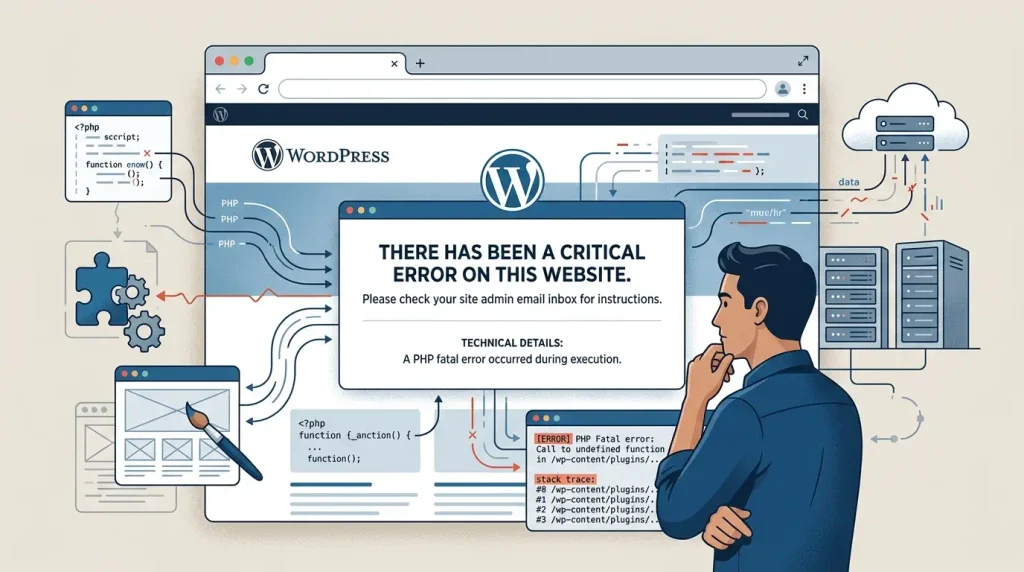
WordPress explains that a critical error prevents a site from working properly. Recommended first steps include checking the administrator email, enabling debugging, and reviewing wp-content/debug.log.
In simple words
Here’s a simplified view of what happens:
WordPress → plugin/theme/code → PHP → error → execution stops → Critical ErrorIt is important to understand: Critical Error is not the name of a specific problem.
It describes the result, not the underlying cause.
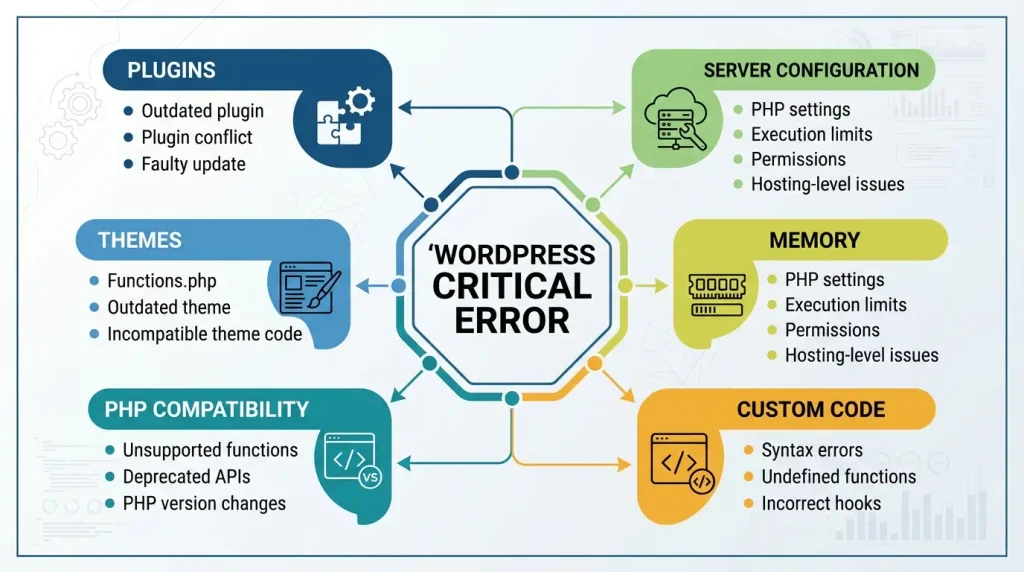
The underlying cause may be something else entirely:
- PHP syntax error;
- incompatible plugin;
- conflict of two plugins;
- problem in the topic;
- custom code in
functions.php; - incompatibility with the new version of PHP;
- lack of PHP memory limit;
- corrupted file;
- update failed;
- problem with Must-Use Plugin;
- server configuration;
- third-party code or integration.
Common Symptoms of a WordPress Critical Error
A WordPress critical error can manifest in several ways.
For example:
- main page does not open;
/wp-admin/does not work;- site shows a white screen;
- pages return an error;
- error occurs only on individual pages;
- error appears after plugin update;
- problem occurs only after changing PHP;
- WordPress works for visitors, but the admin does not work;
- error occurs when opening the editor;
- error appears when loading media files;
- site periodically crashes with certain actions.
In some cases, WordPress automatically activates Recovery Mode, allowing an administrator to access the dashboard and temporarily isolate the faulty component.
Why Does a WordPress Critical Error Occur?
The most common causes can be grouped into several categories.
| The reason | How typical | Example |
|---|---|---|
| Plugin | Very common | Plugin incompatible with WordPress/PHP |
| Topic | Frequent | Error in functions.php |
| PHP | Frequent | New PHP version is incompatible with old code |
| Custom code | Frequent | Invalid PHP code |
| PHP memory | Frequent | Allowed memory size exhausted |
| Update | Sometimes | Interrupted or failed update |
| Conflict plugins | Sometimes | Two components change the same functionality |
| Must-Use Plugin | Rarely | Problem in wp-content/mu-plugins |
| Server | Rarely | Incorrect PHP configuration |
| Corrupted files | Rarely | WordPress file or extension is corrupted |
For these issues, WordPress recommends checking plugins, the theme, available memory, and PHP configuration.
First Things First: Don’t Panic or Change Everything at Once
One of the most common troubleshooting mistakes is changing several things at once:
- update WordPress;
- change PHP;
- disable all plugins;
- change the topic;
- edit
wp-config.php; - delete cache;
- replace files.
As a result, it is difficult to determine exactly what caused the problem.
A better approach is to follow this sequence:
fix → diagnose → isolate → fix → check.Before editing files or replacing components, make sure you have a recent backup of both your site files and database. WordPress also recommends creating backups before working with files.
Step 1: Check the WordPress Administrator Email
If WordPress detects a critical PHP error, it can automatically activate Recovery Mode and send a message to the administrator with a login link.
The email may identify:
- problematic plugin;
- topic;
- file;
- type of error;
- location of the error.
Introduced in WordPress 5.2, Recovery Mode is designed for situations where a fatal error prevents the site from loading normally. The problematic plugin or theme may be temporarily paused for the administrator’s session.
Where to Find the Email
Check:
- main mailbox;
- Spam/Junk;
- Promotions;
- filter folders;
- mailbox that is listed as administrative in WordPress.
If there is no letter, it does not mean that the problem cannot be fixed.
In this case, proceed to diagnostics via file manager, FTP/SFTP or hosting panel.
Step 2: Use WordPress Recovery Mode
If WordPress sent a Recovery Mode link, it’s one of the easiest ways to diagnose the issue.
In Recovery Mode, WordPress may temporarily pause the problematic component for the administrator’s session and display details about the error in the dashboard.
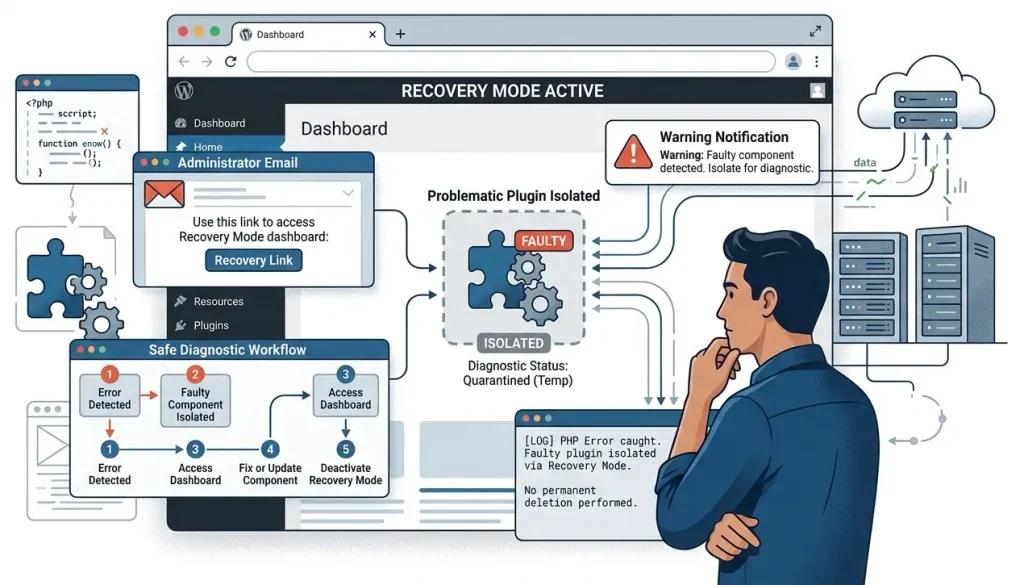
What to do?
- Open the Recovery Mode link from the letter.
- Log in to WordPress.
- See error message.
- Identify the plugin or theme listed as the source of the problem.
- Temporarily deactivate the problematic component.
- Check the site.
- Fix or update the component.
- Exit Recovery Mode.
- Check the site again.
Important
Deactivating a plugin is not always a final solution.
For example, if a plugin is old and incompatible with current PHP, simply disabling it will only remove the symptom.
A better approach:
determine the cause → update/replace/fix the component → check the site.Step 3: Enable WordPress Debug Mode
If Recovery Mode didn’t help, the next step is to troubleshoot with WordPress Debugging.
WordPress has several special constants:
WP_DEBUG;WP_DEBUG_LOG;WP_DEBUG_DISPLAY;SCRIPT_DEBUG.
Official documentation recommends using debugging primarily in development and testing environments, rather than leaving detailed error output enabled on a production site.
Step 4: Check wp-content/debug.log
After enabling:
WP_DEBUGand
WP_DEBUG_LOGWordPress can log diagnostic information to:
wp-content/debug.logThis file often helps you move from a generic message:
Critical Error
to a specific reason:
Fatal error → file → string → plugin/theme → reason.WordPress directly recommends that you review wp-content/debug.log to determine exactly what is causing the Critical Error.
How to Read a PHP Fatal Error
For example, your log might contain an entry like this:
PHP Fatal error: Uncaught Error: Call to undefined function ...
in /wp-content/plugins/example-plugin/includes/file.php on line 123
You don’t need to memorize every term.
Focus on three details:
1. PHP Fatal error
This means that the execution of the PHP code has been interrupted.
2. File path
For example:
/wp-content/plugins/example-plugin/...If the path contains plugins, this is a strong signal to check the specific plugin.
If:
/wp-content/themes/example-theme/...— check the theme.
If:
/wp-content/mu-plugins/...— the issue may be with a Must-Use Plugin.
3. Line number
For example:
line 123This helps a developer locate the relevant code.
At the same time, the line number does not always mean that this particular line contains the root cause. The error may be a consequence of the code just above.
Step 5: Check Your Plugins
Plugins are one of the first things to investigate.
Check this first if the critical error appeared:
- immediately after installing the plugin;
- after plugin update;
- after changing PHP;
- after updating WordPress;
- after changing the plugin settings.
If you have admin access
Go to:
Plugins → Installed Pluginsand temporarily disable the suspicious plugin.
Then check:
- main page;
- problem page;
/wp-admin/;- editor;
- main site functions.
What to Do If wp-admin Won’t Load
Then you can use the hosting file manager or FTP/SFTP.
Find:
wp-content/pluginsand temporarily rename the folder to:
pluginsfor example:
plugins-disabledThis allows you to temporarily deactivate plugins when access to the admin panel is not possible. This method is also described in the official WordPress documentation.
Then check the site.
If the Site Works Again
The reason is probably related to one of the plugins.
Then:
- return the folder name
plugins; - activate plugins one by one;
- check the site after each activation;
- find the component, after activation of which a Critical Error occurs.
This is known as the step-by-step isolation method.
Step 6: Check for Plugin Conflicts
It's not always one plugin alone that is to blame.
There may be a conflict:
Plugin A ↔ Plugin BFor example, two plugins may:
- change the same function;
- connect incompatible libraries;
- use the same hooks;
- change the same API;
- work differently with PHP;
- conflict with the editor or page designer.
That is why, after deactivating all plugins, you should return them one by one instead of activating all at once. This approach is recommended by WordPress to find the problematic component.
Step 7: Check Your WordPress Theme
If disabling plugins didn't help, the next candidate is an active theme.
The theme is especially suspect if the error started after:
- updating the theme;
- changes to a child theme;
- editing
functions.php; - adding PHP code;
- pattern changes;
- PHP update.
How to Check the Theme
If you have admin access:
Appearance → Themestemporarily activate the standard WordPress theme.
If the dashboard is unavailable, use FTP/SFTP or your file manager.
The active theme directory needs to be temporarily renamed.
WordPress can switch to another installed default theme.
Special attention to functions.php
A common cause of a critical error is an incorrect change to:
functions.phpFor example:
- missing
;; - incorrect parenthesis;
- incorrect function name;
- call of non-existent function;
- incorrect number of arguments;
- using a feature removed in a new version of PHP;
- conflict with plugin function;
- syntax error.
WordPress notes that PHP syntax errors can contain information about the file and approximate line number where the problem occurred.
Step 8: Check Your PHP Version
The PHP version is important for WordPress.
At the time of writing, WordPress recommends using PHP 8.3 or later, although the supported minimum may be lower depending on the WordPress version. WordPress also warns that older versions of PHP have reached end of life.
So you need to check not only:
“Does WordPress work with PHP?”
and:
“Are all my plugins, theme, and custom code compatible with the current version of PHP?”
Why can a PHP update cause a Critical Error?
Older PHP code may rely on:
- deprecated functions;
- deleted structures;
- changed APIs;
- incompatible data types;
- old syntax;
- deprecated functions.
For example, a site may run for years on an older PHP version, only for an outdated plugin to stop working after an upgrade.
Therefore, after changing PHP, it is always worth checking:
- WordPress Core;
- the active theme;
- child topic;
- all plugins;
- custom PHP code.
Step 9: Check for Memory Limit Errors
Another common cause of a WordPress critical error is insufficient PHP memory.
In the logs, it may look something like:
Allowed memory size exhausted
This means that the PHP process ran out of available memory.
WordPress documents WP_MEMORY_LIMIT as a parameter that defines the amount of memory that WordPress tries to request for PHP. For the administrative part, there is also WP_MAX_MEMORY_LIMIT.
What Can Cause a Memory Shortage?
Possible causes include:
- heavy plug-in;
- large page builder;
- import of a large volume of data;
- image processing;
- backup;
- complex request;
- a large number of active plugins;
- ineffective custom code;
- insufficient server memory limit.
How to Increase the WordPress Memory Limit
In wp-config.php, you can set a value such as:
define( 'WP_MEMORY_LIMIT', '128M' );For admin requests, you can set:
define( 'WP_MAX_MEMORY_LIMIT', '256M' );However, it is important to understand: the change WP_MEMORY_LIMIT does not always increase the actual PHP memory_limit on the server.
If your host prevents you from increasing the limit, contact your hosting provider. WordPress explicitly mentions that some hosts do not allow you to automatically increase the PHP memory limit.
Step 10: Check the Maximum Execution Time
Another problem may look like:
Maximum execution time exceeded
This means that the PHP operation did not complete within the allowed time.
This can happen during:
- import;
- of export;
- backup;
- mass image processing;
- migrations;
- complex plug-in operations;
- large API requests.
WordPress describes max_execution_time as one of the potential causes of problems with long PHP operations.
If you are not sure how to change your PHP configuration, it is best to contact your hosting provider.
Step 11: Check Must-Use Plugins
Sometimes, the standard list of installed plugins:
Plugins → Installeddoes not show the problematic component.
The reason may be Must-Use Plugins, which are stored in:
wp-content/mu-pluginsThese plugins are activated automatically and can’t be managed through the standard Plugins list. WordPress notes that Must-Use Plugins load automatically and must be disabled by working with their files.
This is especially important on:
- managed hosting;
- corporate sites;
- sites with CDN/caching;
- multisite;
- hostings with their own service plugins.
Step 12: Check the Database
Not every Critical Error is directly related to the database, but database problems can also cause site errors.
Pay attention to:
- connection errors;
- damaged tables;
- problems with MySQL/MariaDB;
- lack of resources;
- incorrect requests;
- errors after migration;
- encoding problems.
If the logs contain SQL errors, don’t edit database tables in phpMyAdmin without first identifying the cause.
Back up the database first.
Step 13: Check Whether the Problem Started After an Update
If Critical Error appeared immediately after the update, this is a very important hint.
Make a simple timeline:
| Event | What has changed? |
|---|---|
| Before the problem | Site worked |
| Update | Plugin updated |
| After update | Critical Error |
| Diagnostics | Fatal Error |
| File | /wp-content/plugins/... |
| Conclusion | Checking the plugin |
This can significantly shorten troubleshooting time.
Step 14: Check Component Compatibility
For reliable operation, these components need to be compatible with one another:
WordPress Core + PHP + theme + plugins + serverFor example:
new PHP → old plugin → incompatible code → PHP Fatal Error → WordPress Critical ErrorOr:
updated WordPress → old theme → deprecated/incompatible code → Fatal ErrorThat is why it is advisable to check the compatibility of components before major updates.
Step 15: What to Do If a Critical Error Starts After a Plugin Update
Algorithm:
1. Identify the plugin
Check:
- Recovery Mode;
debug.log;- date of the problem.
2. Temporarily disable the plugin
If the site recovers, the plugin is likely involved.
3. Check for a newer version
The developer may have already released a fix.
4. Check PHP requirements
Especially if PHP was updated at the same time.
5. Check the plugin changelog
Pay attention to:
- PHP compatibility;
- WordPress compatibility;
- breaking changes;
- required dependencies.
6. If the problem persists
Consider:
- rollback to a stable version;
- alternative plugin;
- apply to the developer.
Step 16: Find the Problem Plugin with a Binary Search
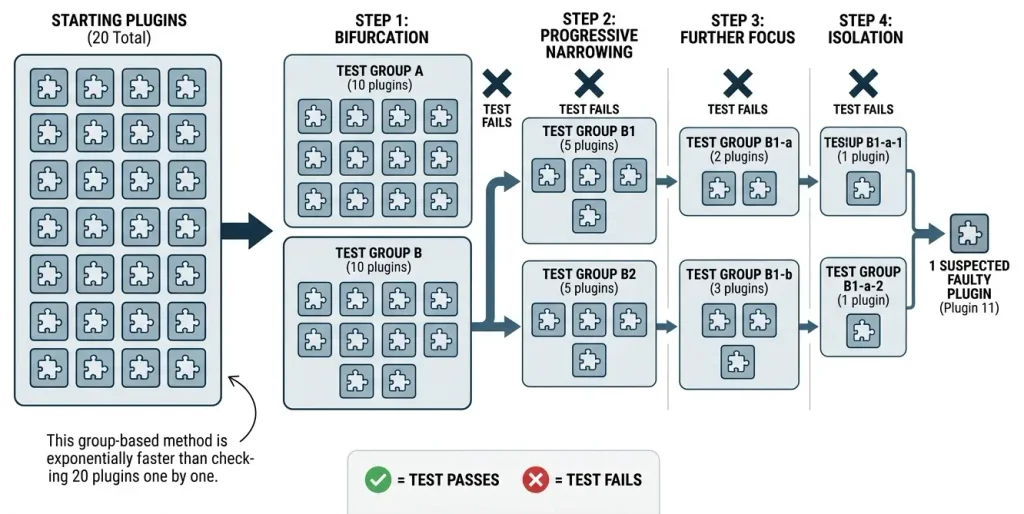
If there are dozens of plugins on the site, it is not necessary to activate them strictly one by one.
You can use a divide-and-conquer approach:
- disable all plugins;
- enable half;
- check the site;
- if an error appears, the problem is in this half;
- if there is no error, the problem is in the other half;
- repeat division.
For example:
20 plugins → 10 → 5 → 2 → 1This approach can significantly speed up diagnostics.
Step 17. If the problem is with your custom PHP code
If debug.log shows:
functions.php
or another file of your theme/custom plugin, you need to check the latest changes.
Especially:
- code that was added recently;
- new hooks;
- new functions;
- AJAX code;
- REST API;
- WooCommerce hooks;
- filters;
- shortcode;
- integrations with third-party APIs.
Don't edit the code randomly
If you’re not an experienced PHP developer, it’s safer to:
- make a backup;
- save current file;
- find the exact error string;
- check the function documentation;
- test the fix on staging.
Step 18: What to Do If WordPress Files Are Corrupted
Sometimes the problem occurs due to:
- update failed;
- incomplete download of files;
- corrupted file;
- problems with the file system.
In that case, you may need to upload a clean copy of the WordPress files.
Do not delete wp-content, wp-config.php or other important files randomly.
WordPress recommends backing up both your files and database before performing file operations.
Step 19: Check for Signs Your Site Was Hacked
Not every Critical Error is the result of a hack.
If the error appeared suddenly without any updates or changes, consider this possibility too.
Pay attention to:
- unknown PHP files;
- unknown plugins;
- suspicious administrative accounts;
- changed files;
- unfamiliar code;
- strange redirects;
- spam pages;
- unknown cron jobs.
If a compromise is suspected, do not limit yourself to simple deletion of one file.
A thorough investigation should include:
- files;
- databases;
- users;
- passwords;
- FTP/SFTP accesses;
- hosting;
- API keys;
- admin accounts.
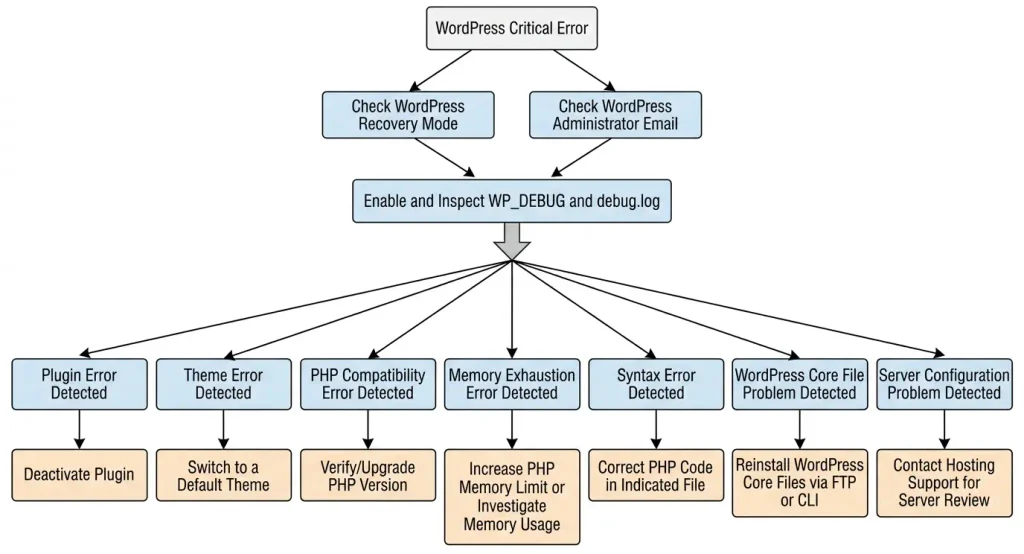
Quick diagnosis of WordPress Critical Error
| Symptom | What to check first |
|---|---|
| Error after plugin update | Plugin |
| Error after PHP change | PHP compatibility |
Error after change functions.php | Theme code |
Allowed memory size exhausted | PHP memory limit |
Maximum execution time exceeded | Execution time |
Call to undefined function | Plugin/theme/PHP |
Call to undefined method | Code incompatibility |
Parse error | PHP syntax |
| Error in admin only | Plugins/admin features/memory |
| Error on frontend only | Theme/Template/Plugin |
| Doesn't open even after disabling plugins | Theme/PHP/Core/Server |
Error in mu-plugins | Must-Use Plugin |
| Error after migration | PHP/paths/DB/Server |
A Reliable Process for Fixing a WordPress Critical Error
Work from the simplest checks to the deeper ones.
1. Check Recovery Mode
     ↓
2. Check the administrator's email
     ↓
3. View debug.log
     ↓
4. Define the file and the component
     ↓
5. Disable the suspicious plugin or theme
     ↓
6. Check PHP
     ↓
7. Check the memory limit
     ↓
8. Check the custom code
     ↓
9. Check WordPress Core
     ↓
10. Check the server
     ↓
11. Check security
     ↓
12. Restore the site from the backup if the cause is not localized
This approach is much more efficient than randomly disabling or reinstalling components.
How to Prevent WordPress Critical Errors in the Future
Fixing the error is only half the job.
It’s better to reduce the chance of it happening again.
1. Create Regular Backups
A backup should include:
- the database;
- WordPress files;
wp-content;- topic;
- downloaded media files;
- configuration.
Don’t just create backups—periodically verify that you can restore the site from them.
2. Don’t Update Everything on Production at Once
For a business-critical site, use this workflow:
backup → staging → update → test → productionThis is especially important before:
- upgrading PHP;
- major WordPress update;
- WooCommerce update;
- by updating the designer;
- by updating a large number of plugins.
3. Keep PHP Up to Date
WordPress recommends using a current PHP version. However, check compatibility across the entire site, not just WordPress core.
4. Avoid Outdated Plugins
A plugin that hasn’t been updated in years may cause problems after:
- updating PHP;
- WordPress update;
- changes of another plugin;
- changes to the server environment.
5. Test Custom PHP Code
Don't insert random PHP snippets without:
- backup;
- testing;
- compatibility checks;
- understanding what the code does.
For an important site, it is better to use a child theme or a separate custom plugin, rather than randomly changing files.
What to Do After Fixing the Error
After the site is up and running again, you should not complete the diagnostics right away.
Make a control check:
Frontend
- main page;
- records;
- pages;
- categories;
- search;
- forms;
- menu;
- mobile version.
Backend
/wp-admin/;- editor;
- media library;
- settings;
- plugins;
- topic.
Technical Checks
- PHP error log;
debug.log;- Site Health;
- PHP version;
- memory limit;
- cron;
- loopback requests.
Site Health in WordPress is in Tools → Site Health and shows technical information about the site configuration and potential critical issues.
Don't forget to turn off Debug Mode on production
After diagnostics are complete, check wp-config.php.
If debugging was enabled temporarily, it should be returned to normal configuration.
For example:
define( 'WP_DEBUG', false );It is especially important not to leave PHP error output open to visitors.
WordPress emphasizes that debugging tools are intended primarily for development and testing, and detailed errors should not be unnecessarily displayed on the live site.
FAQ: WordPress Critical Error
What Does “There Has Been a Critical Error on This Website” Mean?
This message means WordPress encountered a critical error usually a PHP error that interrupted the request. Common causes include a plugin or theme, custom code, insufficient memory, or another server-side issue.
How Can I Quickly Fix a WordPress Critical Error?
Start by checking Recovery Mode and the administrator email. If that doesn’t help, enable WP_DEBUG and WP_DEBUG_LOG, inspect wp-content/debug.log, and identify the file or component triggering the fatal error.
Can I Fix a Critical Error Without Access to wp-admin?
Yes. Use FTP/SFTP or your hosting provider’s file manager. Temporarily renaming the wp-content/plugins directory can help determine whether a plugin is responsible.
What Should I Do If a WordPress Critical Error Appears After a Plugin Update?
Temporarily deactivate the plugin, review debug.log, check compatibility with your current WordPress and PHP versions, and look for a newer release. If the issue began immediately after the update, that timing is an important diagnostic clue.
Can a WordPress Theme Cause a Critical Error?
Yes. Common causes include custom code in functions.php, a child theme, or outdated code that is incompatible with the current PHP version.
What Is a PHP Fatal Error in WordPress?
A PHP fatal error is a serious error that stops the current PHP process. In WordPress, it may trigger the message “There has been a critical error on this website”.
Where Is the WordPress debug.log File Located?
By default, the file is located at:
wp-content/debug.log
It is created or used after WP_DEBUG_LOG is configured.
Should I Leave WP_DEBUG Enabled?
Generally, no. On a production site, use debugging for diagnosis and testing, and log errors without displaying detailed messages to visitors.
Will Increasing the PHP Memory Limit Help?
If the logs show Allowed memory size exhausted, increasing available memory may resolve the symptom. You should also investigate why the site is using so much memory. If the host controls the limit, ask your provider to change it.
Can a New PHP Version Cause a Critical Error?
Yes. An outdated plugin, theme, or custom code may be incompatible with a newer PHP version. Check every site component for compatibility before changing PHP.
What If a Critical Error Persists After Disabling All Plugins?
Check the active theme, mu-plugins, PHP, custom code, WordPress core, the memory limit, and server logs. If the issue persists, contact your hosting provider or a WordPress/PHP developer.
Do I Need to Reinstall WordPress to Fix a Critical Error?
Not necessarily. First identify the root cause. If WordPress core files are corrupted, restore clean files from a backup or the official WordPress distribution.
Does Recovery Mode Delete the Problematic Plugin?
No. Recovery Mode may temporarily pause the problematic component for the administrator’s session, allowing you to access the site and troubleshoot.
What If I Don’t Receive the Recovery Mode Email?
Check Spam/Junk, confirm the administrator email address, and verify your mail configuration. If the email is missing, use debug.log, FTP/SFTP, or your hosting file manager to troubleshoot manually. WordPress provides alternative diagnostic methods when the Recovery Mode email is unavailable.
Conclusion
WordPress Critical Error is not a specific error, but a signal that a critical problem has occurred during the execution of the site.
In most cases, the correct strategy is not to immediately reinstall WordPress, but to find the root cause.
Optimal sequence:
- Check Recovery Mode.
- Check the administrator's email.
- Enable
WP_DEBUGandWP_DEBUG_LOG. - View
wp-content/debug.log. - Find the file, plugin, or theme that caused the Fatal Error.
- Check PHP compatibility.
- Check memory limit and execution time.
- Disable or update the problematic component.
- Check theme and custom code.
- Check Must-Use Plugins and server configuration.
- If necessary, restore damaged files from backup.
- Turn off debug output on production after correction.
The main principle is simple: don't fight the “Critical Error” message - find the PHP error behind it.
It is Recovery Mode, debug.log and accurate analysis PHP Fatal Error that most often turn an obscure WordPress error into a specific problem with a specific solution.

