
WebP in WordPress: A Complete Image Optimization Guide

Hi! Images are one of the most common reasons web pages become heavy. Even a well-optimized WordPress site can load more slowly when its pages contain large JPEG or PNG files.
One way to reduce image file sizes is to use WebP. It supports both lossy and lossless compression and has been part of WordPress core since WordPress 5.8. According to the WordPress documentation, WebP files can be around 30% smaller on average than equivalent JPEGs or PNGs, although actual results depend on the image, quality setting, and compression method.
There is one more important point for SEO: using WebP alone does not guarantee higher Google rankings. Its main benefit is the potential to reduce resource sizes and improve the user experience. Google also recommends optimizing image quality and dimensions, using responsive images and descriptive alt text, and placing images appropriately.
- What Is WebP
- WebP vs. Traditional Image Formats
- Why WebP Matters for WordPress
- Does WordPress Support WebP
- WordPress Does Not Automatically Convert Every Image to WebP
- What You Need to Use WebP in WordPress
- What to Check with Your Host
- How to Upload WebP to WordPress
- Step 1: Prepare the WebP File
- Step 2: Open the Media Library
- Step 3: Upload the WebP File
- Step 4: Verify the Result
- How to Convert JPG and PNG to WebP in WordPress
- Option 1: Convert Images Before Uploading
- Option 2: Automatic Conversion with a Plugin
- Option 3: A CDN or Image Optimization Service
- WebP: Convert Images or Upload Ready-Made Files?
- WebP Lossy vs. Lossless: Which Compression Should You Choose?
- Lossy
- Lossless
- A Practical Rule
- Don't Confuse Image Format with Image Dimensions
- Responsive Images in WordPress
- Why This Matters More Than WebP Alone
- WebP and SEO: Does the Format Help with Google Rankings?
- How to Write Alt Text for WebP Images
- Don't Add Keywords Just for the Sake of It
- How to Name a WebP File
- WebP and Core Web Vitals
- Important
- Lazy Loading and WebP
- WebP and CDNs
- Should You Delete the Original JPG and PNG Files?
- A Safer Approach
- WebP in WooCommerce
- What to Check After Switching to WebP
- WebP and CSS Background Images
- How to Check Whether Your Site Actually Serves WebP
- Method 1: Chrome DevTools
- Method 2: Inspect the HTML
- Method 3: PageSpeed Insights
- What Counts as a Good WebP Result?
- Example
- How to Choose WebP Quality Settings
- A Practical Workflow
- WebP or AVIF?
- WebP vs. AVIF
- Should You Convert Your Entire Site from JPEG to WebP?
- A Recommended WebP Optimization Workflow for WordPress
- Step 1: Audit
- Step 2: Back Up
- Step 3: Test the Conversion
- Step 4: Verify
- Step 5: Bulk Optimization
- Step 6: Monitor
- Common WebP Mistakes
- Mistake #1: Converting Without Resizing
- Mistake #2: Using Excessive Compression
- Mistake #3: Deleting Originals Immediately
- Mistake #4: Installing Multiple Conversion Plugins
- Mistake #5: Forgetting About the Cache
- Mistake #6: Optimizing Only the Media Library
- Mistake #7: Keyword-Stuffing Alt Text
- Mistake #8: Treating WebP as a Complete Image Optimization Strategy
- How to Set Up WebP on a New WordPress Site
- Recommended workflow
- How to Optimize an Existing WordPress Site
- Do You Need a WebP Plugin?
- What to Look for in a WebP Plugin
- How to Measure the Impact of WebP
- Before optimization
- After optimization
- What to Compare
- Which Images to Optimize First
- WebP and Image File Names for SEO
- WebP and Image Sitemaps
- WebP and Schema.org
- WebP on Mobile Devices
- A Practical WebP Checklist for WordPress
- WordPress
- Image
- SEO
- Performance
- Security
- FAQ: WebP in WordPress
- 1. Does WordPress support WebP?
- 2. Do I need to install a WebP plugin?
- 3. Does WordPress automatically convert JPG to WebP?
- 4. Is WebP better than JPG?
- 5. Is WebP better than PNG?
- 6. Does WebP affect SEO?
- 7. Should I keep the JPG after converting it to WebP?
- 8. Can I use WebP in WooCommerce?
- 9. Do I need to convert my entire media library?
- 10. Can I delete the original JPEGs and PNGs?
- 11. Does WebP work on smartphones?
- 12. WebP or AVIF: which should I use?
- 13. Is renaming a JPG file to WebP enough?
- 14. Why is a WebP file sometimes larger than a JPEG?
- 15. How can I check whether WordPress is actually serving WebP?
- Conclusion
This guide covers WebP in WordPress, from the basics to practical optimization: uploading and conversion, SEO, srcset, CDNs, Core Web Vitals, fallback formats, and common pitfalls.
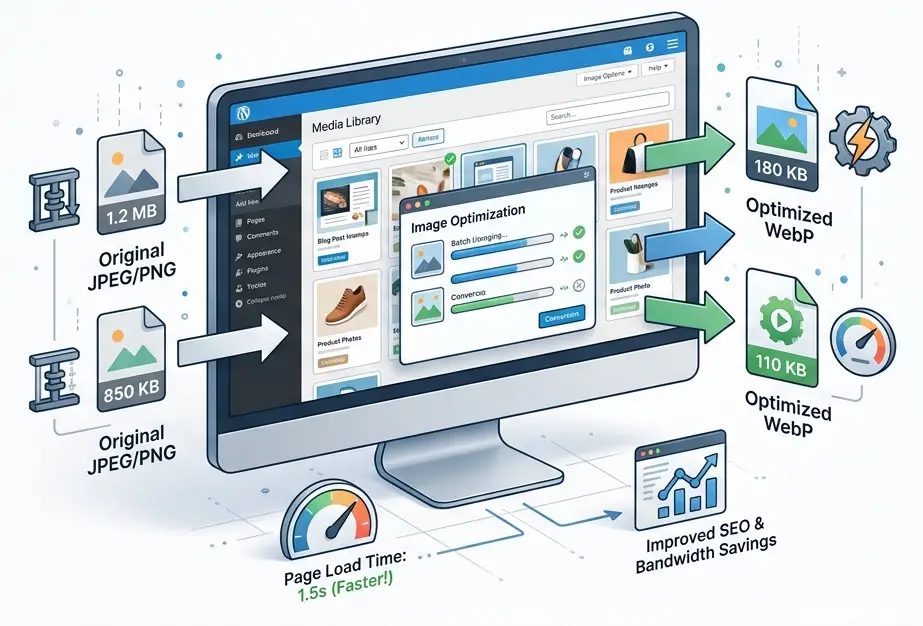
What Is WebP
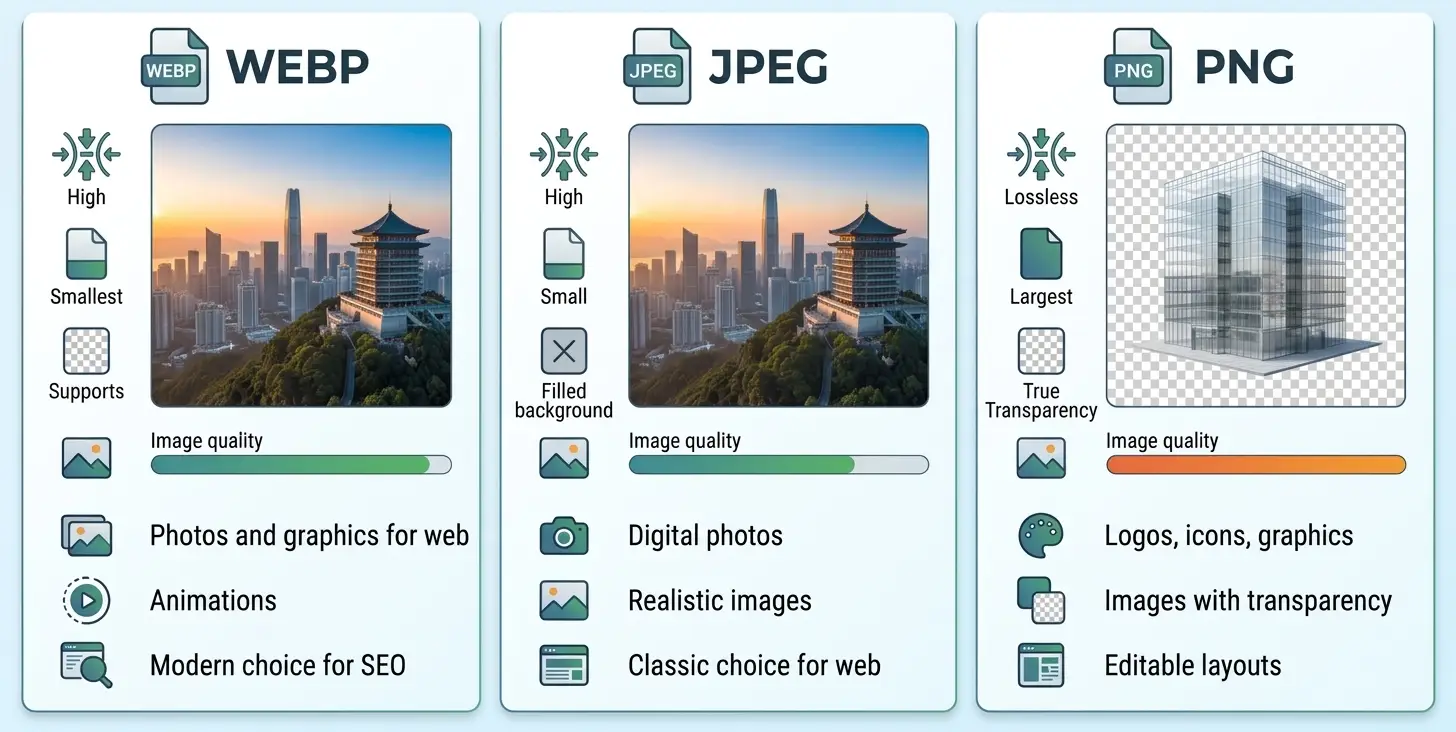
WebP is a modern image format designed to deliver graphics more efficiently over the web.
It supports:
- lossy compression;
- lossless compression;
- transparency;
- animation;
- a wide range of web use cases.
The idea behind WebP is simple: deliver an image that looks good at a smaller file size.
For example, a JPEG image might be 500 KB, while an optimized WebP version could be substantially smaller. However, no specific percentage of savings is guaranteed: photos, logos, screenshots, and illustrations all compress differently.
WebP vs. Traditional Image Formats
| Format | Primary use | Compression | Transparency | Animation | Typical use cases |
|---|---|---|---|---|---|
| JPEG | Photographs | Lossy | ❌ | ❌ | Photos, banners |
| PNG | Graphics | Lossless | ✅ | ❌ | Logos, screenshots |
| GIF | Simple animation | Lossless/limited | ✅ | ✅ | Simple animations |
| WebP | Web images | Lossy/Lossless | ✅ | ✅ | Photos, graphics, UI |
| AVIF | Modern web graphics | Lossy/Lossless | ✅ | ✅ | Modern web graphics |
Google Search supports WebP, as well as JPEG, PNG, GIF, SVG, BMP, and AVIF.
Why WebP Matters for WordPress
WordPress is often used for sites with large amounts of media, including:
- blogs;
- news sites;
- online stores;
- portfolios;
- business websites;
- information portals;
- sites with lots of screenshots.
If each page loads 10–20 large JPEG files, the total page weight can quickly reach several megabytes.
Switching to more efficient formats can reduce the amount of data transferred.
This can potentially affect:
- page load speed;
- mobile data usage;
- image loading time;
- perceived site speed;
- some performance metrics;
- Core Web Vitals;
- server and CDN load.
That said, WebP is only one part of image optimization. Google also recommends considering image quality and dimensions, responsive images, and the broader image optimization strategy.
Does WordPress Support WebP
Yes.
Native WebP support arrived in WordPress 5.8, released on July 20, 2021. Since then, WebP can be used in WordPress much like JPEG or PNG.
There is an important caveat, though.
WordPress Does Not Automatically Convert Every Image to WebP
WebP support means WordPress can work with WebP files.
It does not mean that every uploaded JPEG is automatically converted to WebP.
For example:
- you upload
photo.jpg; - WordPress generates image sizes;
- by default, generated image sizes use the same format as the original;
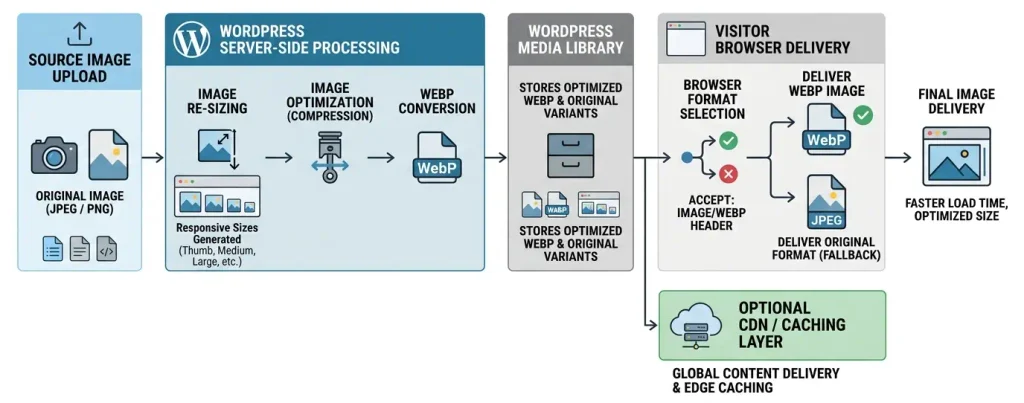
- to automatically create WebP versions of JPEGs or PNGs, you need a conversion or optimization tool.
WordPress also provides an API that lets developers change the format used for generated image sizes.
What You Need to Use WebP in WordPress
Using WebP successfully depends not only on WordPress itself, but also on the server's image-processing environment.
Depending on its configuration, your host may use:
- GD;
- Imagick / ImageMagick;
- other image-processing tools;
- a CDN or external optimization service.
If the server's image library lacks WebP support, WebP operations may fail.
WordPress Learn notes that although WordPress supports WebP, the server's image library must also support the format for WebP operations to work.
What to Check with Your Host
Before bulk optimization, check:
- your WordPress version;
- your PHP version;
- GD;
- Imagick;
- WebP support;
- the available PHP memory limit;
- available disk space;
- CDN rules;
- caching;
- automatic conversion options;
How to Upload WebP to WordPress
If your server supports WebP, the basic workflow is straightforward.
Step 1: Prepare the WebP File
Prepare an optimized file:
example.webpBefore uploading, it is a good idea to:
- remove unnecessary metadata;
- choose appropriate dimensions;
- check image quality settings;
- make sure the file is not unnecessarily large.
Step 2: Open the Media Library
In WordPress, go to:
Media → Add NewAlternatively, upload the file directly from the post editor.
Step 3: Upload the WebP File
Select the .webp file and wait for the upload to finish.
Step 4: Verify the Result
Open the page that uses the image and inspect it with your browser's developer tools.
In the Network tab, you can check:
- the file URL;
- the format;
- the actual file size;
- load time;
- HTTP headers;
- caching.
How to Convert JPG and PNG to WebP in WordPress
There are several ways to do this.
Option 1: Convert Images Before Uploading
Convert the file:
photo.jpg → photo.webpor:
image.png → image.webpThen upload the WebP file to WordPress.
Advantages:
- maximum control;
- no additional WordPress plugin required;
- easy to test image quality settings;
- you can control the size of every file.
Disadvantages:
- manual work;
- impractical for a large media library;
- harder to automate and maintain.
Option 2: Automatic Conversion with a Plugin
A plugin can automatically:
- process the JPEG or PNG;
- create a WebP version;
- keep the original;
- generate additional image sizes;
- serve the optimized format to the browser.
The WordPress.org Plugin Directory offers various WebP conversion and optimization plugins. Their features range from basic conversion to bulk processing, automatic optimization, WebP/AVIF generation, and CDN integration.
Option 3: A CDN or Image Optimization Service
In this setup, the original image can remain a JPEG or PNG while the CDN generates an optimized version for the browser and requested dimensions.
This is especially useful for:
- large sites;
- WooCommerce;
- sites with thousands of images;
- an international audience;
- sites already using a CDN.
WebP: Convert Images or Upload Ready-Made Files?
The right choice depends on your workflow.
| Scenario | Recommended approach |
|---|---|
| New, small site | Convert to WebP when preparing images |
| Large, existing media library | Automated bulk conversion |
| WooCommerce | Automation plus testing |
| Large content site | CDN or automatic optimization |
| Site with few images | Manual optimization |
| When maximum control is required | When maximum control is required |
WebP Lossy vs. Lossless: Which Compression Should You Choose?
WebP supports two main compression methods.
Lossy
With lossy compression, some image data is discarded to reduce file size.
Advantages:
- much smaller files;
- well suited to photographs;
- often a good choice for websites.
Disadvantages:
- excessive compression can reduce image quality settings;
- artifacts may appear around text and fine details.
Lossless
Lossless compression preserves the image without losing visual information.
Advantages:
- high fidelity;
- well suited to some types of graphics;
- useful when exact reproduction matters.
Disadvantages:
- files may be larger;
- not always the most efficient option for photographs.
A Practical Rule
For photographs, start with lossy WebP and adjust the quality setting based on testing.
For graphics where crisp edges, text, or transparency matter, check the results carefully.
Don't Confuse Image Format with Image Dimensions
This is one of the most important points in WordPress image optimization.
Changing:
4000 × 3000 JPGto:
4000 × 3000 WebPmay reduce the file size, but the image can still be far too large for its place on the page.
If a container is 800 px wide, uploading a 4,000 px-wide photo is often unnecessary.
Image optimization should therefore include at least two steps:
the right image dimensions → efficient compression.Responsive Images in WordPress
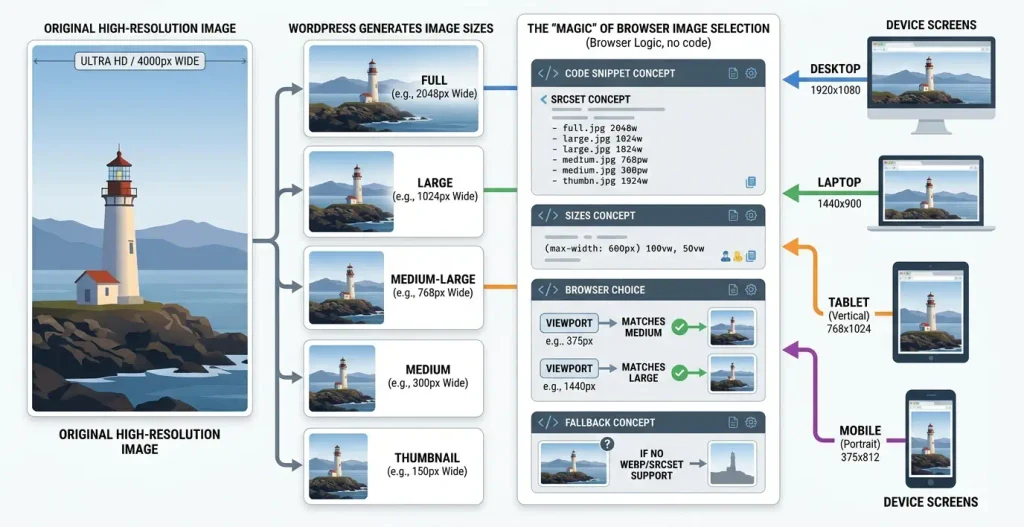
WordPress automatically generates multiple image sizes for many types of uploaded media.
This allows the browser to choose an appropriate version.
For example:
- a mobile device doesn't need a huge file;
- a tablet may need a medium-sized version;
- a desktop can use a larger version.
Google recommends responsive images with srcset or picture. When using picture, include a fallback image via <img src="...">.
Why This Matters More Than WebP Alone
Compare these approaches:
Option A
Large JPEG → WebP → still a huge fileOption B
Right dimensions → WebP → responsive delivery → cachingThe second approach optimizes not just the format, but also the amount of data that actually needs to reach the user.
WebP and SEO: Does the Format Help with Google Rankings?
It is important to avoid a common misconception here.
WebP is not a magic SEO factor that automatically boosts a page in Google.
Its benefits are primarily related to technical optimization.
Google recommends:
- using appropriate formats;
- optimizing image dimensions;
- maintaining good image quality settings;
- use responsive images;
- using descriptive file names;
- adding accurate
alttext; - placing images near relevant text;
- making sure search engines can discover the images.
A better way to think about it is:
WebP → smaller files → potentially better performance → better UX, not:

WebP → automatic ranking boost.
How to Write Alt Text for WebP Images
The file extension does not change the principles of writing alt text.
Poor:
alt="webp wordpress seo optimization image webp wordpress"
Better:
alt="Optimized WebP image in WordPress"
Better still, describe what the image actually shows:
alt="WordPress settings for converting images to WebP"
Google recommends informative alt text that describes the image, rather than keyword stuffing.
Don't Add Keywords Just for the Sake of It
alt text should primarily be useful for:
- screen reader users;
- accessibility;
- search engines;
- understanding the image in context.
How to Name a WebP File
Instead of:
IMG_839472.webpuse:
wordpress-webp-optimization.webpAvoid turning the file name into a string of keywords:
webp-wordpress-webp-images-wordpress-seo-speed.webpGoogle notes that a file name can provide additional context about an image, but it is only one signal. Google also recommends keeping file names short and descriptive.
WebP and Core Web Vitals
Image optimization can play an important role in page performance.
Large images can affect:
- page load speed;
- Largest Contentful Paint;
- data transfer;
- how quickly the main content appears.
Pay particular attention to the LCP image—the large image that forms part of the main visible content.
Important
Do not apply lazy loading to every image indiscriminately.
If the main image is the page's LCP element, its loading should not be deliberately delayed.
Image optimization should therefore consider not only the format, but also the role each image plays on the page.
Lazy Loading and WebP
Lazy loading allows the browser to defer images that are far outside the initial viewport.
This can be very useful on long pages.
For example:
- the hero image loads at high priority;
- above-the-fold images load quickly;
- images further down the page can load later.
WebP and lazy loading solve different problems.
WebP:
reduces file size.
Lazy loading:
helps avoid loading everything at once.
Together, they can improve performance, but both need to be configured correctly.
WebP and CDNs
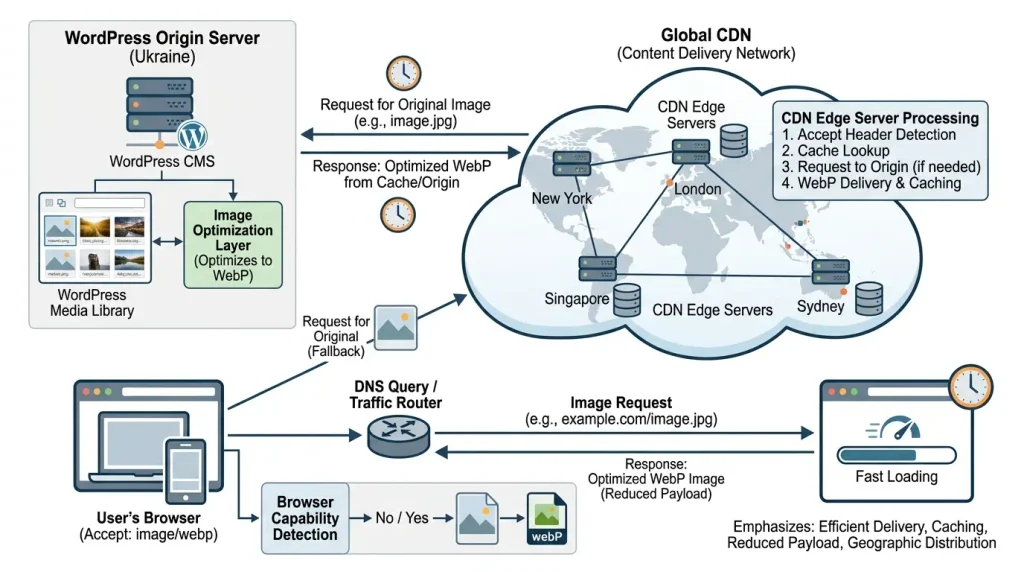
A CDN can make image delivery much more efficient.
A simplified workflow looks like this:
Original image → optimization → CDN → detect browser requirements → WebP/AVIF → userA CDN can:
- cache images;
- serve them from geographically closer servers;
- generate different sizes;
- optimize image quality settings;
- convert formats;
- reduce load on the origin server.
For large sites, this is often more effective than trying to handle all image processing inside WordPress.
Should You Delete the Original JPG and PNG Files?
Not so fast.
If WebP files are generated automatically, the original JPEG or PNG may still be needed for:
- backups;
- re-conversion;
- editing;
- generating other formats;
- compatibility;
- recovery after an error.
Some plugins let you delete originals, but only do so after making a backup and testing thoroughly. For example, modern WebP conversion plugins explicitly warn users to back up files before deleting originals.
A Safer Approach
First:
- create a backup;
- test the conversion;
- check all pages;
- check WooCommerce;
- check CSS backgrounds;
- check the CDN;
- check the cache;
- only then consider deleting the originals.
WebP in WooCommerce
Image optimization is especially important for online stores.
A product page may load all of the following at once:
- the main product image;
- gallery images;
- thumbnails;
- product variations;
- banners;
- recommendations;
- category images.
Even a small reduction in each file can therefore add up to a noticeable overall saving.
What to Check After Switching to WebP
- product cards;
- galleries;
- zoom;
- thumbnails;
- variable products;
- mobile layout;
- lazy loading;
- CDN;
- cache;
- structured data;
- Open Graph;
- images in schema.org.
Check carefully that the optimization plugin does not change URLs or attachment metadata in a way that conflicts with other parts of your site.
WebP and CSS Background Images
Not every WordPress image is rendered as a standard:
<img>Some graphics may instead be used as:
- background images;
- a hero section background;
- a button background;
- an element in a page builder;
- an image inserted with JavaScript.
This matters for SEO.
Google notes that standard HTML image elements help search engines discover and process images, while CSS background images are not indexed in the same way as regular <img> elements.
When it fits the page structure, use standard HTML image elements for images that matter to search.
How to Check Whether Your Site Actually Serves WebP
Seeing a WebP file in the Media Library is not enough.
You need to check what the front end actually serves.
Method 1: Chrome DevTools
- Open the page.
- Press
F12. - Open Network.
- Select the Img filter.
- Reload the page.
- Find the image you want to check.
- Check its URL and response type.
Method 2: Inspect the HTML
Inspect the source code or DOM.
Look for:
src;srcset;sizes;<picture>;- WebP source;
- fallback image.
Method 3: PageSpeed Insights
After optimization, test the pages again with PageSpeed Insights.
Do not judge the result by a single metric.
Check:
- the mobile version;
- desktop;
- LCP;
- CLS;
- INP;
- image delivery;
- unused images;
- image dimensions;
- the total page size.
What Counts as a Good WebP Result?
There is no universal target such as:
“WebP should make every image 30% smaller.”
The result depends on:
- the original format;
- the image itself;
- the level of detail;
- transparency;
- dimensions;
- quality settings;
- the encoder;
- metadata;
- the original compression.
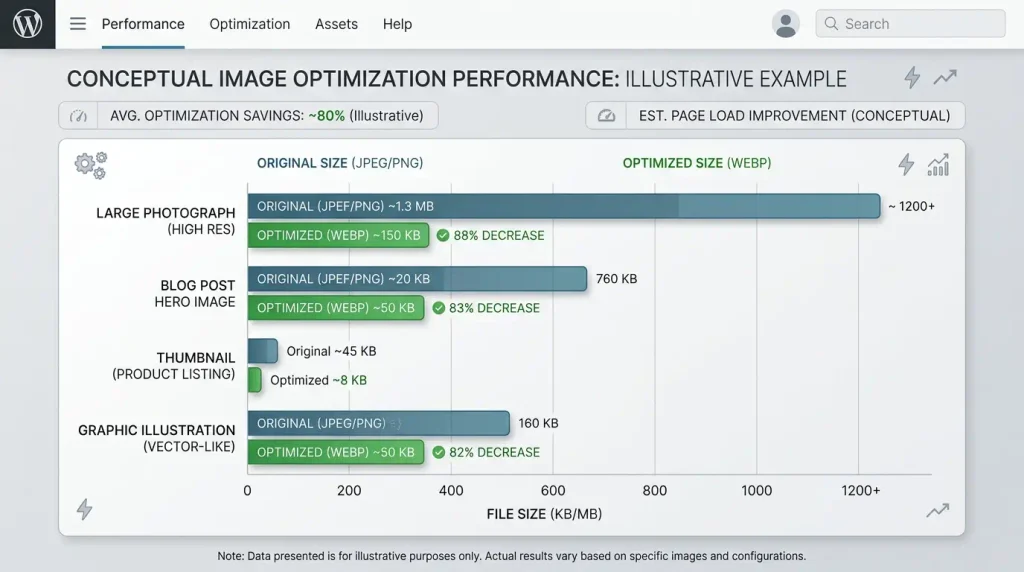
The WordPress documentation cites an average WebP file size around 30% smaller than JPEG or PNG, but this is an average—not a guarantee for every file.
Example
For illustration:
| Image | Original file | WebP | WebP |
|---|---|---|---|
| Photo 1 | 800 KB | 420 KB | 47,5% |
| Photo 2 | 500 KB | 350 KB | 30% |
| Photo 3 | 300 KB | 240 KB | 20% |
| Graphics | 200 KB | 90 KB | 55% |
This is only an illustration. Measure the results using your own images.
How to Choose WebP Quality Settings
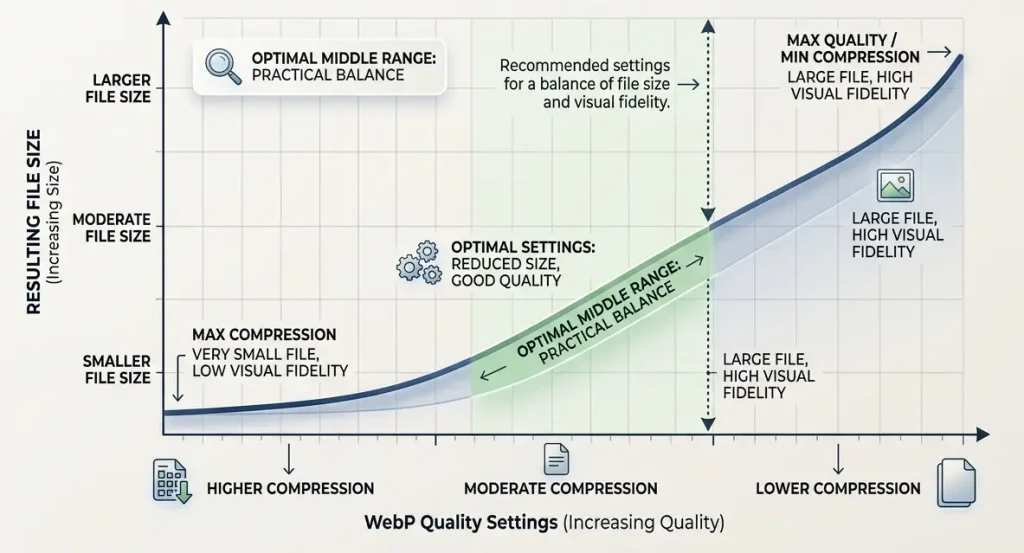
Do not optimize for the smallest possible file size alone.
For example, setting the quality too low may produce a small file, but:
- skin in photos may lose detail;
- textures may look blurry;
- artifacts may appear around high-contrast edges;
- small text may become harder to read.
A Practical Workflow
- Choose 10–20 representative images.
- Create several quality versions.
- Compare file sizes.
- Check the image quality on desktop.
- Check the image quality on a phone.
- Pay particular attention to large hero images.
- Choose a balance between quality and file size.
- Automate the chosen setting.
WebP or AVIF?
WebP is not the only modern image format.
Google Search also supports AVIF. Google announced AVIF support in Google Search in 2024 and cautioned against switching an entire site to a new format without evaluation. Test which format works best for your specific site.
WebP vs. AVIF
| Feature | WebP | AVIF |
|---|---|---|
| Modern format | ✅ | ✅ |
| Browser support | Broad | Broad |
| Lossy | ✅ | ✅ |
| Lossless | ✅ | ✅ |
| Transparency | ✅ | ✅ |
| Supported by Google Search | ✅ | ✅ |
| Ease of implementation | High | Depends on the system |
| Efficiency | High | Very high in many cases |
In practice, the question is not:
“Which format is always best?”
A better question is:
“Which format works best for this image type, quality setting, and delivery method?”
Should You Convert Your Entire Site from JPEG to WebP?
Not necessarily.
If your site already has:
- appropriately sized images;
- efficient compression;
- CDN;
- responsive images;
- a modern image pipeline;
then mechanically replacing every format may not deliver a proportional benefit.
Google recommends evaluating formats individually and avoiding large-scale changes solely for the sake of adopting a new format.
A Recommended WebP Optimization Workflow for WordPress
For most sites, a sensible workflow looks like this:
Step 1: Audit
Review:
- the number of images;
- the largest files;
- formats;
- dimensions;
- LCP images;
- the mobile version;
- CDN;
- cache;
- PageSpeed.
Step 2: Back Up
Before bulk conversion, create:
- a database backup;
- a backup of
/wp-content/uploads/; - a staging copy, if possible.
Step 3: Test the Conversion
Do not convert the entire library at once.
Start with:
- 10 photos;
- 5 PNGs;
- a few large images;
- a few thumbnails.
Step 4: Verify
Review:
- quality;
- file size;
- the front end;
srcset;- mobile;
- cache;
- CDN.
Step 5: Bulk Optimization
If the test succeeds, move on to the full media library.
Step 6: Monitor
After conversion:
- clear the cache;
- check the pages;
- check for broken images;
- test WooCommerce;
- check Search Console;
- run speed tests again.
Common WebP Mistakes
Mistake #1: Converting Without Resizing
5000 px → WebP 5000 pxThe format is more efficient, but the image may still be oversized.
Mistake #2: Using Excessive Compression
A small file does not always mean a good result.
Mistake #3: Deleting Originals Immediately
This makes it harder to recover if something goes wrong.
Mistake #4: Installing Multiple Conversion Plugins
Two optimization plugins can:
- convert files more than once;
- conflict with each other;
- create duplicates;
- change rewrite rules;
- interfere with caching.
Mistake #5: Forgetting About the Cache
After switching to WebP, users may still receive old JPEGs because of:
- the WordPress cache;
- the page cache;
- the browser cache;
- CDN;
- the server cache.
Mistake #6: Optimizing Only the Media Library
Images may also be located in:
- CSS;
- the theme;
- a page builder;
- WooCommerce;
- JavaScript;
- a third-party CDN.
Mistake #7: Keyword-Stuffing Alt Text
alt text should not be SEO spam.
Google recommends useful, descriptive alt text instead of a list of keywords.
Mistake #8: Treating WebP as a Complete Image Optimization Strategy
WebP does not replace:
- responsive images;
- the right dimensions;
- lazy loading;
- CDN;
- caching;
- compression;
- correct HTML structure.
How to Set Up WebP on a New WordPress Site
For a new site, it is best to build the right image pipeline from the start.
Recommended workflow
Original
   ↓
Resize
   ↓
Compression
   ↓
WebP/AVIF
   ↓
Responsive sizes
   ↓
CDN/cache
   ↓
Browser
This is better than uploading huge JPEGs and trying to fix the problem after hundreds of pages have been published.
How to Optimize an Existing WordPress Site
You do not need to reprocess the entire media library at once on an established site.
Start with:
- your key pages;
- pages with the most traffic;
- the largest images;
- LCP images;
- product pages;
- category pages;
- popular articles.
After that, you can move on to bulk processing.
This approach lets you check for conflicts before scaling up.
Do You Need a WebP Plugin?
Not always.
WordPress already has native WebP support.
A plugin is mainly useful when you need automation, such as:
- JPEG-to-WebP conversion;
- PNG-to-WebP conversion;
- bulk optimization;
- automatic optimization on upload;
- AVIF generation;
- format switching on the front end;
- savings statistics;
- support for a large media library.
The WordPress Plugin Directory includes plugins with different approaches: some convert files, while others generate WebP/AVIF and automatically serve the appropriate version.
What to Look for in a WebP Plugin
Do not choose a plugin based only on a claim such as:
"Compress images by 80%".
Review:
- the date of the last update;
- compatibility with your current WordPress version;
- PHP compatibility;
- GD/Imagick support;
- support for
srcset; - WebP;
- AVIF;
- bulk conversion;
- original-file backups;
- WooCommerce;
- CDN;
- cache;
- the number of active installations;
- the changelog;
- security fixes;
- documentation.
Pay close attention to the update history. Image optimization plugins may receive important security, compatibility, and format-delivery fixes, so do not choose one based on features alone.
How to Measure the Impact of WebP
To understand the actual impact, measure your site before and after.
Before optimization
Record:
- the total page size;
- the number of image requests;
- the size of the largest image;
- LCP;
- the other Core Web Vitals;
- the mobile results;
- the desktop results.
After optimization
Repeat the same measurements.
What to Compare
| Metric | Before | After |
|---|---|---|
| Page size | — | — |
| Number of images | — | — |
| Number of images | — | — |
| LCP | — | — |
| MB transferred | — | — |
| MB transferred | — | — |
The goal is not an impressive-looking “savings” percentage. It is to reduce the amount of data users actually receive without a noticeable loss in quality.
Which Images to Optimize First
If time or resources are limited, prioritize images based on these factors:
- large files;
- pages that receive frequent visits;
- above-the-fold images;
- LCP images;
- product images;
- hero banners;
- large screenshots;
- images that appear on many pages.
You do not have to start with the oldest image in the Media Library.
WebP and Image File Names for SEO
A good file name should be:
- short;
- descriptive;
- easy to understand;
- relevant to the actual image.
For example:
wordpress-webp-settings.webpis clearer than:
IMG_83921.webpHowever, a file name is not a substitute for page context.
Google uses a combination of signals, including page text, the file name, alt text, placement context, and its own image analysis systems.
WebP and Image Sitemaps
If Google Images is important to your site, make sure search engines can discover your key images.
Google recommends image sitemaps as one way to help search engines discover images, especially when they may not be easy to find through standard crawling.
For most WordPress sites, an SEO plugin or another tool can generate the sitemap automatically.
WebP and Schema.org
If a page uses structured data, its images may be included in the relevant schema markup.
For an article, relevant properties may include:
image;primaryImageOfPage;ImageObject.
Google notes that metadata and structured data can help identify a page's preferred image and affect how it appears in search.
WebP on Mobile Devices
Mobile optimization is especially important because users may have:
- a slow connection;
- a limited mobile data plan;
- a less powerful device;
- an unreliable signal.
Reducing image sizes can make a practical difference in these conditions.
So do not test WebP only on a fast desktop connection.
A Practical WebP Checklist for WordPress
Before launching your optimized site, check the following:
WordPress
- WordPress supports WebP.
- The server supports the required operations.
- GD/Imagick are working correctly.
- There are no conflicting image plugins.
Image
- Images have the right dimensions.
- WebP files are created without noticeable quality loss.
- Unnecessary metadata has been removed.
- Large files have been optimized.
- Responsive sizes are generated.
SEO
- File names are accurate.
- Alt text is descriptive.
- Images have relevant context.
- Google can discover important images.
- The sitemap works.
- Structured data contains no broken URLs.
Performance
- LCP has been checked.
- The mobile experience has been checked.
- Lazy loading is configured where appropriate.
- The LCP image is not accidentally deferred.
- The CDN is working.
- The cache has been cleared after migration.
- Actual image requests have been verified.
Security
- A backup is available.
- Bulk conversion has been tested.
- Originals have not been deleted unnecessarily.
- Plugins are updated regularly.
FAQ: WebP in WordPress
1. Does WordPress support WebP?
Yes. WordPress has supported WebP since version 5.8. However, actual WebP processing capabilities also depend on the server's image libraries and configuration.
2. Do I need to install a WebP plugin?
No, not necessarily. WordPress can work with WebP without a dedicated plugin. A plugin is useful when you need automatic JPEG/PNG conversion, bulk optimization, WebP/AVIF generation, or automatic delivery of optimized versions.
3. Does WordPress automatically convert JPG to WebP?
Not simply because WebP is supported. By default, WordPress generates image sizes in the original image format. Automatic conversion requires an appropriate tool or process.
4. Is WebP better than JPG?
For many web use cases, WebP can produce a smaller file at comparable visual quality. There is no universal rule, though—the result depends on the image and compression settings.
5. Is WebP better than PNG?
Not always. WebP supports transparency and can be very efficient for graphics, but results depend on the image type. Compare quality and file size for each important asset.
6. Does WebP affect SEO?
WebP alone does not guarantee higher rankings. Its benefit is image optimization and the potential to reduce transferred data. For image SEO, Google also recommends responsive images, descriptive alt text and file names, and relevant image context.
7. Should I keep the JPG after converting it to WebP?
In many cases, yes—at least until testing is complete. Originals may be needed for reprocessing or recovery.
8. Can I use WebP in WooCommerce?
Yes. WebP can be used for product images, thumbnails, and galleries. Be sure to test every part of the store after setup.
9. Do I need to convert my entire media library?
Not necessarily. Start with the largest and most important images, pages with the most traffic, and LCP images, then scale up the process.
10. Can I delete the original JPEGs and PNGs?
It may be technically possible, depending on your optimization setup, but do not do it without a backup and thorough testing.
11. Does WebP work on smartphones?
WebP is supported by modern browsers and is a standard option for delivering images on the web. WordPress added support in version 5.8.
12. WebP or AVIF: which should I use?
Both formats can be useful. Google Search supports AVIF, but choose based on actual file size, quality, compatibility, and your image delivery pipeline—not simply because a newer format must be better.
13. Is renaming a JPG file to WebP enough?
No. Changing the file extension does not convert an image to WebP. The file must actually be encoded in the WebP format.
14. Why is a WebP file sometimes larger than a JPEG?
That can happen. Results depend on the image, encoder, quality setting, and compression parameters. If WebP is larger without improving quality, there is no reason to use it just for the format name.
15. How can I check whether WordPress is actually serving WebP?
Open Chrome DevTools → Network → Img and inspect the actual image requests. Also check src, srcset, <picture>, and the resource URLs.
Conclusion
WebP in WordPress is more than simply replacing .jpg with .webp. Effective image optimization involves several layers:
right dimensions → compression → WebP/AVIF → responsive images → correct front-end delivery → CDN/cache → SEO metadata → performance monitoringWordPress supports WebP natively, so a modern site does not necessarily need a stack of additional tools. Start by checking your server's capabilities and current image workflow.
For SEO, remember that WebP does not replace comprehensive image optimization. Google recommends combining efficient formats with the right dimensions, responsive images, descriptive file names, accurate alt text, and relevant page context.
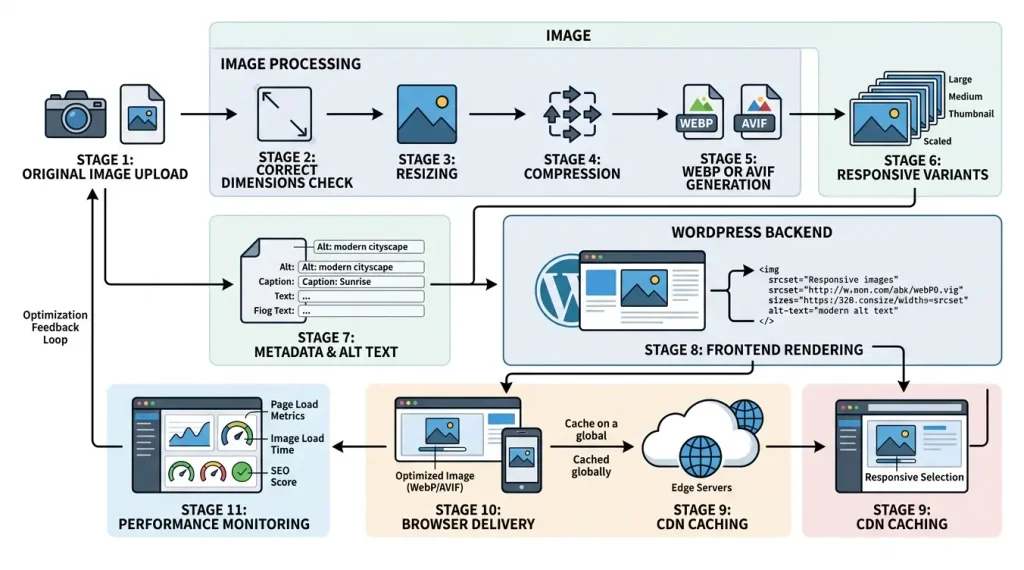
The best long-term strategy for WordPress is to build an automated image pipeline that, when an image is uploaded:
- sets the appropriate dimensions;
- optimizes the file;
- creates a modern image format;
- generates responsive versions;
- serves them to the browser correctly;
- uses caching/CDN;
- preserves the ability to restore the original;
- is regularly checked with performance tools.
This approach remains relevant regardless of which specific plugin, CDN, or image format the site uses in the future.

