
Elementor Not Loading: How to Fix the Problem

Hi! Elementor not loading, getting stuck on Loading, showing a white or gray screen, or displaying the “Preview Could Not Be Loaded” message is a common issue on WordPress websites built with Elementor.
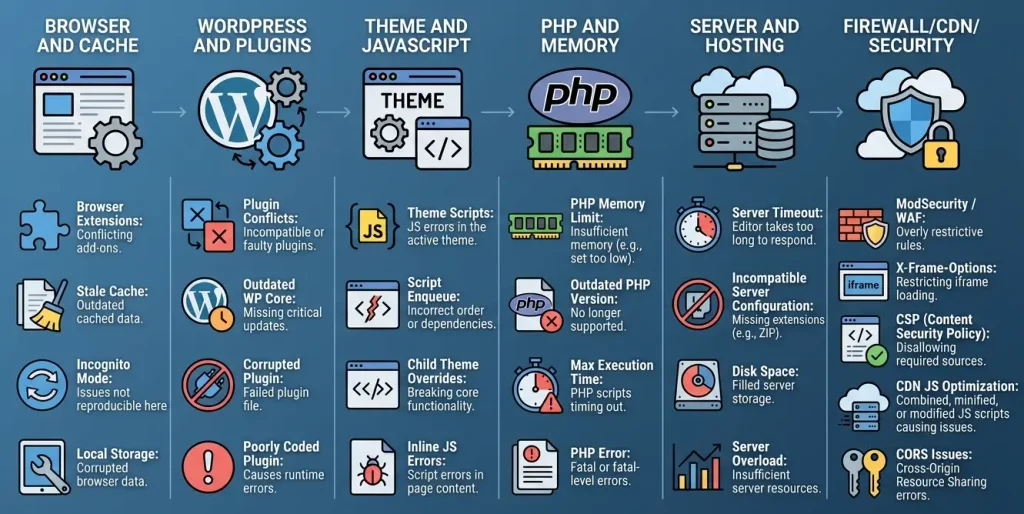
The cause is not always Elementor itself. The editor relies on WordPress, PHP, the database, your theme, other plugins, the browser, caching, the server, security systems, and JavaScript—all working together. As a result, the same symptom can have very different causes.
In this guide, we’ll explain why Elementor won’t open, how to identify the cause, and what you can do to get the editor working again, from the simplest checks to server-level troubleshooting.
- Why Is Elementor Not Loading?
- How to Identify What’s Not Working
- What to Check First
- 1. Clear Your Browser, WordPress, and Server Caches
- What to do
- 2. Try Elementor in Incognito Mode
- 3. Enable Elementor Safe Mode
- What the Test Result Means
- 4. Check for Plugin Conflicts
- How to Find the Problem Plugin
- Check these in particular
- 5. Check Your WordPress Theme
- 6. Check the PHP Memory Limit
- Suggested values
- How to Increase the Memory Limit
- 7. Check PHP and Your WordPress Version
- Also check
- 8. Enable Elementor’s Alternative Editor Loader
- 9. Check Your WordPress URLs
- 10. Resave Your Permalinks
- 11. Clear Files & Data in Elementor
- 12. Check the JavaScript Console
- 13. Check Cloudflare and JavaScript Optimization
- 14. Check the Firewall, ModSecurity, and Security Headers
- What to do
- 15. How to Fix Elementor Error 500 or 502
- Error 500
- Error 502
-
16. Check
.htaccessand Server Restrictions - 17. Enable WordPress Debugging
- 18. What to Do If Elementor Stopped Working After an Update
- Step-by-Step: What to Do If Elementor Won’t Open
- Step 1: Browser
- Step 2: Elementor
- Step 3: WordPress
- Step 4: Conflicts
- Step 5: Server
- Step 6: In-Depth Troubleshooting
- Elementor Error → Possible Cause → Fix
- FAQ: Elementor isn’t loading
- Why does Elementor get stuck on Loading?
- Why is Elementor showing a white screen?
- Why is Elementor showing a gray screen?
- Why does Elementor work in Safe Mode but not normally?
- Why isn’t the Elementor widget panel loading?
- How much memory does Elementor need?
- Can clearing Elementor’s cache help?
- Why won’t Elementor load after an update?
- What if Elementor still doesn’t work in Safe Mode?
- Can I simply reinstall Elementor?
- Can Cloudflare interfere with Elementor?
- Can hosting cause Elementor issues?
- Conclusion
In short: the issue most often comes down to one of five areas: an insufficient PHP memory limit, a plugin or theme conflict, JavaScript caching or optimization, server restrictions, or a WordPress configuration error.
Why Is Elementor Not Loading?
Elementor is not a basic editor that simply opens an HTML page. When it launches, WordPress must process PHP, load Elementor and its dependencies, prepare the editor data, run JavaScript, and open the page preview.
If any part of this chain fails, the editor may get stuck.
Elementor lists these common causes:
- insufficient PHP memory;
- a conflict with another plugin;
- a theme conflict;
- JavaScript errors;
- cache issues;
- server restrictions;
- firewall issues;
- incorrect WordPress URLs;
- permalink issues;
- incorrect server configuration;
- HTTP request issues;
- iframe blocking;
- JavaScript optimization issues;
- incompatible or outdated component versions.
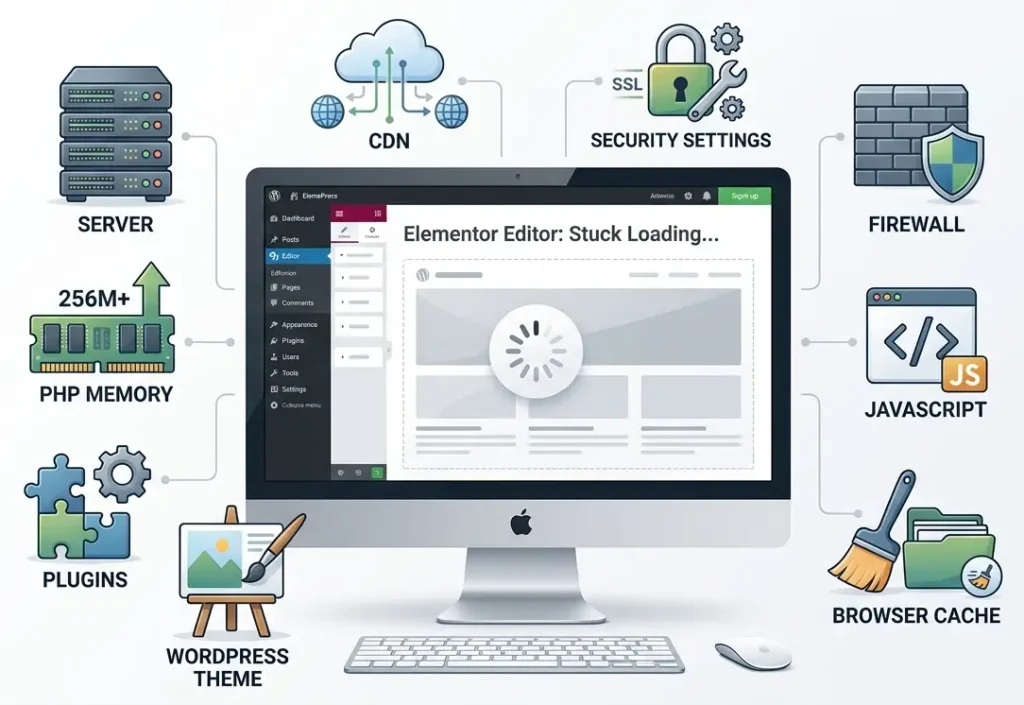
Elementor notes that a widget panel that keeps loading is often related to the memory limit, plugin conflicts, or server settings.
How to Identify What’s Not Working
“Elementor isn’t working” can describe several different situations.
| Symptom | Likely area to investigate |
|---|---|
| Infinite Loading | memory, plugins, theme, JavaScript |
| White screen | PHP, JavaScript, server, iframe |
| Gray screen | JavaScript, theme, X-Frame-Options |
| Preview Could Not Be Loaded | URL, permalink, firewall, cache, server |
| Widget panel keeps loading | memory limit, plugin, server |
| Error 500 | PHP, memory, plugin, server |
| Error 502 | proxy, server, loader method |
| ERR_EMPTY_RESPONSE | firewall, server, loader method |
| ERR_CONTENT_DECODING_FAILED | server configuration |
| Elementor works only in Incognito mode | cache or a browser extension |
| Everything stopped working after an update | version conflict or cache |
| Elementor works in Safe Mode | plugin or theme |
So don’t change dozens of settings at once. Start with the simplest checks and work your way up to more complex ones.
What to Check First
Before making any changes, create a backup of your site.
WordPress recommends backing up your site before major troubleshooting or configuration changes. Elementor also advises making a backup before working with files and data.
Then check the following:
- Does WordPress open without Elementor?
- Does the issue affect one page or every page?
- Does Elementor work in another browser?
- Does it work in incognito mode?
- Does Safe Mode help?
- What is the PHP memory limit?
- Are WordPress, Elementor, Elementor Pro, the theme, and plugins up to date?
- Did the problem start immediately after an update?
- Are there errors in the browser Console?
- Are there PHP errors in the server or debug log?
This sequence helps you avoid wasting time on changes unrelated to the problem.
1. Clear Your Browser, WordPress, and Server Caches
Cache is one of the first things to check, especially if Elementor stopped working after an update.
Caching can happen at several levels:
- browser;
- WordPress caching plugin;
- server;
- CDN;
- Cloudflare;
- JavaScript optimizer;
- cached Elementor CSS files.
What to do
First, open the Elementor page in an incognito window.
If the problem disappears, clear your browser cache.
Next, clear:
- the WordPress cache;
- the server cache;
- CDN cache;
- Cloudflare cache;
- the optimization plugin cache.
Elementor specifically recommends clearing your browser, WordPress, and server caches after updates if unexpected issues occur.
Important: Clearing the cache does not fix a plugin conflict by itself. It only helps rule out outdated files as the cause.
2. Try Elementor in Incognito Mode
Open your site in a private/incognito browser window and try launching the editor.
This is an important test because browser extensions can affect JavaScript behavior.
In particular, temporarily check:
- ad blockers;
- privacy extensions;
- script blockers;
- antivirus extensions;
- password managers;
- developer extensions;
- SEO/browser extensions.
If Elementor works in incognito mode, the problem is more likely in the browser, cache, or an extension than in WordPress itself.
Elementor recommends using incognito mode as a basic editor troubleshooting step.
3. Enable Elementor Safe Mode
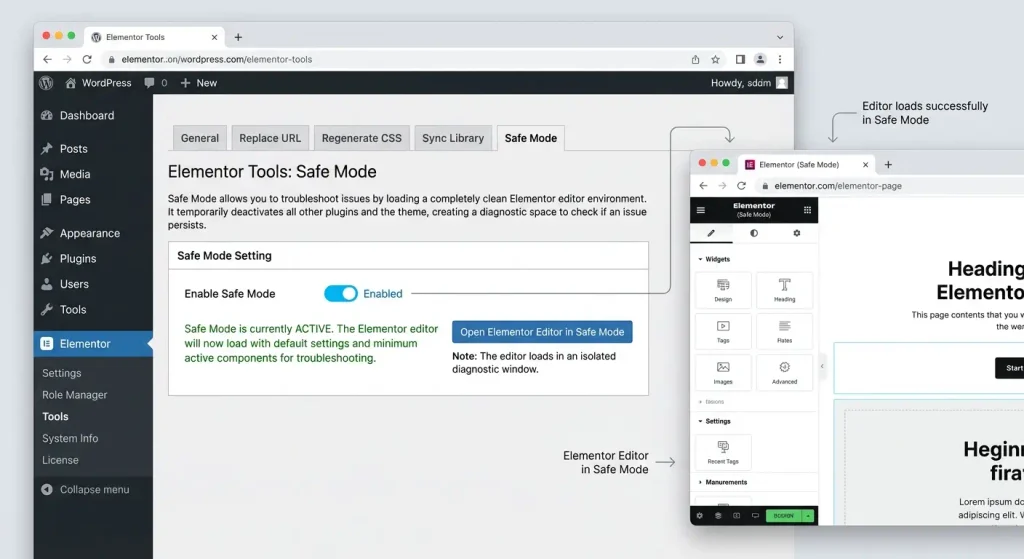
Safe Mode is one of Elementor’s most important diagnostic tools.
It lets you test the editor in an isolated environment without interference from third-party theme or plugin code.
In WordPress, go to:
Elementor → Editor → Tools → Safe Mode
and enable the mode.
Then reopen the page using Edit with Elementor.
Elementor describes Safe Mode as a diagnostic tool for identifying theme and third-party plugin conflicts.
What the Test Result Means
| Result | What it may mean |
|---|---|
| Elementor works | the problem is likely with a plugin or theme |
| Elementor still doesn’t work | look for an issue with the server, memory, URL, firewall, or browser |
| The widget panel did not load | Safe Mode does not always diagnose issues with the panel itself |
| The page opened, but looks wrong | this may be a separate front-end/CSS issue |
Important: Safe Mode is intended primarily to troubleshoot the editor, not to fix every issue with the appearance of a published page.
4. Check for Plugin Conflicts
If Elementor starts working in Safe Mode, the next suspect is one of your plugins.
This is especially likely if the issue appeared:
- after installing a new plugin;
- after updating a plugin;
- after changing optimization settings;
- after installing a security plugin;
- after enabling caching;
- after installing an Elementor add-on.
How to Find the Problem Plugin
- Create a backup.
- Open Plugins → Installed Plugins.
- Deactivate all third-party plugins.
- Keep Elementor and Elementor Pro active, if installed.
- Test the editor.
- If it works, reactivate plugins one at a time.
- Test Elementor after activating each plugin.
- When the problem returns, you will have likely identified the source of the conflict.
WordPress recommends this approach: deactivate and reactivate plugins one at a time to isolate the conflict.
Check these in particular
- caching plugins;
- security plugins;
- JavaScript optimization plugins;
- image optimization plugins;
- Elementor add-ons;
- translation plugins;
- WooCommerce extensions;
- custom code plugins;
- plugins that modify the admin interface.
Don’t delete the plugin straight away. First confirm that it is actually causing the problem.
5. Check Your WordPress Theme
The problem may be caused by the theme rather than a plugin.
For testing, temporarily switch your site to a default WordPress theme or Hello Elementor.
If Elementor works after that, investigate the code in your current theme.
Potential sources of conflict include:
- custom JavaScript;
- custom PHP;
- incorrectly enqueued scripts;
- changes in
functions.php; - third-party libraries;
- custom CSS/JS;
- custom iframe or security headers.
Elementor also recommends temporarily using a default theme when troubleshooting conflicts.
6. Check the PHP Memory Limit
Insufficient PHP memory is one of the most common causes of Elementor loading issues.
Elementor’s current documentation lists 256 MB as the recommended WP memory limit for Elementor and Elementor Pro, and 512 MB for more resource-intensive sites. For more complex configurations, Elementor cites 768 MB as a guideline for best performance.
You can check the value in Elementor System Info.
Suggested values
| Site | Guideline |
|---|---|
| Basic Elementor site | 256 MB |
| Elementor with many plugins | 512 MB |
| Elementor with WooCommerce | 512 MB or more |
| High-resource site | depends on the workload |
Don’t treat 512 MB as a universal requirement. The amount you need depends on your plugins, theme, WooCommerce, content volume, and server environment.
How to Increase the Memory Limit
In wp-config.php, you can set the WordPress memory limit, for example:
define( 'WP_MEMORY_LIMIT', '256M' );
define( 'WP_MAX_MEMORY_LIMIT', '512M' );
Add the code in the appropriate place in wp-config.php, without duplicating constants that already exist.
Important: the WordPress memory limit and PHP memory_limit are not the same thing. If your host enforces a hard PHP limit, editing wp-config.php may not be enough. Elementor also explains this distinction in its documentation.
If the value does not change after editing the configuration, contact your hosting provider.
7. Check PHP and Your WordPress Version
An outdated server environment can cause compatibility issues.
According to Elementor’s current documentation:
- WordPress: 6.5 or later;
- PHP: 7.4 or later;
- Elementor recommends using PHP 8.x;
- MySQL: 5.6+ or MariaDB 10.5+.
For a new site, however, it is better to use current stable versions of WordPress, PHP, Elementor, and your theme rather than aiming for minimum compatibility.
Also check
- PHP memory limit;
- PHP max input vars;
- PHP max post size;
- max execution time;
- ZIP;
- GD;
- file permissions;
- server error logs.
Elementor System Info contains much of this information.
8. Enable Elementor’s Alternative Editor Loader
If Elementor gets stuck, shows a white screen, or displays errors such as:
ERR_EMPTY_RESPONSE;ERR_CONTENT_DECODING_FAILED;- some 502 or other server errors:
try Switch Editor Loader Method.
You can usually find this setting under:
Elementor → Settings → AdvancedFind:
Switch Editor Loader Methodand set it to Enable.
This feature changes how the editor loads and may help servers that struggle to process large JSON responses. Elementor recommends it for certain server conflicts.
9. Check Your WordPress URLs
A mismatch between these two URLs can cause editor issues:
- WordPress Address (URL);
- Site Address (URL)
Go to:
Settings → Generaland check the URLs.
For example, your site should not inconsistently mix:
http://example.com;https://example.com;https://www.example.com;https://example.com/subdirectory.
Check this in particular after:
- switching to HTTPS;
- changing the domain;
- migrating the site;
- changing hosting providers;
- installing WordPress in a subdirectory.
Elementor also lists a mismatch between the Site URL and WordPress URL as a possible cause of editor issues.
10. Resave Your Permalinks
If Elementor cannot load the preview, check your permalink structure.
Go to:
Settings → Permalinksand click:
Save ChangesEven if you make no changes, WordPress will regenerate the rewrite rules.
This can be especially helpful after:
- migrating your site;
- changing the URL structure;
- changing
.htaccess; - installing or removing plugins;
- a 404 error appears.
Elementor lists permalink configuration as a possible cause of preview issues.
11. Clear Files & Data in Elementor
If Elementor is loading outdated CSS or cached data, try clearing its files and data.
In the current Elementor interface, use:
Elementor → Editor → Home → Tools → Clear Files & DataAfter running the tool, save your changes and check the site.
This tool may help after:
- updating the theme;
- updating plugins;
- major design changes;
- cache issues;
- CSS files were generated incorrectly.
Elementor recommends creating a backup before clearing the files.
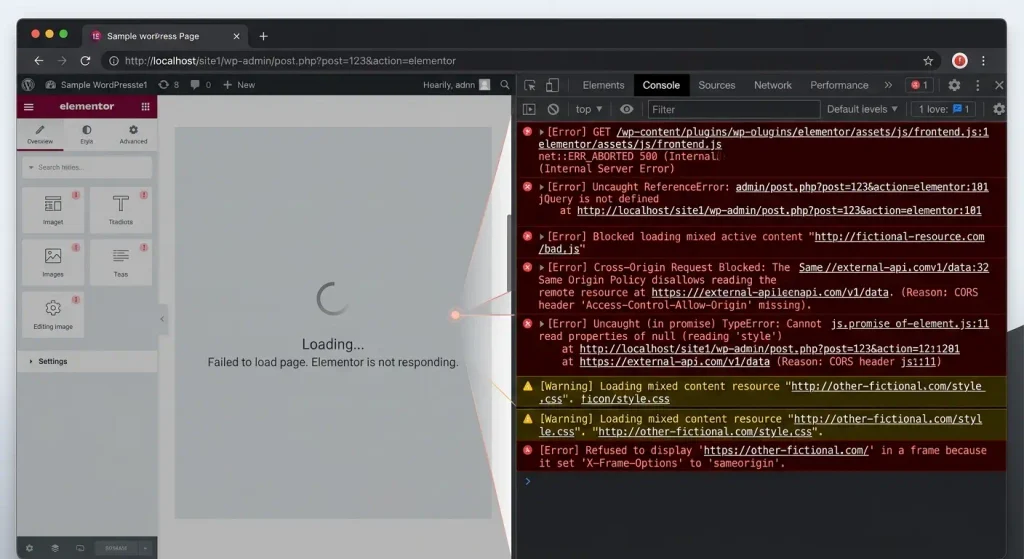
12. Check the JavaScript Console
If Elementor shows a gray or white screen, don’t guess at the cause check your browser Console.
In Chrome:
- Open Elementor.
- Right-click.
- Select Inspect.
- Open the Console.
- Reload the editor.
- Look for errors highlighted in red.
Look for messages related to:
- JavaScript;
- CORS;
- iframe;
- blocked resource;
- mixed content;
- CSP;
- X-Frame-Options;
404;403;500;502.
Elementor recommends using the Console to troubleshoot JavaScript and iframe issues.
13. Check Cloudflare and JavaScript Optimization
CDNs and optimization tools can change the order in which JavaScript runs.
Pay particular attention to features that:
- defer JavaScript;
- combine JS files;
- minify scripts;
- change the loading order;
- use Rocket Loader;
- add another layer of caching.
To troubleshoot, temporarily disable JavaScript optimization and test Elementor.
Elementor notes that some CDN and server optimization tools can conflict with the editor and recommends temporarily disabling optimization in certain cases.
If Elementor works after you disable optimization, don’t leave every feature off permanently. Identify the specific setting causing the conflict.
14. Check the Firewall, ModSecurity, and Security Headers
Sometimes Elementor works locally or in another environment but fails on a particular hosting platform.
Possible causes include:
- ModSecurity;
- Web Application Firewall;
- reverse proxy;
- security headers;
- blocked AJAX requests;
- blocked REST API requests;
- incorrect permissions;
- CSP;
- X-Frame-Options.
For example, Elementor notes that X-Frame-Options must allow the required iframe loading, while a CSP with frame-ancestors 'none' may block the preview iframe.
What to do
Don’t disable security systems without understanding the consequences.
Instead, ask your hosting provider to check:
- ModSecurity logs;
- web server error logs;
- firewall events;
- blocked AJAX/REST requests;
- response headers.
If a specific rule is blocking Elementor, the server administrator can create a targeted exception.
15. How to Fix Elementor Error 500 or 502
Error 500
HTTP 500 indicates an internal server error.
Possible causes include:
- insufficient memory;
- PHP fatal error;
- a plugin conflict;
- a theme issue;
- server configuration.
Elementor lists the memory limit and third-party plugins among common causes of 500 errors.
Check these in order:
- Check the PHP memory limit.
- Check the error log.
- Enable Safe Mode.
- Deactivate third-party plugins.
- Temporarily switch themes.
- Check the PHP version.
- Check the server limits.
Error 502
A 502 means the gateway or proxy received an invalid response from the upstream server.
In this case, check:
- Switch Editor Loader Method;
- PHP execution limits;
- proxy/CDN;
- server logs;
- Apache/Nginx;
- your hosting provider.
Elementor recommends checking the loader method if a 502 occurs while using the editor.
16. Check .htaccess and Server Restrictions
On Apache servers, a damaged or misconfigured .htaccess can cause:
- 500;
- 404;
- preview issues;
- incorrect routing;
- problems after a migration.
Don’t edit .htaccess at random.
Before making changes:
- Create a backup.
- Save a copy of the current file.
- Check the default WordPress configuration.
- Make sure rules added by other plugins do not conflict.
For some server setups, Elementor also recommends asking your hosting provider to check specific server parameters if the editor has trouble with large responses.
17. Enable WordPress Debugging
If the standard steps don’t help, move on to the error logs.
You can enable debug logging in WordPress and check:
wp-content/debug.log
It is best to log errors without displaying them to site visitors.
For example:
define( 'WP_DEBUG', true );
define( 'WP_DEBUG_LOG', true );
define( 'WP_DEBUG_DISPLAY', false );
Do not leave WP_DEBUG enabled unnecessarily on a production site.
After enabling it:
- open Elementor;
- wait for the issue to occur;
- check
debug.log; - look for errors that appeared at the time of the failure.
WordPress recommends using error logs to identify PHP and other server-side issues.
18. What to Do If Elementor Stopped Working After an Update
If the problem started immediately after an update, don’t ignore that timing.
Think about what was updated:
- WordPress;
- Elementor;
- Elementor Pro;
- theme;
- addon;
- WooCommerce;
- security plugin;
- cache plugin.
After an update, check:
- Safe Mode.
- Browser incognito.
- Cache.
- Plugin conflicts.
- Theme compatibility.
- PHP errors.
- JavaScript Console.
- Elementor System Info.
Elementor specifically recommends checking Safe Mode and clearing all cache layers after updates.
If an update critically breaks your site, the quickest way to restore it is to recover a backup or a previous working version, then investigate the cause on a staging site.
Step-by-Step: What to Do If Elementor Won’t Open
For a practical sequence of steps, use this checklist.
Step 1: Browser
- Open Elementor in another browser.
- Test incognito mode.
- Disable browser extensions.
- Clear the cache.
Step 2: Elementor
- Enable Safe Mode.
- Check Elementor System Info.
- Check the memory limit.
- Clear Files & Data.
- Enable Switch Editor Loader Method.
Step 3: WordPress
- Update WordPress.
- Update Elementor.
- Update Elementor Pro.
- Update the theme.
- Check the plugins.
- Resave the permalinks.
- Check the Site URL and WordPress URL.
Step 4: Conflicts
- Deactivate third-party plugins.
- Test Elementor.
- Reactivate plugins one at a time.
- Temporarily switch themes.
- Test Elementor again.
Step 5: Server
- Check the PHP version.
- Check the PHP memory limit.
- Check PHP max execution time.
- Check
max_input_vars. - Check server logs.
- Check ModSecurity.
- Check the firewall.
- Check X-Frame-Options/CSP.
Step 6: In-Depth Troubleshooting
- Open the browser Console.
- Check the Network tab.
- Check
debug.log. - Check PHP error log.
- Check the CDN.
- Check the server/proxy configuration.
Elementor Error → Possible Cause → Fix
| Symptom / error | What to check | What to try |
|---|---|---|
| Infinite Loading | Memory, plugins, theme | Safe Mode, memory, conflict test |
| White screen | PHP, JavaScript, iframe | Console, logs, Safe Mode |
| Gray screen | JavaScript, theme | Console, theme test |
| Preview Could Not Be Loaded | URL, permalinks, firewall | Resave permalinks, check URLs, Safe Mode |
| Widget Panel Loading | Memory, plugins | Increase memory, deactivate plugins |
| 500 | PHP/server | Logs, memory, plugins |
| 502 | Proxy/server | Loader Method, host logs |
| ERR_EMPTY_RESPONSE | Server/firewall | Loader Method, firewall |
| ERR_CONTENT_DECODING_FAILED | Server response | Loader Method |
| Works in incognito | Browser/cache | Clear cache, disable extension |
| Works in Safe Mode | Plugin/theme | Find the conflicting component |
| Broken after update | Compatibility/cache | Update everything, clear caches, roll back if needed |
FAQ: Elementor isn’t loading
Why does Elementor get stuck on Loading?
The most common causes are the memory limit, a plugin or theme conflict, JavaScript, caching, or server settings. Start by testing Safe Mode and checking the memory limit.
Why is Elementor showing a white screen?
Possible causes include a PHP fatal error, insufficient memory, a JavaScript error, a plugin conflict, or iframe blocking. Check the browser Console, Safe Mode, and the PHP error log.
Why is Elementor showing a gray screen?
A gray screen is often related to JavaScript, the theme, an iframe, or security headers. Open the browser Console and look for errors highlighted in red.
Why does Elementor work in Safe Mode but not normally?
This strongly suggests a conflict with the theme or a third-party plugin. Deactivate third-party plugins, then reactivate them one at a time to find the conflict.
Why isn’t the Elementor widget panel loading?
Possible causes include an insufficient memory limit, a plugin conflict, or server settings. Elementor recommends checking the system requirements and increasing the available memory.
How much memory does Elementor need?
Elementor’s current documentation recommends at least 256 MB for Elementor and Elementor Pro, and 512 MB for more complex sites. The exact requirement depends on your site configuration.
Can clearing Elementor’s cache help?
Yes, if the issue is caused by outdated CSS or cached data. Elementor’s Clear Files & Data tool can help after updates or design changes.
Why won’t Elementor load after an update?
The cause may be an incompatibility with an updated component, a plugin conflict, or cached files. Test Safe Mode, clear the cache, and check components individually.
What if Elementor still doesn’t work in Safe Mode?
A typical plugin or theme conflict is less likely in this case. Check the memory limit, URLs, loader method, JavaScript Console, firewall, security headers, PHP, and server logs.
Can I simply reinstall Elementor?
Reinstalling should not be your first step. If the cause is PHP, memory, the server, JavaScript, or another plugin conflict, reinstalling Elementor will not solve it.
Can Cloudflare interfere with Elementor?
Yes. JavaScript optimization or CDN features can affect how scripts behave. Temporarily disable optimization and test the editor.
Can hosting cause Elementor issues?
Yes. Server limits, the PHP memory limit, firewall, ModSecurity, proxies, security headers, and other settings can block or interrupt the editor.
Conclusion
If Elementor isn’t loading, don’t immediately reinstall WordPress or delete all your plugins.
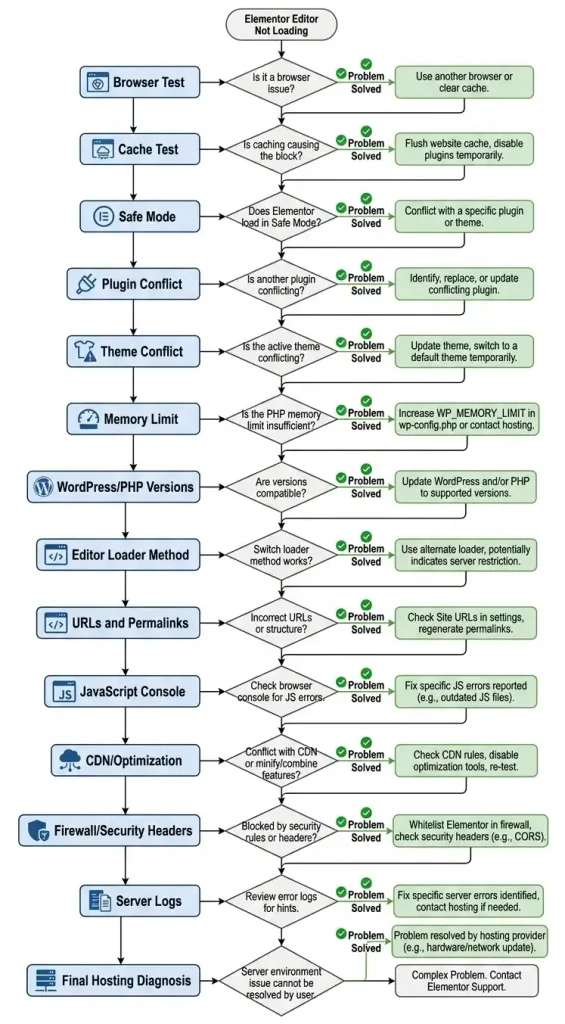
The most effective approach is to troubleshoot systematically:
browser → cache → Safe Mode → plugins → theme → memory limit → PHP/WordPress → loader method → URLs/permalinks → JavaScript → CDN/firewall → server logs.In most cases, the first few checks are enough to significantly narrow down the cause.
The key is to identify where in the stack the problem occurs. If Elementor works in Safe Mode, look for a theme or plugin conflict. If it still fails in Safe Mode, investigate the server, memory, URLs, security headers, JavaScript, and logs.
This approach not only helps restore Elementor now, but also reveals the root cause so the problem is less likely to return after the next update.

