
WordPress Child Theme: What It Is and How to Create One

Hello! In this article, I’ll explain what a WordPress child theme is, why and when you need one, and how to create and install one. I’ll walk through the different methods with practical examples.
- WordPress Child Themes: What They Are and Why You Need One
- When to Use One (Benefits)
- When Not to Use One (Drawbacks)
- How to Create a WordPress Child Theme
- How to Install and Activate a WordPress Child Theme
- Download Ready-Made WordPress Child Themes
- What You Can Customize in a WordPress Child Theme
- How to Override a Parent Theme Template
- CSS in a Child Theme: What You Need to Know
- Child Theme functions.php: An Important Difference
- Child Themes for Modern Block Themes
- Do You Always Need a Child Theme to Change a Design?
- What Happens When You Update the Parent Theme?
- Common WordPress Child Theme Mistakes
- 1. Incorrect Template Value
- 2. Copying Every Parent Theme File
- 3. Copying the Entire functions.php
- 4. Using @import for CSS
- 5. No Backup
- 6. Editing a Child Theme Without a Test Environment
- How to Check That Your Child Theme Works
- How to Create a Child Theme with WP-CLI
- Do Child Themes Affect Site Security or Speed?
- FAQ: Frequently Asked Questions About WordPress Child Themes
- Do I have to create a WordPress child theme?
- Can I create a child theme after my site is live?
- Do I need to copy the entire parent theme?
- Will my customizations be preserved when the parent theme is updated?
- Can I delete a child theme?
- Do I need a child theme for Elementor?
- Do I need a child theme for WooCommerce?
- Conclusion: Should You Use a WordPress Child Theme?
WordPress Child Themes: What They Are and Why You Need One
Child themes usually come up when you need to change or add something to an existing WordPress site. For example, you might change an element’s color, use a different font, reorder posts on the homepage, or display related posts or an author box in your articles.
You can add a new feature with a plugin by finding and installing the right one. But a plugin is not always the best choice when you only need to change how part of the theme looks or behaves. From a performance and maintainability perspective, for example, installing an extra plugin just to set a font may be unnecessary. You can do this through the active theme, even if its settings don’t include that option.
To understand how child themes work, let’s look at how they relate to parent themes.
A parent theme contains the WordPress template files and other resources needed to run the site. It is the main, standalone theme that you install and configure.
A child theme inherits the parent theme’s appearance and functionality, while allowing you to modify any part of it. Its settings and files are stored separately from the parent theme, so your child-theme changes remain in place when the parent theme is updated.
A child theme is a separate theme, but most of its functionality depends on its parent. When WordPress loads a child theme, it checks whether the requested file or feature exists there. If it doesn’t, WordPress uses the corresponding file from the parent theme. This lets you change only what you need.
For example, suppose you want to change the copyright text in the footer, but the parent theme has no setting for it. You shouldn’t edit the parent theme’s code because an update could overwrite your changes. Instead, create and activate a child theme, copy footer.php from the parent theme into the child theme’s folder, and edit the copy. The child theme will inherit the parent’s other options and settings, while using your customized footer.
When to Use One (Benefits)
If you need to:
- edit one or more template files (for example, header.php or footer.php);
- add features related to the site’s appearance (for example, change the number or size of post cards on the homepage);
- override one or more PHP functions from the parent theme;
- add a new template file;
- use a different font.
Benefits:
- Easy to extend and customize. A child theme extends the parent theme’s functionality, giving you a fully working foundation that’s ready for new features.
- Smoother updates. WordPress developers recommend keeping themes and plugins up to date. If you edit a file in the parent theme, an update may erase your changes. Making customizations in the child theme helps you keep them.
When Not to Use One (Drawbacks)
In some cases, it’s better to use the parent theme or another customization method:
- you created the theme yourself (or had it built for you) and don’t need to use it elsewhere. You can simply edit it;
- you want to add features unrelated to the site’s appearance (for example, register a custom post type, add caching, or create backups). Use a plugin for these tasks.
Drawbacks:
- Choosing the right parent theme. Not every theme is suitable. Some aren’t updated regularly and may fall behind current standards, leading to errors or security issues. Others weren’t designed with child themes in mind. In either case, they make poor “parents.”
- Extra setup work. A child theme is mainly intended to extend an existing theme’s design. After creating one, you may need to set up elements such as menus, widgets, and the logo again.
How to Create a WordPress Child Theme
Let’s use the free Astra theme as an example.
- Open the directory
wp-content/themes- Create a folder for the child theme. Its name usually combines the parent theme’s name with the suffix “
-child”. For example, for the theme
wp-content/themes/astra-child- Inside it, create a
style.cssfile with the following contents:
/*
Theme Name:   Astra Child
Theme URI:    https://thepetrov.com/
Description:  Astra Child Theme
Author:       Mykhailo Petrov
Author URI:   https://thepetrov.com/
Template:     astra
Version:      1.0.0
License:      GNU General Public License v2 or later
License URI:  http://www.gnu.org/licenses/gpl-2.0.html
Tags:         light, two-columns, right-sidebar, responsive-layout, accessibility-ready
Text Domain:  astra-child
*/
This comment at the beginning of the file gives WordPress information about the theme. Here’s what each line means.
- Theme Name — the unique name of the theme.
- Theme URI — the URL where users can find the theme’s code or documentation.
- Description — a description that helps users understand what the theme can do.
- Author — the theme author.
- Author URI — the author’s website.
- Template — the folder that contains the parent theme. Use the folder name, not the theme’s display name. Without this line, your theme won’t work as a child theme.
- Version — the version number.
- License — the license under which the theme is used.
- License URI — a link to the page containing the license text.
- Tags — tags describing the theme’s features (used to sort and find themes).
- Text Domain — the text domain, a string used to translate the theme into other languages.
Another way to create a child theme is to import the parent theme’s stylesheet with
@importin style.css. WordPress developers don’t recommend this directive because it can increase the time needed to load CSS. It may also cause the parent styles to be loaded twice.
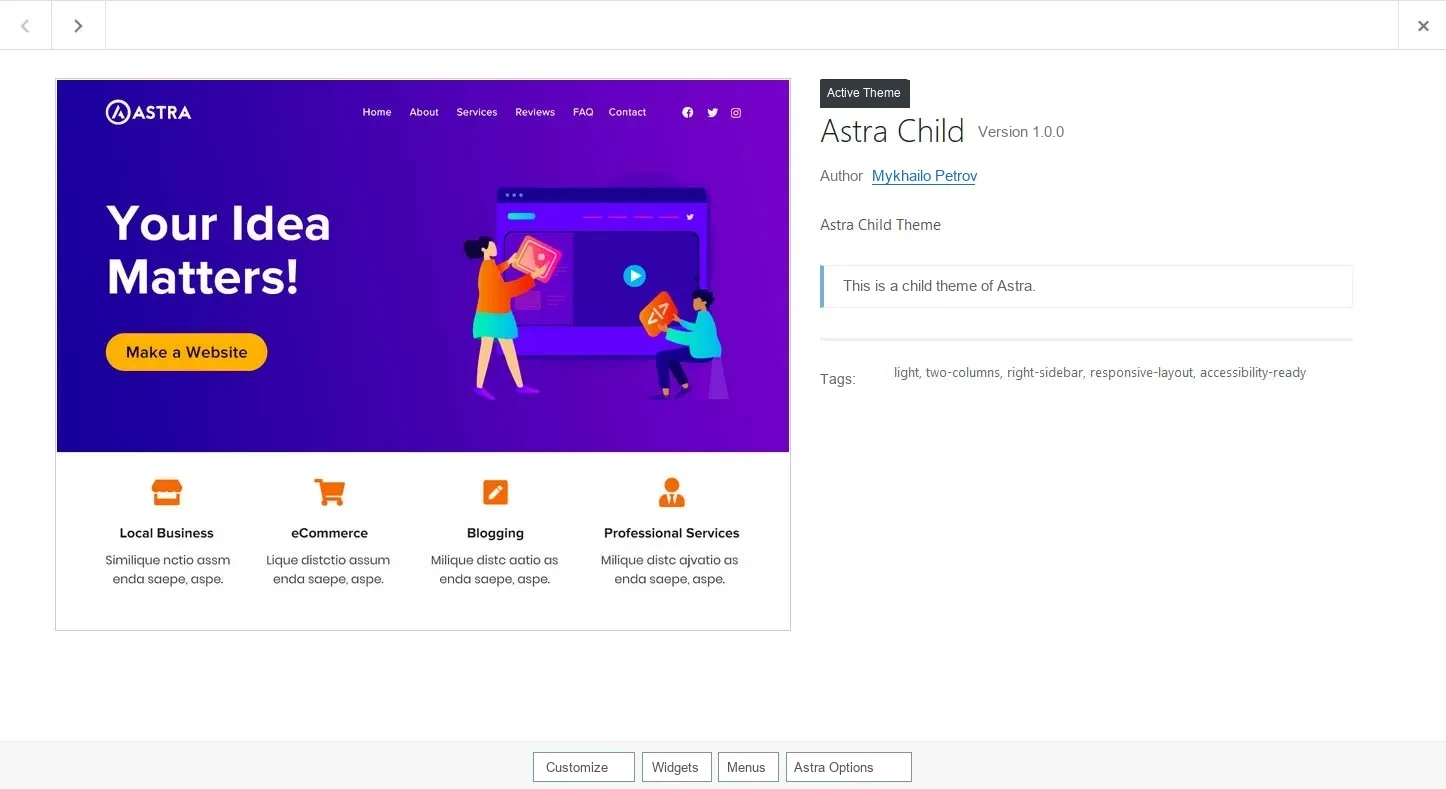
The new theme should now appear under Appearance > Themes. You can add a thumbnail to the theme list by copying the screenshot.jpg image from the parent theme’s folder.
- In the same directory, create a functions.php file.
There are a few things to keep in mind when creating this file. If the parent theme loads its stylesheet using a function that starts with get_template, such as get_template_directory() or get_template_directory_uri(), the child theme only needs to enqueue its own stylesheet, using the parent stylesheet’s handle as a dependency:
<?php

/**
 * https://developer.wordpress.org/themes/advanced-topics/child-themes/#3-enqueue-stylesheet
 */

add_action( 'wp_enqueue_scripts', 'my_theme_enqueue_styles' );
function my_theme_enqueue_styles() {
    wp_enqueue_style( 'child-style', get_stylesheet_uri(),
        array( 'parenthandle' ),
        wp_get_theme()->get('Version') // this works only if the stylesheet header includes a version
    );
}
If the parent theme uses get_stylesheet_directory() or get_stylesheet_directory_uri(), the child theme needs to enqueue both the parent and child stylesheets. Be sure to use the same handle that the parent theme uses for its stylesheet.
<?php

/**
 * https://developer.wordpress.org/themes/advanced-topics/child-themes/#3-enqueue-stylesheet
 */

add_action( 'wp_enqueue_scripts', 'my_theme_enqueue_styles' );
function my_theme_enqueue_styles() {
    $parenthandle = 'parent-style'; // 'twentyfifteen-style' for the Twenty Fifteen theme
    $theme = wp_get_theme();
    wp_enqueue_style( $parenthandle, get_template_directory_uri() . '/style.css',
        array(),  // if the parent theme code has a dependency, copy it here
         $theme->parent()->get('Version')
    );
    wp_enqueue_style( 'child-style', get_stylesheet_uri(),
        array( $parenthandle ),
        $theme->get('Version') // this works only if the stylesheet header includes a version
    );
}
For the Astra theme, add the following code to functions.php:
<?php

/**
 * Define Constants
 */
define( 'CHILD_THEME_ASTRA_CHILD_VERSION', '1.0.0' );

/**
 * Enqueue styles
 */
function child_enqueue_styles() {
	wp_enqueue_style( 'astra-child-theme-css', get_stylesheet_directory_uri() . '/style.css', array('astra-theme-css'), CHILD_THEME_ASTRA_CHILD_VERSION, 'all' );

}

add_action( 'wp_enqueue_scripts', 'child_enqueue_styles', 15 );
Many themes already have a ready-made child theme. You can usually download it from the developer’s official website and install it through the WordPress admin area.
Your child theme is ready to use.
Advantages:
- you don’t need to find and install extra plugins.
How to Install and Activate a WordPress Child Theme
Install and activate it just like any other theme. In your site’s admin area, simply click Activate.
Make sure the parent theme is installed before activating the child theme.
Download Ready-Made WordPress Child Themes
Here are ready-made child themes for popular WordPress themes:
- Astra Child Theme,
- Blocksy Child Theme,
- Colormag Child Theme,
- GeneratePress Child Theme,
- Hello Elementor Child Theme,
- Storefront Child Theme,
- Twenty Twenty-One Child Theme,
- Zakra Child Theme.
What You Can Customize in a WordPress Child Theme
A child theme lets you do more than change colors or fonts. Depending on the parent theme’s structure, you can use a child theme to modify templates, styles, individual parts of a page, and add your own PHP code.
Common uses include:
- modify
header.phporfooter.php; - create custom page templates;
- change how posts and archives are displayed;
- add custom CSS;
- add JavaScript;
- enqueue custom fonts and other assets;
- add or modify functions in
functions.php; - override specific WooCommerce templates;
- customize the appearance of WordPress blocks.
A child theme is not a copy of the parent theme, so you don’t need to copy every file into it. In most cases, you only need to add the files you plan to change.
WordPress uses a file from the child theme when one is present and continues using the parent theme’s files for everything else. This keeps the child theme lightweight and easier to maintain.
How to Override a Parent Theme Template
One of the most common tasks is changing the structure of a page without editing the original theme.
For example, to customize single.php, create this file in your child theme:
wp-content/themes/astra-child/single.phpYou can then copy the required structure from the parent theme into this file and make your changes.
You can use the same approach for other templates, if the theme supports them.
For example:
astra/
├── header.php
├── footer.php
├── single.php
└── archive.php

astra-child/
├── style.css
├── functions.php
├── single.php
└── footer.php
In this example, the child theme’s single.php and footer.php can override the corresponding parent-theme files. Astra will continue to provide all the other files.
Before copying a template, check the current version of the file in the parent theme. If the theme developer has significantly changed it in an update, an older copy in your child theme may stop working correctly.
CSS in a Child Theme: What You Need to Know
One of the most common reasons to create a child theme is to add custom CSS.
For example, you can add this to the child theme’s style.css:
.site-title {
  font-size: 32px;
}

.custom-button {
  border-radius: 8px;
}
Creating style.css alone isn’t enough. Make sure the child theme’s stylesheet is actually enqueued on your site.
The right approach depends on how the parent theme is built. For classic WordPress themes, WordPress recommends using wp_enqueue_style() rather than the older @import approach.
Before copying code written for Astra, GeneratePress, Blocksy, or another theme, check that theme’s own documentation.
Child Theme functions.php: An Important Difference
A child theme’s functions.php works differently from a template such as single.php or footer.php.
You don’t need to copy it from the parent theme.
The code in the child theme’s functions.php is loaded in addition to the parent theme’s code. Copying the parent theme’s entire functions.php into the child theme can cause errors, such as functions being declared more than once.
It’s best to add only your own code to the child theme’s functions.php:
add_action( 'after_setup_theme', 'my_child_theme_setup' );
function my_child_theme_setup() {
    // Child theme customizations.
}
To change how the parent theme behaves, it’s usually better to use its available hooks—actions and filters—rather than rewriting all of its functionality.
This reduces the number of overridden files and makes future site updates easier.
Child Themes for Modern Block Themes
Modern WordPress uses more than classic themes with PHP templates. It also supports block themes, where templates and site parts are built primarily with blocks.
The approach to child themes is a little different for these themes.
Instead of a large collection of PHP files, theme.json may play an important role. It can define colors, typography, spacing, dimensions, and other settings for the block editor.
For example, a child block theme might have a structure like this:
my-child-theme/
├── style.css
├── theme.json
├── templates/
│ └── single.html
└── parts/
└── header.html
In this case, you don’t necessarily need PHP templates such as single.php. Block themes use HTML templates and a block-based structure.
This is important when creating a child theme for a modern WordPress theme: instructions written only for classic themes may not apply without changes.
Do You Always Need a Child Theme to Change a Design?
No.
In modern WordPress, you can make some changes without a child theme—directly through the theme settings, Site Editor, or Global Styles.
With block themes, you can make some changes in the Site Editor. If you only need to adjust colors, fonts, spacing, or other visual settings, a child theme may be unnecessary.
For more complex changes—such as custom templates, additional PHP code, or system-level theme settings—a child theme is still useful.
Style variations can also be a better fit in some situations, such as when you want to create an alternative set of styles for a block theme. Unlike a child theme, a style variation is primarily intended to change styles through JSON.
What Happens When You Update the Parent Theme?
Protecting your customizations from theme updates is one of the main reasons to use a child theme.
For example, imagine you edited this file directly:
wp-content/themes/astra/footer.phpAfter an Astra update, this file may be replaced with a new version and your changes may be lost.
If the edited file is here instead:
wp-content/themes/astra-child/footer.phpAn Astra update should not remove the child theme’s file.
However, a child theme does not completely protect your site from issues after an update.
If the parent theme’s developer changes its template structure, functions, or CSS classes, your overrides may become incompatible with the new version.
After major updates to the parent theme, it’s a good idea to check:
- the homepage;
- posts and pages;
- menus;
- the mobile layout;
- forms;
- WooCommerce;
- templates overridden in the child theme;
- JavaScript functionality;
- custom CSS.
Common WordPress Child Theme Mistakes
1. Incorrect Template Value
In style.css, the line:
Template: astramust contain the parent theme’s folder name, which may be different from the theme name shown in the admin area.
If the parent theme’s folder is named astra, use exactly:
Template: astraIf this value is wrong, WordPress may not recognize the theme as a child theme.
2. Copying Every Parent Theme File
You don’t need to copy the entire parent theme into the child theme.
This makes the theme harder to maintain and increases the number of files you need to check after updates.
Create only the files you actually need to change.
3. Copying the Entire functions.php
A child theme’s functions.php does not replace the parent theme’s file.
Don’t simply copy it into the child theme. Add only your own functions and the hooks you need.
4. Using @import for CSS
The old approach:
@import url("../astra/style.css");is not the recommended way to enqueue styles.
For classic themes, use WordPress’s wp_enqueue_style() mechanism instead.
5. No Backup
Before making changes to functions.php, templates, or theme.json, it’s a good idea to back up your site.
A PHP error can do more than break a page’s layout—it can also cause a WordPress execution error.
6. Editing a Child Theme Without a Test Environment
If your site is already live and has visitors, test changes on a staging copy or local site first.
This is especially important for WooCommerce stores, complex themes, and sites with many plugins.
How to Check That Your Child Theme Works
After activating a child theme, you can run a simple test.
- Add a temporary change to the child theme’s
style.css. - Clear your site and browser caches.
- Open the page in a private/incognito window.
- Check whether the new style is applied.
- If it isn’t, check that the CSS is enqueued and that the parent-theme dependencies are correct.
Use a staging environment to test PHP changes.
It’s also useful to check the browser console for JavaScript errors and review the WordPress/PHP error log.
How to Create a Child Theme with WP-CLI
If you work with WordPress from the command line, you can create a child theme with WP-CLI.
For example:
wp scaffold child-theme my-child-theme --parent_theme=twentytwentysixWP-CLI provides the wp scaffold child-theme command to create a basic child-theme structure based on the specified parent theme.
For a web developer, this can be more convenient than creating the files manually each time.
Do Child Themes Affect Site Security or Speed?
A child theme does not automatically make a WordPress site faster or more secure.
Its main benefit is organizing your customizations properly and making parent-theme updates safer.
Performance mainly depends on the amount and quality of your code, CSS and JavaScript, plugins, caching, hosting, images, and other factors.
Security also depends on keeping WordPress, themes, plugins, and PHP up to date, as well as on the quality of your own code.
So don’t create a child theme just because you expect it to improve your site’s SEO, speed, or security on its own.
FAQ: Frequently Asked Questions About WordPress Child Themes
Do I have to create a WordPress child theme?
No. A child theme is useful when you plan to make code changes to an existing theme and want to preserve them when the parent theme is updated.
If all the settings you need are available in the Customizer, Site Editor, or the theme’s own options, you may not need a child theme.
Can I create a child theme after my site is live?
Yes. You can create one for an existing WordPress site.
Before activating it, make a backup and check how the site works after switching themes.
Do I need to copy the entire parent theme?
No. Usually, you only need to create style.css, functions.php, and the templates or files you plan to change.
Will my customizations be preserved when the parent theme is updated?
Your child theme’s files should not be overwritten when the parent theme is updated. However, you should check that your customizations remain compatible with the new parent-theme version.
Can I delete a child theme?
Yes, if you no longer need it. Before deleting it, make sure your site doesn’t rely on files, functions, or styles that exist only in the child theme.
Do I need a child theme for Elementor?
Not always. If you mainly use Elementor to build pages, you can make many changes directly in Elementor.
A child theme can be useful when you need to add custom PHP or CSS, modify theme templates, or make other technical customizations.
Do I need a child theme for WooCommerce?
It can be useful if you need to modify WooCommerce templates or add custom theme-related logic.
For store functionality that isn’t tied to a specific theme, however, a separate plugin or custom functionality plugin is often a better choice.
Conclusion: Should You Use a WordPress Child Theme?
A child theme remains a convenient way to safely extend an existing WordPress theme, especially when you need to change its code.
It’s particularly useful for:
- custom CSS;
- template changes;
- adding PHP functions;
- WooCommerce customizations;
- creating custom templates;
- preserving changes after parent-theme updates.
A child theme isn’t necessary for every WordPress site. If your site uses a modern block theme and you can make all the changes you need through the Site Editor, Global Styles, or theme.json, creating a child theme may be unnecessary.
The main rule is simple: don’t edit parent-theme files unless you need to. If you regularly need to modify the theme’s code, move your customizations into a child theme or a separate functionality plugin.
This approach makes future WordPress site updates easier and reduces the risk of losing your custom work.

