
WordPress Permalinks: How to Set Up URL Structure and Fix Common Errors

Hi! In this guide, I’ll explain how WordPress permalinks work, why they matter, and how to configure them effectively.
- What Are WordPress Permalinks
- Why Permalinks Matter
- Permalinks in WordPress
- What Is a Slug in WordPress?
- How to Change Permalinks in WordPress
- Which WordPress Permalink Structure Should You Choose?
- Why You Should Avoid Dates Unless You Need Them
-
Why to Be Careful with
%category% - Permalink Structure: Tags and Patterns
- Category and Tag URL Bases
- Permalinks for Pages
- Permalinks for Custom Post Types
- Managing Permalinks with Plugins
- How to Use Latin Characters in WordPress URLs
- How to Create Latin-Character URLs
- The Cyr-To-Lat Plugin
- Permalinks and SEO
- How to Change the URL of a Published Page
- 301 Redirects After a URL Change
- Should You Change the URLs of Older Posts?
- WordPress Permalinks Not Working: How to Fix a 404 Error
- If That Does Not Help
-
Checking
.htaccess - Permalinks Not Working After Registering a New Post Type
- If Your Permalinks Are Not Working as Expected
- 1. Check the URL
- 2. Check the permalink settings
- 3. Save the settings again
- 4. Clear the cache
- 5. Check the category or tag base
- 6. Check redirects
- 7. Check your plugins
- 8. Check your theme
- Duplicate URLs and Slug Conflicts
- Should You Include Categories in URLs?
- Option 1
- Option 2
- Permalinks and WooCommerce
- Common URL Configuration Mistakes
- Changing Slugs Too Often
- Creating URLs That Are Too Long
- Using Unnecessary Parameters
- Adding Dates Without a Good Reason
- Changing an Existing Site’s Structure Without Redirects
-
Using
%category%Without Planning Your Categories - Stuffing URLs with Keywords
- Practical Recommendations for URL Structure
- How to Make URLs as Clear as Possible
- WordPress Permalinks FAQ
- What are permalinks in WordPress?
- Which permalink structure should I choose in WordPress?
- Can I use Cyrillic characters in a URL?
- Should I use Latin characters in URLs?
- Do permalinks affect SEO?
- What should I do if a 404 appears after changing a permalink?
- Can I change the URLs of older posts?
- What is a slug?
- Why does a 404 occur after creating a Custom Post Type?
- Conclusion
We’ll also cover URL structure, slugs, category and tag bases, transliterating Cyrillic URLs, Custom Post Types, redirects after URL changes, and common issues that can cause WordPress permalinks to return a 404 error.
What Are WordPress Permalinks
Permalinks are the permanent URLs used for posts, pages, and other types of content on a WordPress site.
For example:
https://site.com/set-up-permalinks-in-wordpress/This URL takes visitors to a specific page. It can be shared on social media, bookmarked, and used in internal and external links.
In WordPress, a permalink can point not only to an individual post or page, but also to category archives, tag archives, and other content types.
Permalink structure is one of the key WordPress settings to plan early in a site’s development.
The earlier you decide on a URL structure, the fewer issues you are likely to encounter as the site grows.
Why Permalinks Matter
Permalinks serve several important purposes:
- They help visitors understand what a URL leads to.
- They create a logical site structure.
- Search engines use them when crawling and indexing pages.
- They make content easier to share.
- They provide the URLs used in internal and external links.
- They help keep the site architecture clear.
WordPress recommends using a clear URL structure instead of meaningless strings of identifiers.
Keep in mind that a well-crafted URL does not guarantee high search rankings on its own. It is just one part of a site’s technical and content structure.
Permalinks in WordPress
WordPress offers a plain URL structure that uses a post parameter:
https://site.com/?p=123The number 123 is the ID of a specific post in the database.
This URL works technically, but it gives visitors almost no idea what the page is about.
Compare these URLs:
https://site.com/?p=123and:
https://site.com/wordpress-permalinks/The second option is far more descriptive: even without opening the page, you can tell it is about WordPress permalinks.
WordPress documentation calls this the Plain structure and lets you switch to a more descriptive format under Settings → Permalinks.
What Is a Slug in WordPress?
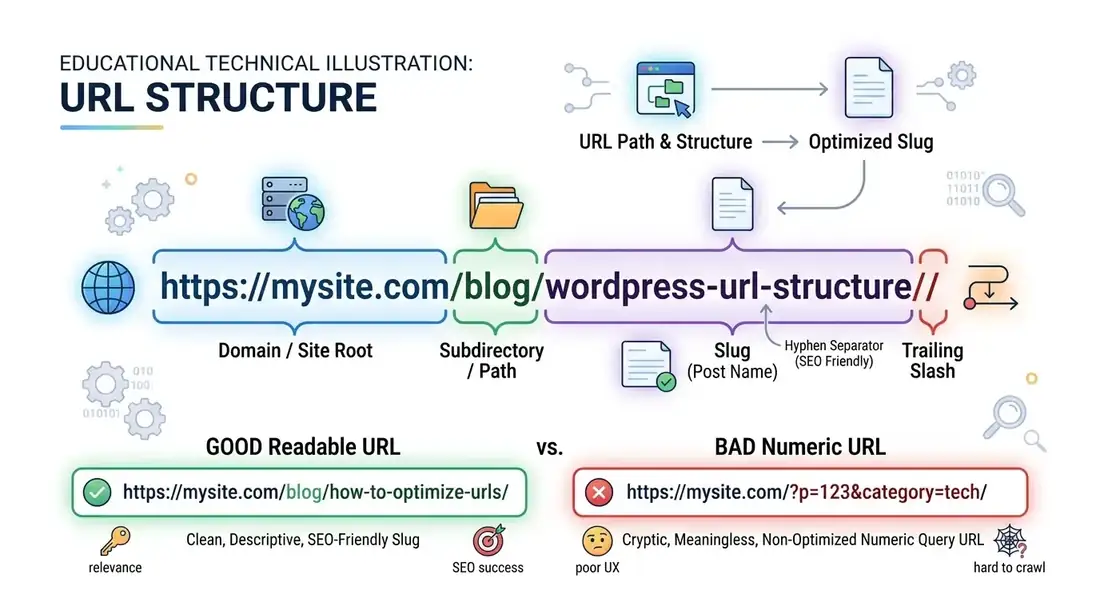
A slug is the URL-friendly part of a page or post address.
For example:
https://site.com/wordpress-permalinks/In this example:
wordpress-permalinksis the slug.
In the WordPress editor, the slug is usually generated from the title. You can edit it manually after creating or saving the post.
A good slug should be:
- Short;
- Descriptive;
- Free of unnecessary words;
- Relevant to the page;
- Kept stable after publication;
- Written with hyphens between words.
For example:
wordpress-permalinksis easier to read than:
wordpress-permalinks-settings-and-how-to-configure-them-correctlyThere is no need to fit the entire article title into the URL.
How to Change Permalinks in WordPress
To change the permalink structure, open:
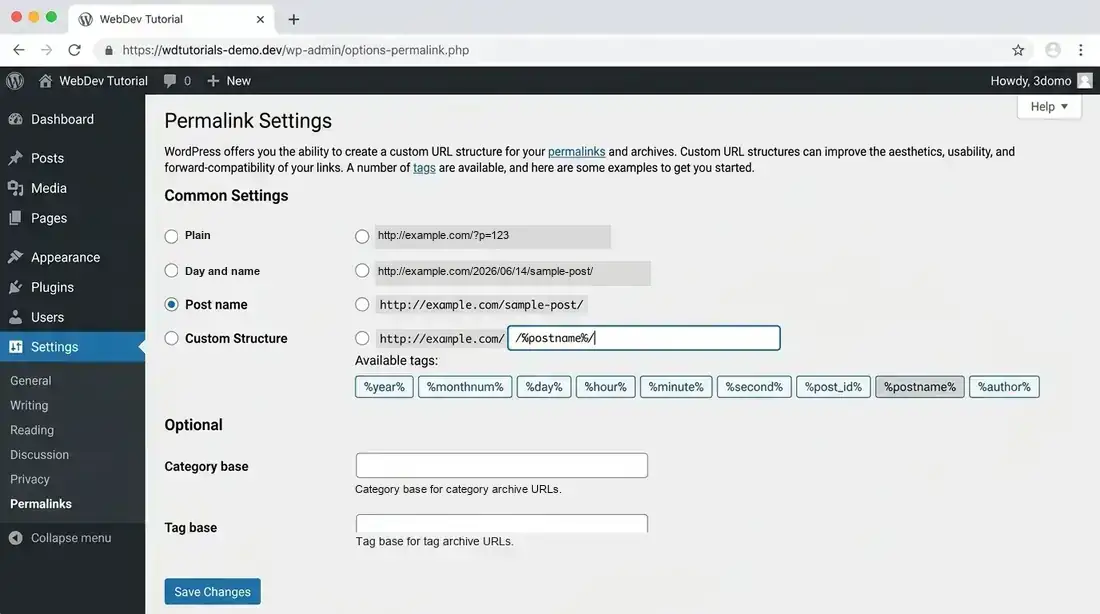
Settings → PermalinksWordPress offers several preset structures here, as well as the option to create a custom one.
On the settings page, you can choose:
- Plain;
- Day and name;
- Month and name;
- Numeric;
- Post name;
- Custom structure.
You can also set the URL bases for categories and tags here.
WordPress Permalink SettingsAfter changing the settings, be sure to click:
Save ChangesThis is more than a formality. WordPress refreshes the rewrite rules used to process URLs. That is why opening Settings → Permalinks and saving the settings often resolves issues after registering a new post type or taxonomy.
Which WordPress Permalink Structure Should You Choose?
For most content websites, blogs, and business sites, a practical option is:
/%postname%/A post URL will then look something like this:
https://site.com/wordpress-permalinks/This is a simple structure without a date, ID, or unnecessary nesting.
Why You Should Avoid Dates Unless You Need Them
For example:
/%year%/%monthnum%/%day%/%postname%/This produces:
https://site.com/2026/09/16/wordpress-permalinks/This structure makes sense for sites where the publication date is an important part of the content.
For evergreen content, however, a date in the URL is often unnecessary.
An article published in 2026 may remain relevant for many years.
Why to Be Careful with %category%
For example:
/%category%/%postname%/may create a URL like this:
https://site.com/wordpress/permalinks/At first glance, this may seem convenient.
However, changing the category may also change the post URL.
WordPress also handles %category% in a specific way when a post belongs to multiple categories: only one category appears in the permalink.
For many sites, this structure is therefore:
/%postname%/is easier to maintain over the long term.
Permalink Structure: Tags and Patterns
WordPress lets you create a custom URL structure using special tags.
The main tags include:
%year%
%monthnum%
%day%
%hour%
%minute%
%second%
%post_id%
%postname%
%category%
%author%
For example:
/%year%/%postname%/or:
/%category%/%postname%/The %postname% tag represents the post slug.
For example, this title:
How to Set Up WordPress Permalinkscould become:
yak-nalashtuvaty-postijni-posylannya-wordpressor another slug, depending on your transliteration settings.
The WordPress documentation lists all available structure tags and explains how to use them.
Category and Tag URL Bases
By default, category URLs use the base:
categoryFor example:
https://site.com/category/music/Tag URLs use:
https://site.com/tag/luciano-pavarotti/Here,
categoryand:
tagare the URL base segments.
They distinguish category archives from tag archives.
You can change them under:
Settings → Permalinks → Optional.For example, instead of:
/category/wordpress/you could use:
/topics/wordpress/And instead of:
/tag/seo/for example:
/keywords/seo/WordPress lets you change these bases, but the default settings cannot remove them from URLs entirely.
Permalinks for Pages
WordPress also uses slugs for pages.
For example:
https://site.com/about/where:
aboutis the page slug.
You can change it in the editor.
For utility pages, use short, descriptive URLs such as:
/about/
/contacts/
/services/
/privacy-policy/
/portfolio/
Avoid making a URL unnecessarily long when a shorter version communicates the same information.
Permalinks for Custom Post Types
If your site uses custom content types — Custom Post Types — you can create a separate URL structure for them as well.
For example, for a post type called:
portfolioyou can get:
https://site.com/portfolio/project-name/For:
productsthe URL would be:
https://site.com/products/product-name/Issues often occur after registering a new Custom Post Type.
For example, the post exists in the dashboard, but its URL returns:
404 Not FoundIn that situation, one of the first steps is to open:
Settings → Permalinksand click:
Save Changes.
This refreshes WordPress rewrite rules.
If the issue persists, check:
- the Custom Post Type
rewritesettings; - slug conflicts;
- registered taxonomies;
- other Custom Post Types;
- pages with the same slug;
- server rules;
- plugins that modify URLs.
Managing Permalinks with Plugins
Another way to customize permalinks is to use a dedicated plugin.
The original article covered these plugins:
- Custom Permalinks lets you assign custom URLs to individual items and manage redirects.
- Permalink Manager Lite expands URL management for different post types and taxonomies, and can be useful for more complex structures.
Plugins like these are especially useful when WordPress’s built-in options are not enough.
However, you do not need an extra plugin just to change the default URL structure.
If you need a simple structure:
/%postname%/you can configure it using WordPress’s built-in settings.
How to Use Latin Characters in WordPress URLs
If your site is in Ukrainian, a slug may contain Cyrillic characters.
For example:
https://site.com/як-налаштувати-постійні-посилання/This is technically valid.
However, after you copy it, the URL may appear in encoded form:
https://site.com/%d1%8f%d0%ba-%d0%bd%d0%b0%d0%bb%d0%b0%d1%88...That does not mean the URL is broken. Browsers and web servers support Unicode URLs.
In practice, however, many site administrators prefer Latin-character slugs.
For example:
https://site.com/yak-nalashtuvaty-permalinky/or, more concisely:
https://site.com/wordpress-permalinks/The last option is often even more convenient if its meaning is clear to your audience.
How to Create Latin-Character URLs
There are two main ways to do this.
1. Set the slug manually
You can enter a slug directly in the post editor:
wordpress-permalinks2. Use transliteration
You can use a dedicated plugin for this.
The Cyr-To-Lat Plugin
Cyr-To-Lat automatically transliterates Cyrillic characters in URLs.
It can be used for post and page titles, taxonomies, and other items that generate a slug.
Once installed and activated, the plugin can automatically create Latin-character slugs from Cyrillic titles.
For example:
WordPress Settingscould produce the slug:
nalashtuvannya-wordpressThe original article also covered changing transliteration rules under:
Settings → Cyr To LatA separate tool is available for converting URLs on existing content.
Before changing slugs across an existing site, make sure you plan the redirects.
Permalinks and SEO
A URL is part of a page’s technical structure.
A descriptive URL:
https://site.com/wordpress-permalinks/tells visitors more about a page than:
https://site.com/?p=123Search engines may use words in a URL as additional context, but their importance should not be overstated.
The main rule is to keep URLs:
- Logical;
- Readable;
- Short;
- Descriptive;
- Stable.
Do not turn a slug into a list of keywords.
Avoid:
/wordpress-permalinks-wordpress-seo-wordpress-url-wordpress-settings/A better option:
/wordpress-permalinks/A URL should describe the page, not try to target every possible search query.
How to Change the URL of a Published Page
This is where you need to be especially careful.
If a page has already been published, it may have links from:
- Other pages on your site;
- Other websites;
- Social media;
- Forums;
- Users’ bookmarks;
- Search engines.
For example, a page may originally have used this URL:
https://site.com/wordpress-url/and then changed to:
https://site.com/wordpress-permalinks/The old URL should not simply disappear.
Set up a redirect from the old URL to the new one.
301 Redirects After a URL Change
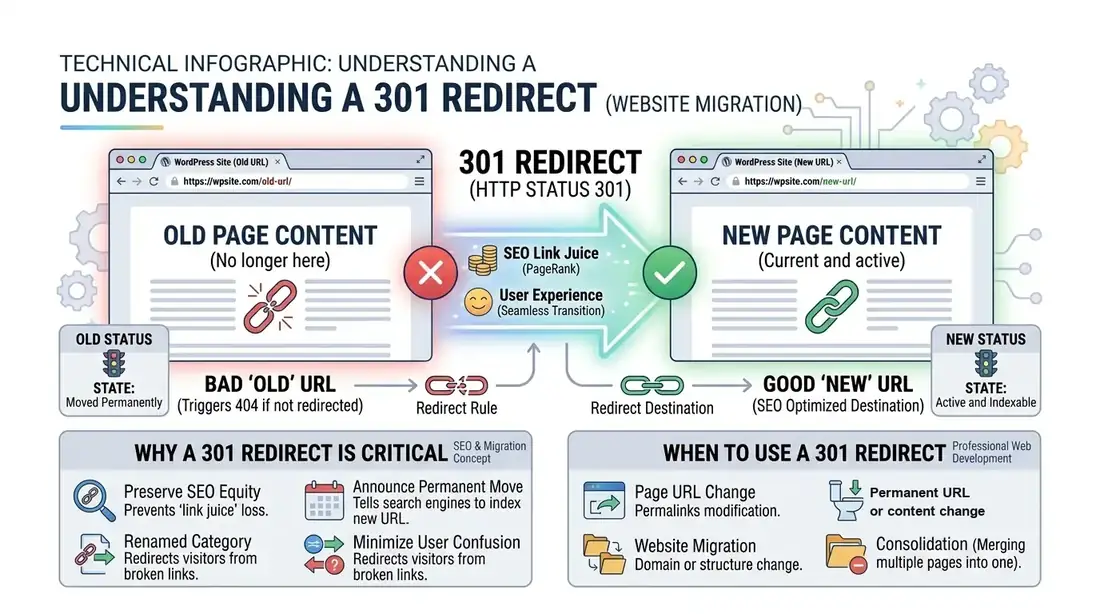
A 301 redirect is typically used for a permanent URL change.
In simple terms:
Old URL
   ↓
301 Redirect
   ↓
New URL
For example:
/old-url/redirects to:
/new-url/This sends visitors who open the old URL to the current page.
It also tells search engines that the page has moved.
Set up 301 redirects whenever you:
- Change the permalink structure;
- Change a slug;
- Move a site;
- Change categories in URLs;
- Change a domain;
- Migrate a website.
On a large site, changing URLs in bulk without carefully planned redirects can create many broken links.
Should You Change the URLs of Older Posts?
If an existing URL works, is clear, and causes no problems, there is usually no need to change it just for a different slug.
For example:
/wordpress-permalinks/is a perfectly good URL.
There is no need to change it to:
/wordpress-permalink-settings/just because the new version seems slightly better.
The more stable your URL structure is, the fewer potential issues you will have with links and redirects.
WordPress Permalinks Not Working: How to Fix a 404 Error
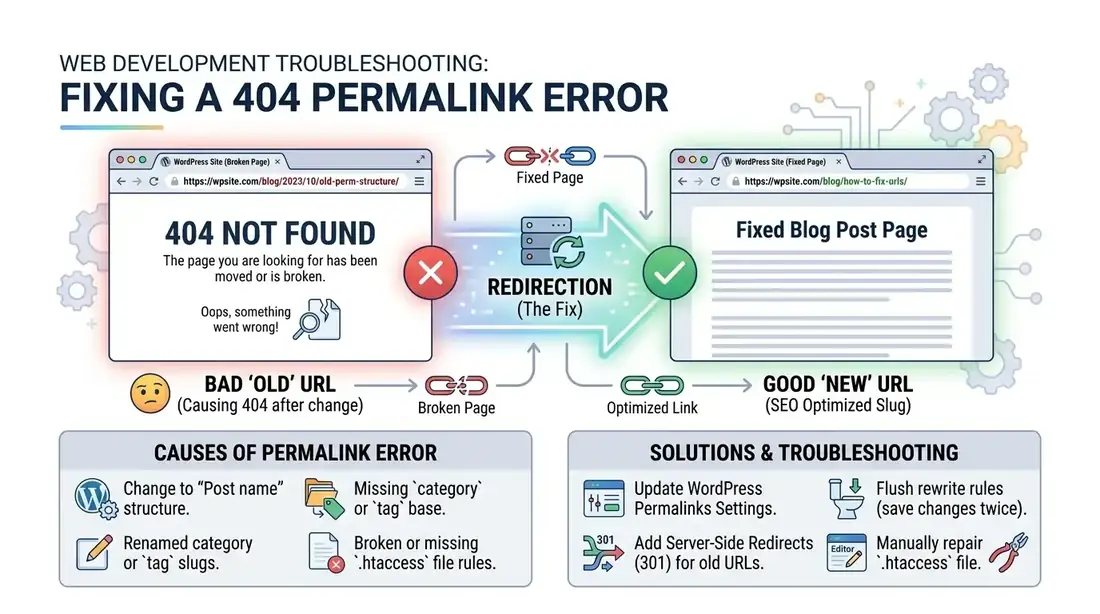
After changing the URL structure or adding a new post type, WordPress may sometimes show:
404 Not FoundThis means the server or WordPress could not find a resource at the requested URL.
First, try this:
Settings → Permalinks → Save Changes.Do this even if you have not changed anything.
WordPress refreshes rewrite rules when you save permalink settings, so this often fixes issues after a URL structure change.
If That Does Not Help
Check the following:
- Make sure the URL is correct.
- Confirm that the post or page exists.
- Check whether the slug has changed.
- Check for a duplicate slug.
- Check whether the permalink structure has changed.
- Check whether the category or tag base is incorrect.
- Check whether a plugin is blocking the URL.
- Check whether the server rewrite rules are working correctly.
- Check whether caching is causing the issue.
- Check the Custom Post Type configuration.
Checking .htaccess
On Apache servers, WordPress may use .htaccess for rewrite rules.
If WordPress cannot write the required rules automatically, the permalink settings page may show rules that you need to add to .htaccess manually.
A typical file may contain a configuration like this:
# BEGIN WordPress
<IfModule mod_rewrite.c>
RewriteEngine On
RewriteBase /
RewriteRule ^index.php$ - [L]

RewriteCond %{REQUEST_FILENAME} !-f
RewriteCond %{REQUEST_FILENAME} !-d
RewriteRule . /index.php [L]
</IfModule>
# END WordPress
Do not copy this code blindly if your server setup is different.
Back up your .htaccess file before editing it manually.
Nginx works differently: it does not use .htaccess, and rewrite rules are configured at the server level.
Permalinks Not Working After Registering a New Post Type
This is a common issue during WordPress development.
For example, you created:
portfolioor:
servicesbut the new post URL returns a 404 error.
First, try:
Settings → Permalinks → Save Changes.WordPress will regenerate the rewrite rules.
This follows how the WP_Rewrite system works: after changing URL rules, refresh them so WordPress starts using the new structure.
If the problem persists, check the code used to register the Custom Post Type.
For example, pay attention to the parameter:
'rewrite' => array(
    'slug' => 'portfolio',
),
Also check whether a page already uses the same slug:
/portfolio/This can create a routing conflict.
If Your Permalinks Are Not Working as Expected
Follow these troubleshooting steps.
1. Check the URL
Make sure the address is entered correctly in your browser.
2. Check the permalink settings
Open:
Settings → Permalinksand confirm that the correct structure is selected.
3. Save the settings again
Even if you have not changed anything, click:
Save Changes4. Clear the cache
If caching is enabled, clear the:
- WordPress cache;
- Plugin cache;
- Server cache;
- CDN cache;
- Browser cache.
5. Check the category or tag base
If the issue affects categories or tags, check their URL bases.
6. Check redirects
If you use a redirect plugin, review its rules.
An incorrect redirect can send visitors to the wrong destination.
7. Check your plugins
Plugins that handle the following can affect routing:
- Custom Post Types;
- Taxonomies;
- SEO;
- Redirects;
- WooCommerce;
- URLs;
may affect URL routing.
8. Check your theme
This is especially important if the theme registers custom post types, taxonomies, or rewrite rules.
Duplicate URLs and Slug Conflicts
Another issue occurs when different items try to use the same slug.
For example:
/about/may conflict with another item that is also trying to use:
/about/WordPress has mechanisms to prevent these conflicts, but complex sites with many Custom Post Types and taxonomies may need a manual review.
Pay particular attention to slugs for:
- Pages;
- Categories;
- Custom Post Types;
- Custom Taxonomies.
Should You Include Categories in URLs?
There are two common approaches.
Option 1
/%postname%/For example:
/wordpress-permalinks/Advantage: a simple structure.
Option 2
/%category%/%postname%/For example:
/wordpress/wordpress-permalinks/Advantage: the URL immediately shows the category.
Disadvantage: changing the category may affect the post URL.
Before choosing a structure, consider not only how your site is organized today, but also how it may look several years from now.
Permalinks and WooCommerce
On WooCommerce sites, URL structures become more complex because they include:
- Products;
- Product categories;
- Product tags;
- Attributes;
- Shop pages;
- Cart;
- Checkout;
- My account.
For that reason, avoid changing global permalink settings on a store without careful planning.
Before making changes, check which URLs are used by:
/product/
/product-category/
and other store components.
After changing the structure, check not only posts but also products, categories, and other important pages.
Common URL Configuration Mistakes
Changing Slugs Too Often
Do not change an article URL every time you think of a better keyword.
Creating URLs That Are Too Long
Avoid:
/how-to-correctly-configure-wordpress-permalinks-and-url-structure-for-seo/A better option:
/wordpress-permalinks/Using Unnecessary Parameters
If a descriptive slug can convey the information, there is no need to make the URL more complex.
Adding Dates Without a Good Reason
A date may make sense for a news site.
It is not always necessary for a reference article.
Changing an Existing Site’s Structure Without Redirects
This is one of the most serious mistakes you can make.
Using %category% Without Planning Your Categories
If categories change frequently, URLs may change too.
Stuffing URLs with Keywords
A slug should read naturally, not like a list of search queries.
Practical Recommendations for URL Structure
For a new content-focused site, you can start with:
/%postname%/For example:
/wordpress-permalinks/For pages:
/about/
contacts/
services/
For categories:
/category/wordpress/or use a custom base:
/topics/wordpress/For tags:
/tag/seo/or:
/keywords/seo/The key is to choose a structure once and avoid changing it unless necessary.
How to Make URLs as Clear as Possible
When creating a slug, ask yourself a simple question:
Can you tell what this page is about from its URL?
For example:
/wordpress-permalinks/Yes.
/?p=583No.
/article-about-wordpress-and-permalinks-and-url-settings/Too long.
The best URL is usually somewhere in between: descriptive enough to be useful, but not overloaded.
WordPress Permalinks FAQ
What are permalinks in WordPress?
These are the URLs used to access posts, pages, categories, tags, and other items on a site.
Which permalink structure should I choose in WordPress?
For most content-focused sites, the /%postname%/ structure is a good choice. It creates short URLs based on the post slug.
Can I use Cyrillic characters in a URL?
Yes. Cyrillic URLs are technically supported. However, many sites use Latin-character slugs for easier URL handling.
Should I use Latin characters in URLs?
It is not a strict requirement. Latin-character URLs are often easier to copy, share, and handle manually.
Do permalinks affect SEO?
URL structure is one aspect of technical SEO. Clear URLs help users and search engines better understand page structure, but a URL alone does not guarantee high rankings.
What should I do if a 404 appears after changing a permalink?
Go to Settings → Permalinks and click Save Changes. If that does not help, check the rewrite rules, .htaccess or server configuration, cache, plugins, slugs, and possible conflicts.
Can I change the URLs of older posts?
You can, but do so carefully. After changing an old URL, set up a 301 redirect from the old URL to the new one.
What is a slug?
A slug is the URL-friendly part of a page or post address that comes after the domain. For example, https://site.com/wordpress-permalinks/. The slug is wordpress-permalinks.
Why does a 404 occur after creating a Custom Post Type?
In most cases, you need to refresh the rewrite rules. First, go to Settings → Permalinks and click Save Changes. If that does not help, check how the Custom Post Type is registered and look for possible slug conflicts.
Conclusion
Permalinks are an important part of a WordPress site’s structure. They determine the URLs used for posts, pages, categories, tags, and other content types.
Most content-focused sites can use a simple structure:
/%postname%/This produces a short, descriptive URL:
https://site.com/wordpress-permalinks/When creating a slug, use a short, descriptive phrase and avoid changing the URL unless necessary.
If you do need to change the URL of a published page, set up a 301 redirect from the old URL to the new one.
If a 404 appears after creating a Custom Post Type or changing the structure, first open Settings → Permalinks and save the settings again.
A well-planned URL structure is about more than SEO. It is part of your site architecture and affects usability, internal linking, external links, and the long-term management of WordPress.

